Windows 365: Considerations for Privileged Access Workstation (PAW)
Introduction
This is the fourth part of the Windows 365 series on my blog that showcases a use case with Windows 365: the Privileged Access Workstation (PAW).
Disclaimer
Why a PAW?
There are many motivations behind a PAW, but most of the time they originate from a strategic decision to implement a tiering/enterprise access model during a security initiative of an enterprise. Every organization that uses Microsoft (and other) technologies should consider to implement PAW for an improvement & reinforcement to their security posture.
On the other side, we want to disrupt the attackers ROI (return on investment) when he approaches to get access to the organizations most valuable goods. We use the PAW as element to create a layer that is specially secured and has full access to all the valuable goods for authorized staff to manage the whole/part of the technical infrastructure.
PAW characteristics
First, we need to clarify what makes a system a PAW:
- A system that has the highest level of security
- Designed for roles (typically administrative permissions on most or all enterprise systems, or business critical) that could easily cause a major incident and potential material damage to the organization in the hands of an attacker or malicious insider
- Deployment strategy is built on Zero Trust principles of explicit validation, least privilege, and assumption of breach
PAW strategy sources
Microsoft provides some great sources on a privileged access strategy. Including securing devices as as part of the privileged access story. During the implementation, you can also make use of the GitHub repo officially by Microsoft.
Control mechanics
Let's first start with the control mechanics, so the applicable technology fields that will be involved.
Device security controls
Below is a list of which device security control planes can get to work. The list is from Microsoft and I added some more points to the stack and marked them with a * (Asterisk).
- Intune managed
- Deny BYOD Device enrollment (incl. Autopilot)
- Intune security baseline applied
- Microsoft Defender for Endpoint onboarded
- URLs restricted to an approved list
- Removal of admin rights
- Application execution control (App Control for Business)
- Apps only installed by Intune
- Hardware root of trust*
- Entra only joined* / separation to the on-premises infrastructure
- Conditional Access strictly enforced with limiting on device ID*
- Global Secure Access client restrictions*
- Monitoring the PAW infrastructure with Sentinel incl. Intune*
Microsoft ecosystem
Throughout the design of a PAW, we will need multiple Microsoft cloud products. Some for endpoint management, others for identity & security. See them listed:
- Windows 365 - a Cloud PC (VM) that is hosted by Microsoft
- Intune - endpoint management > configure our Windows 365 machine on the system level to make it a PAW
- Microsoft Entra - identity & access management > make identity the primary security perimeter to access our PAW
- Conditional Access - key IAM protection mechanism > define policies to make identity the security perimeter
- Defender for Endpoint - extended detection & response > monitor and mitigate threats on the PAW (extension of Defender Antivirus)
- Global Secure Access - security service edge, unite networking security with identity > apply controls at the network layer
- Sentinel - security information & event management, security orchestration automation & response (SIEM/SOAR) > security operations tool for monitoring the whole digital infrastructure
Learn more about all of them on my blog series:
Windows 365
The platform for our PAW, is Windows 365 - your Windows cloud experience! There are multiple benefits, if we decide to host our PAWs on it:
- 🚀 Easy deployment - W365 is deployed easily through Intune, you don't need to host own infrastructure, kickstart policy configuration with Intune, and the Cloud PC is provisioned within less than an hour
- 🗿 Isolation - W365 is hosted in the datacenter of Microsoft, therefore, a potential impact to your infrastructure, will not affect your Cloud PCs
- 💵 Predictable cost - W365 is billed on a monthly basis per user, it is a fix license cost that is defined by the hardware specification
- 🧑💻 Dedicated workspace - with W365 every user gets an own Cloud PC provisioned (even with the Frontline license) this is a dedicated and separated
Learn more:
Recommended setup for a PAW
For a simple and secure deployment, I would recommend the following setup for Windows 365 (reflected as a provisioning policy)
- Join type: Microsoft Entra Join
- Network: Microsoft hosted network
- Geography, Language & region: closest/ fitting to you
- Use Microsoft Entra single sign-on
- Gallery image: Windows 11 Enterprise + OS optimizations
- Cloud PC naming: CPC-PAW-%RAND:6%
- Assignment to group where admin accounts are member of (+licensed)
Intune
To successfully deploy Intune, it requires some pre-knowledge. But I have covered many concepts and solutions in my blog series.
Key elements
From the device security controls from Microsoft, the following things are achieved with Intune:
| Requirement | How to handle | Implementation effort (general estimate) |
|---|---|---|
| Intune managed | W365 is automatically Intune managed | ✅ none |
| Deny BYOD Device enrollment (incl. Autopilot) | W365 can't be BYOD | ✅ none |
| Intune security baseline applied | At least apply built-in Intune baselines, or better create & verify manually More information in this blog post | ❗️ High |
| Microsoft Defender for Endpoint onboarded | Achieved through an Endpoint Security > Endpoint Detection & Response (EDR) policy, Defender for Endpoint connector must be enabled More information in this dedicated blog post | ❗️ High |
| URLs restricted to an approved list | Use a Proxy configuration (Intune device restriction configuration profile) or rely on Defender for Cloud Apps or rely on Global Secure Access | 🟠 Medium - ❗️ High |
| Removal of admin rights | Recommended to implement LAPS and create an Endpoint Security > Account Protection Policy to restrict the local administrators group | 🟢 Low |
| Application execution control (App Control for Business) | Implement App Control for Business and restrict to Edge browser only and system files | 🟠 Medium |
| Apps only installed by Intune | Implement App Control for Business and add Managed Installer from Intune, provide PAW software through Intune apps or Company Portal | 🟠 Medium |
Configuration
In this, I will show you a few configuration parts of W365 + Intune. It is a good idea to read my Intune integration management post prior to this, because I will only show supplementary PAW configurations.
Security Baselines
Security baselines provide the foundation of security in the OS. They consist of a set of policies that strengthen and reinforce Windows, Microsoft 365 Apps and Edge security. Security Baselines must be deployed on a PAW. Continue reading:

Defender for Endpoint
For Extended Detection & Response (XDR), Defender for Endpoint should be part of the PAW. Simply deploy an Endpoint Security > Endpoint Detection & Response profile with the onboarding package. Learn more about the setup:

Defender for Endpoint provides valuable insights to the PAW machine and helps to remediate threats. Consider creating a dedicated device group, based on e.g. the tag to automatically fully remediate threats.
URL restriction (Proxy)
URL restriction can be configured in Intune, although it may not be the best way to ensure network security. You can configure an Intune device configuration profile > Device restriction
Configure a manual proxy server with the address 127.0.0.2:8080 and add all necessary Microsoft and admin URLs to proxy exceptions.
Removal of admin rights
Removing the local administrator rights on the machine is an essential part, when it comes to securing the system. Administrative rights are only needed for system configuration or other impactful actions, which may be misused. To remove local admins, create an Endpoint Security > Account Protection > Local user group membership policy accordingly:
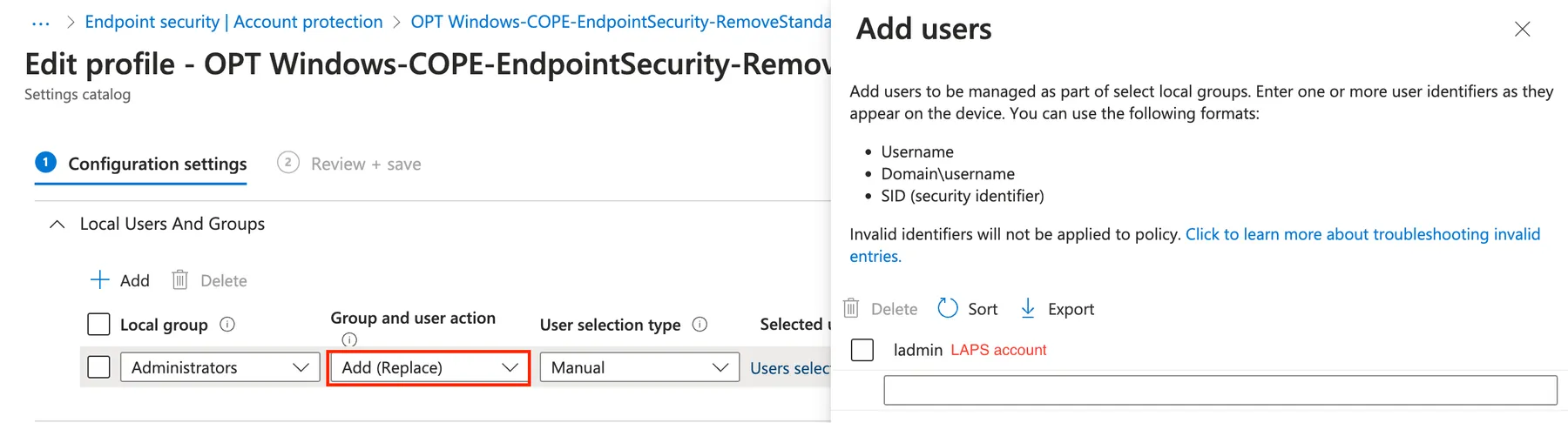
Furthermore, my recommendation is to implement Windows LAPS:

App Control for Business
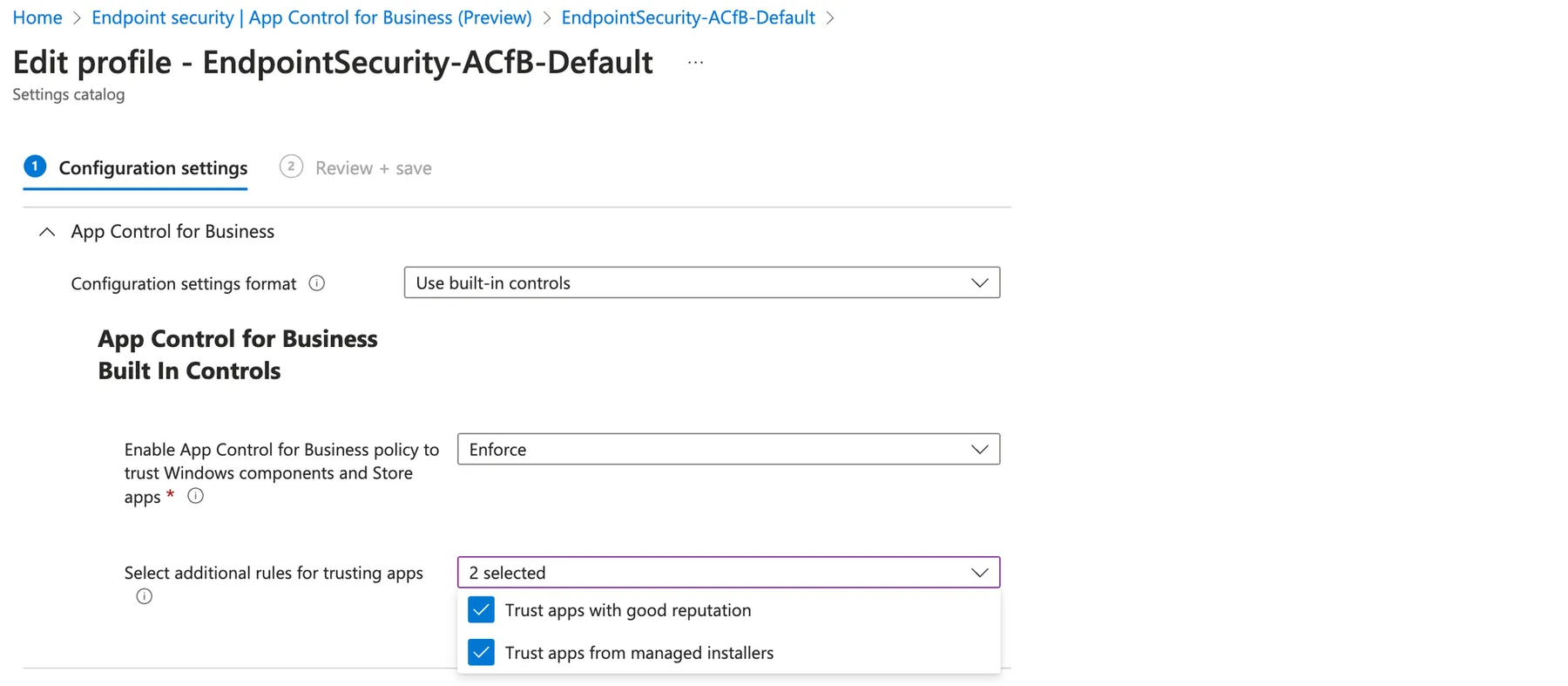
App Control for Business (previously WDAC and components of AppLocker) controls the execution of software on Windows. In terms of security, this is one of the most effective implementations, since we can define a set of allowed software to run and block everything else. Configure at Endpoint Security > App Control for Business. The simplest deployment to block anything except Windows components, Store apps, apps from managed installers (Intune) and good reputation would look as following:
Firewall
The strongest network security hardening is achieved by locking down the Windows Firewall. Follow the security baseline and create custom rules accordingly to the framework.
- Block all inbound traffic, except Delivery Optimization and connection to W365 machine
- Block all outbound traffic, except DNS, DHCP, NTP, NSCI, HTTP, and HTTPS traffic
- Disable local policy merge
- Enable logging
Conditional Access
Conditional Access will be used to setup up policies on the identity level to grant access under specific conditions or block access. Learn more about Conditional Access:

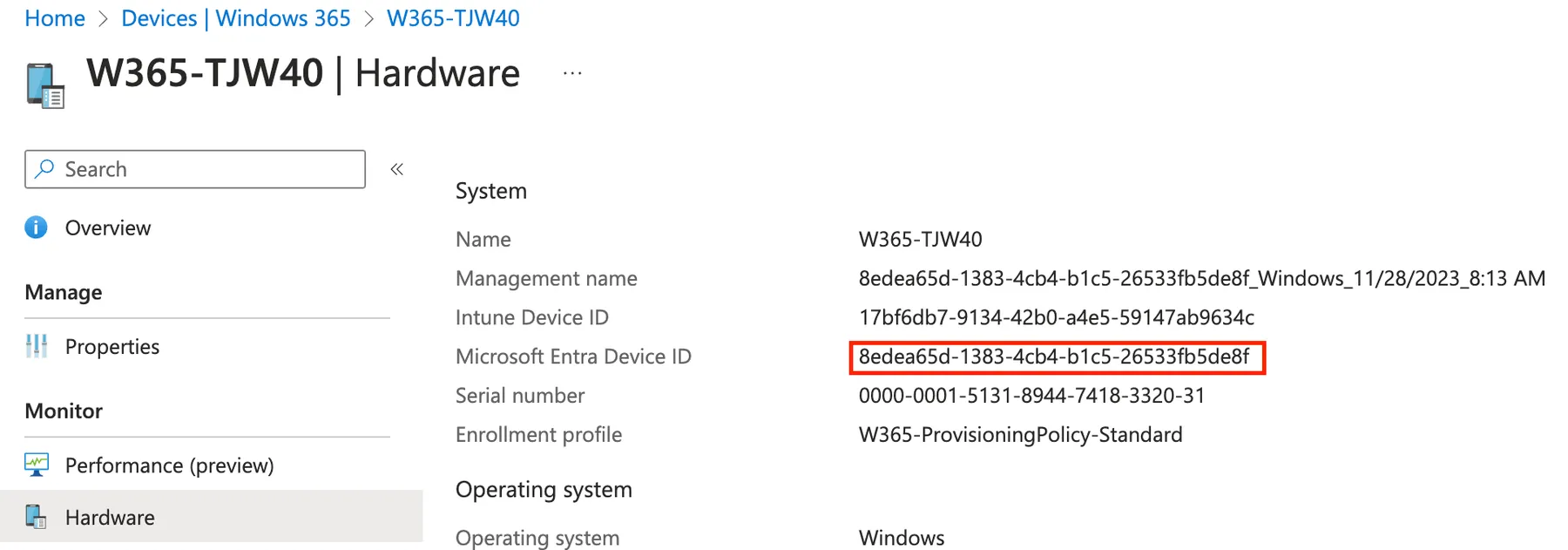
I am making use of the PAW device ID's which are generated after provisioning and uniquely identify a device, which is the most granular control. To find the Entra device ID, have a look at the W365 machine in Intune under hardware:
Recommended policies
Starting with these policies is a good starting point:
- CA01 PAW: Require phishing-resistant MFA authentication for access on PAW
A policy that requires phishing-resistant MFA (Windows Hello for Business, FIDO2 key or certificate-based authentication) to access your PAW. This will ensure, that the access is secured for authorized staff and attackers can not phish the authentication process.
| Conditional Access part | Configuration |
|---|---|
| Users | Include all users, exclude your breaking glass account |
| Target resource | Windows 365 |
| Conditions | Include filter for devices Rule syntax: device.deviceId -eq "<insert PAW Entra device ID>" (extend with -or for multiple PAW IDs) |
| Grant | Require authentication strength: Phishing-resistant MFA |
- CA02 PAW: Only allow access to admin portals from PAW
A policy that only allows access to Microsoft admin portals (or others if added additionally) from the PAW. Any other attempt to reach the portals, than PAW is not possible.
| Conditional Access part | Configuration |
|---|---|
| Users | Include all users, exclude your breaking glass account |
| Target resource | Microsoft Admin Portal Add any other cloud portals only accessible from PAW |
| Conditions | Exclude filter for devices Rule syntax: device.deviceId -eq "<insert PAW Entra device ID>" (extend with -or for multiple PAW IDs) |
| Grant | Block |
- CA03 PAW: Admins only allowed to sign-in on PAW
A policy that blocks sign-ins from users with assigned roles to any Microsoft service, except Windows 365 and Azure Virtual Desktop. Sign-ins from the PAW device IDs are ignored. Admins can sign-in everywhere from their PAW.
| Conditional Access part | Configuration |
|---|---|
| Users | Include all roles, exclude your breaking glass account |
| Target resource | Include All apps, exclude Windows 365 and Azure Virtual Desktop |
| Conditions | Exclude filter for devices Rule syntax: device.deviceId -eq "<insert PAW Entra device ID>" (extend with -or for multiple PAW IDs) |
| Grant | Block |
Global Secure Access
GSA, security service edge introduces lots of new capabilities related to networking security. For PAW, we can make use of this too:
- 🔐 Control the network layer, apply policies and monitor behavior
- 🏢 Provide access to internal servers without any additional VPN solutions in the Microsoft hosted network, with first-party products
- 🕵️♂️ Secure access to Internet traffic and limit useable SaaS apps
More on GSA:

Combining W365 PAW + GSA
- Private Access - Establish access to internal resources, e.g. jump host server
- Internet Access - Web content filter, limit HTTP/HTTPS traffic to admin URLs
powered by
Related posts