Windows LAPS: the comprehensive guide

Introduction
This post features Windows LAPS with its most important specifications and what you need to know high-level. Both Active Directory and Entra ID scenarios are described.
Overview
Windows LAPS is generally available: on Windows since the April 11, 2023 update, and with Microsoft Entra ID and Intune since October 23, 2023.
The Local Administrator Password Solution is a familiar Microsoft product which is responsible for managing and backing up the password of the local administrator account to Active Directory or Microsoft Entra ID.
The aim is to control local administrator rights and protect against pass-the-hash and lateral-traversal attacks. General administrator accounts where the credentials are shared on multiple devices are a security vulnerability.
Features
General
- Native integrated in Windows (see supported Windows platforms)
- Store password in Active Directory or Entra ID
- Password history
- Post Authentication Actions on/after use of LAPS account
- New PowerShell module
Entra ID
- Integration to Intune (password retrieval & rotate remote action)
- Configuration through Settings Catalog
AD
- New schema attributes
- Domain Services Restore Mode (DSRM) password support for LAPS
- Configuration with GPO
- Support for encryption
Architecture
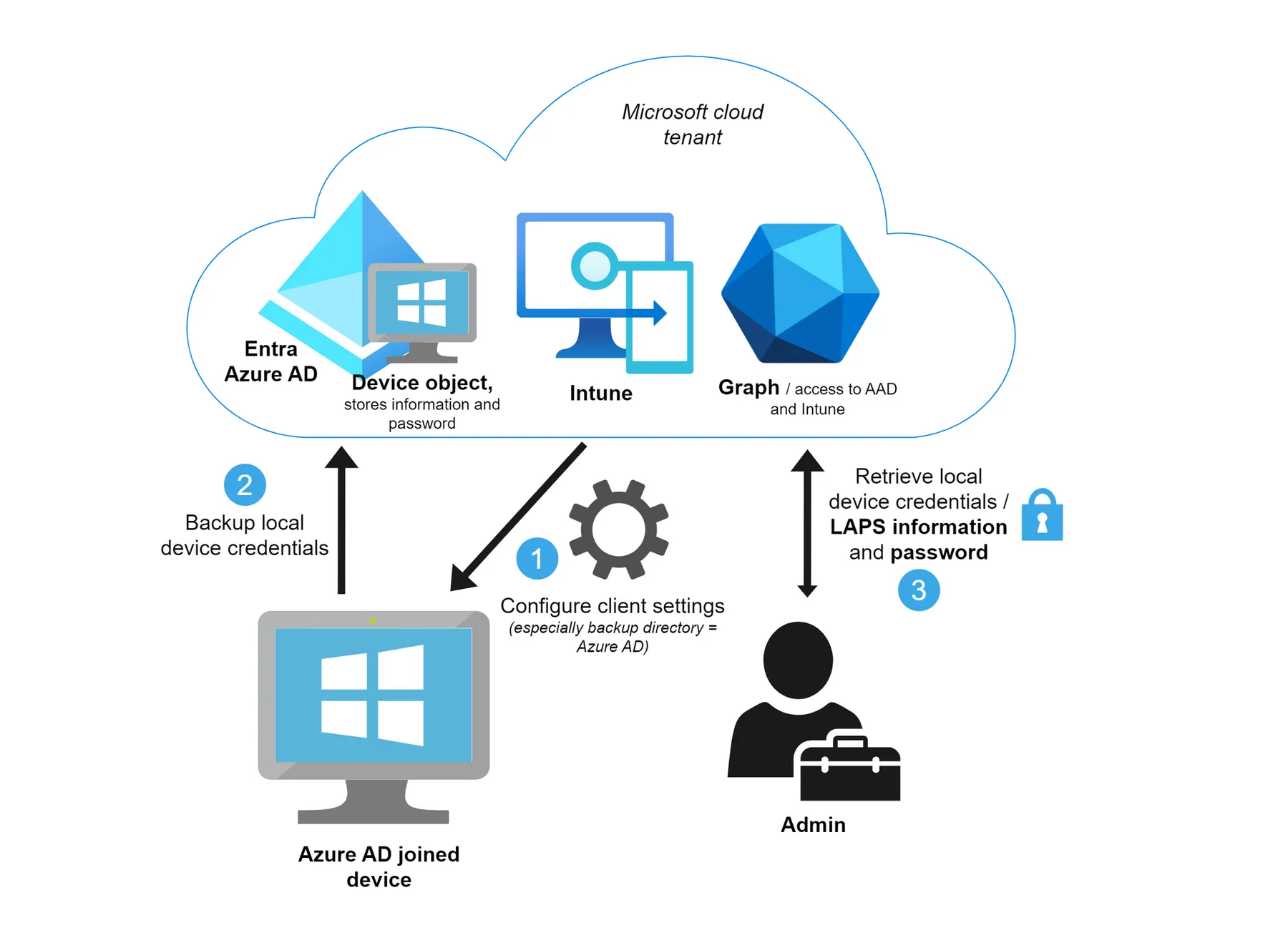
Backup directory
The backup directory can either be Active Directory or Entra ID, but only one per device.
Password retrieval
Entra ID
- Uses with assigned built-in roles (Intune Admin, Cloud Device Admin or Global Admin) can read the password. See all roles with LAPS permissions
- Limit access for admins to a set of devices with Administrative Units - view post
AD
Create an AD group to:
- Configure the GPO setting ADPasswordEncryptionPrincipal with an user, group or SID (preferred) that can decrypt the encrypted password (If password encryption is enabled)
- Set AD extended rights to set permissions on OU level with “Set-LapsADReadPasswordPermission” to read the password
Built-in admin
The built-in administrator account of Windows has no lockout threshold and has a well-known SID. So attackers can easly brute-force this account.
From a security perspective, I would recommend to create a dedicated administrator account that is managed by Windows LAPS.
- For Intune you can use Remediations. My colleague Nicola already created a script package: Detection script and Remediation script
- For AD you can create a similar script or use GPO
Post authentication action
A recently added functionality requires an action to be performed after authentication with the LAPS managed account. This action will be triggered by both successful and failed authentication events. (Event ID 10041) Choose from:
- Reset password
- Reset the password and logoff
- Reset the password and reboot
Implementation overview
Before you start with the implementation, I recommend you to go through the following steps:
- Check prerequisites
- Analyze current LAPS configurations (for AD)
- Think about password retrieval and built-in admin
- Review the configurable settings
- Choose the scenario:
Microsoft Entra ID
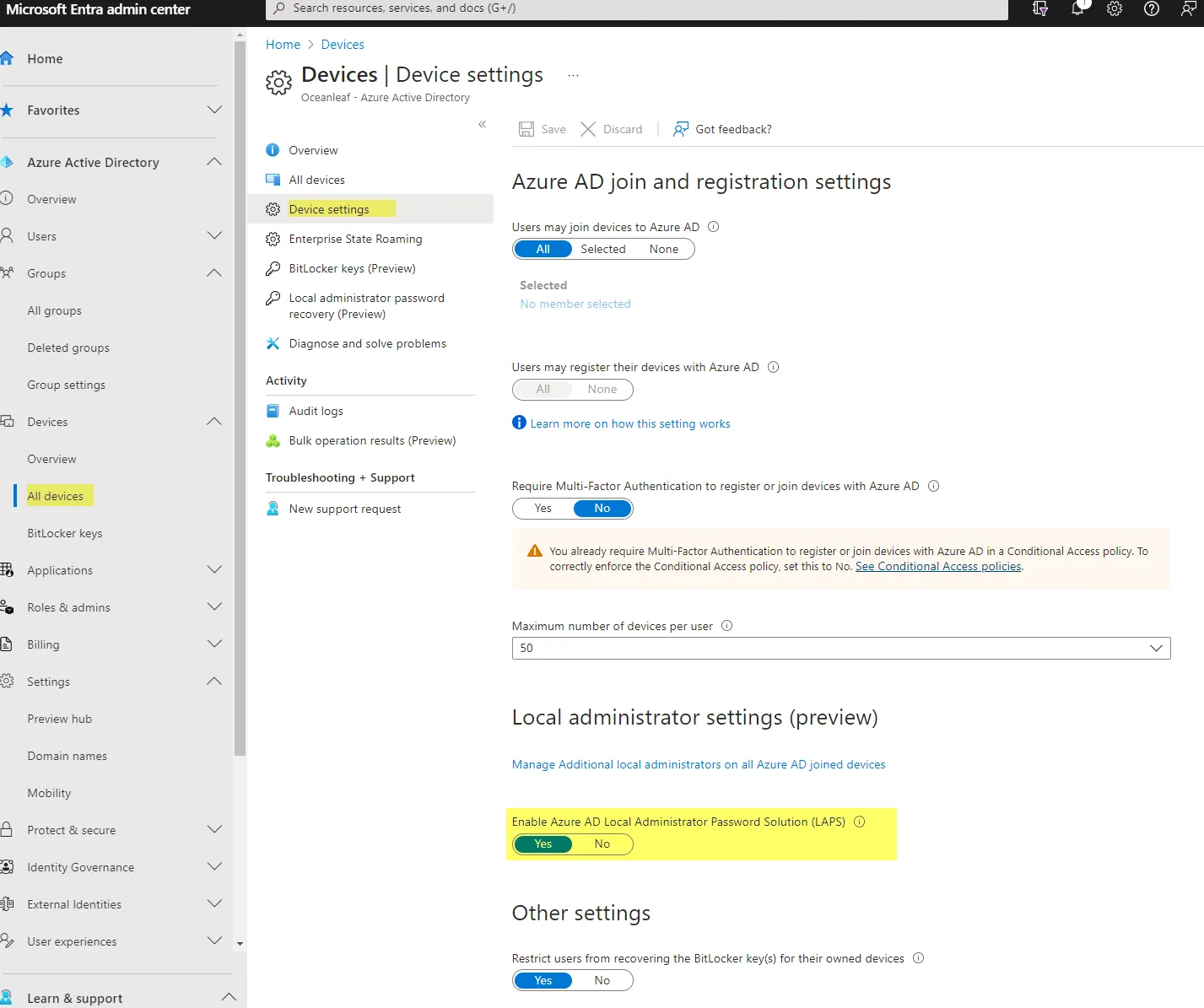
- Enable Windows LAPS in your tenant
2. Create and assign an Endpoint Security>Account Protection, Windows LAPS policy in Intune
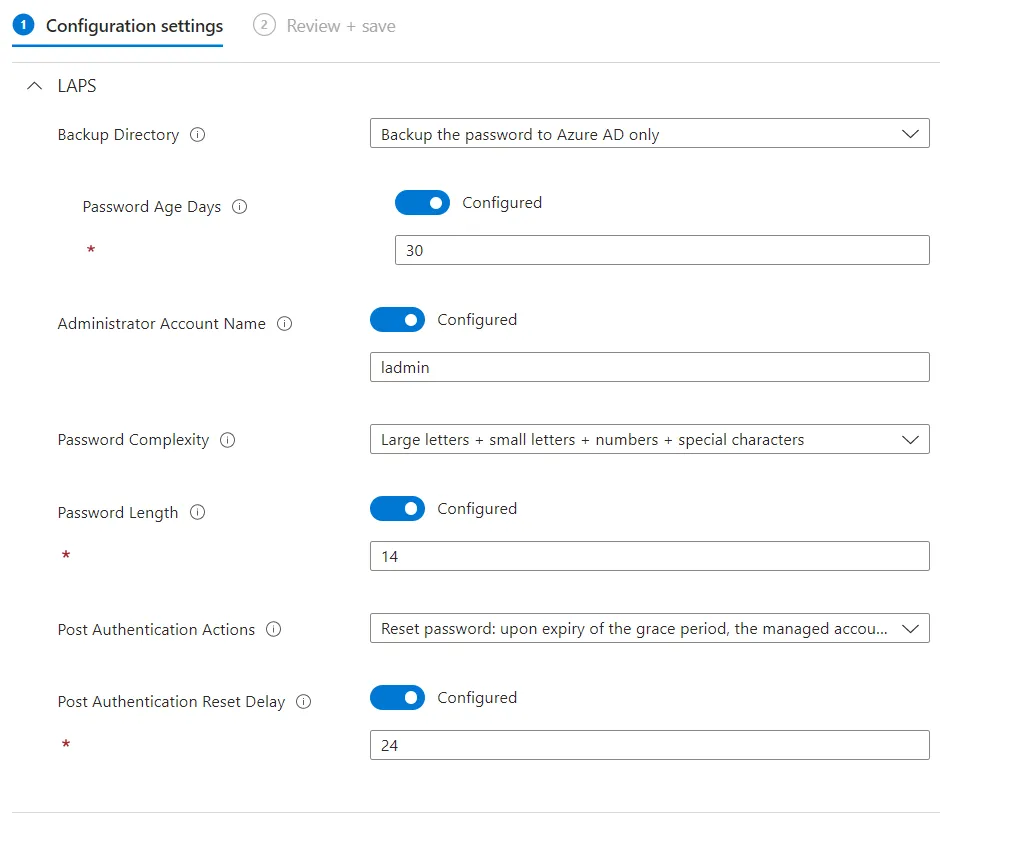
Here you go! That's everything you need to do to get it working.
Password retrieval & rotation
Local admin credentials can be obtained through the Intune portal on the device (if you have the right permission/role):
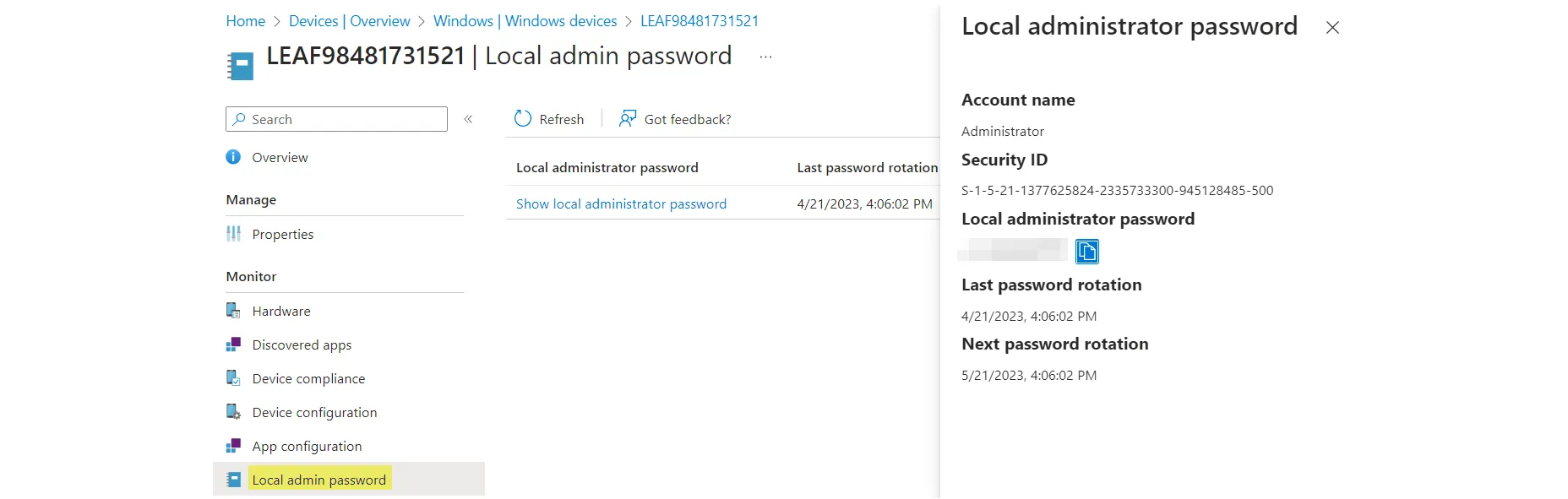
Alternatively also found in Entra ID>Devices>Local administrator password recovery
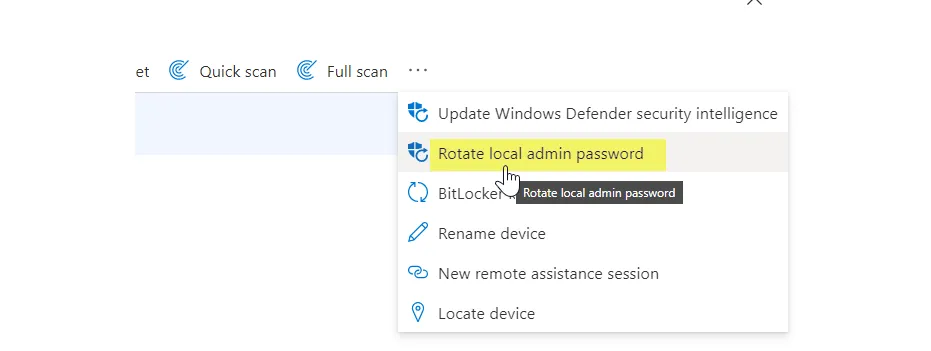
Rotation can also be done on the device object as a remote action:
Active Directory
Before you can start with the implementation in AD you need to set your starting point. Either you didn't have legacy LAPS configured > Greenfield or you already have LAPS > Migration.
The implementation steps are the same, but you have to do some more considerations and tasks for a migration.
- Check prerequisites
- Update your domain controller
- Update the Windows Server Active Directory schema
- Grant the managed device permission to update its password
- Remove Extended Rights permissions and grant extended rights with "Set-LapsADReadPasswordPermission -Identity OU -AllowedPrincipals AD group"
- Optional: Enable auditing with "Set-LapsADAuditing -Identity OU -AllowedPrincipals AD group"
- Copy C:\Windows\PolicyDefinition\LAPS.admx and \en-US\LAPS.adml to \corp.net\SYSVOL\corp.net\Policies\PolicyDefinitions and \en-US
- Configure and link a new GPO - Computer Configuration > Policies > Administrative Templates > System > LAPS
Migration from legacy LAPS
There are a few key points to consider when you want to migrate LAPS. Generally, I would advice you to create an additional and dedicated local administrator account for the new Windows LAPS management. This will allow you to maintain legacy LAPS and will not interfere its functionality. (Official source)
Recommendations for cleanup
Any legacy LAPS setup can contain:
GPO
Unlink the GPO and delete at a later time.
Extended rights
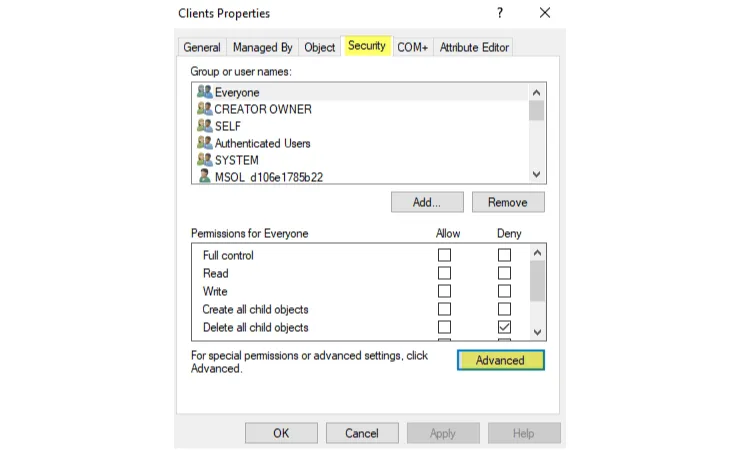
Find extended rights with "Find-AdmPwdExtendedRights" and remove the special permissions from the OU:
- Read ms-Mcs-AdmPwd
- Read ms-Mcs-AdmPwdExpirationTime
- Write ms-Mcs-AdmPwdExpirationTime
Legacy LAPS agent
Usually only the CSE component was installed, but you can remove the whole LAPS package:
MsiExec.exe /x {EA8CB806-C109-4700-96B4-F1F268E5036C} /qnDisable account
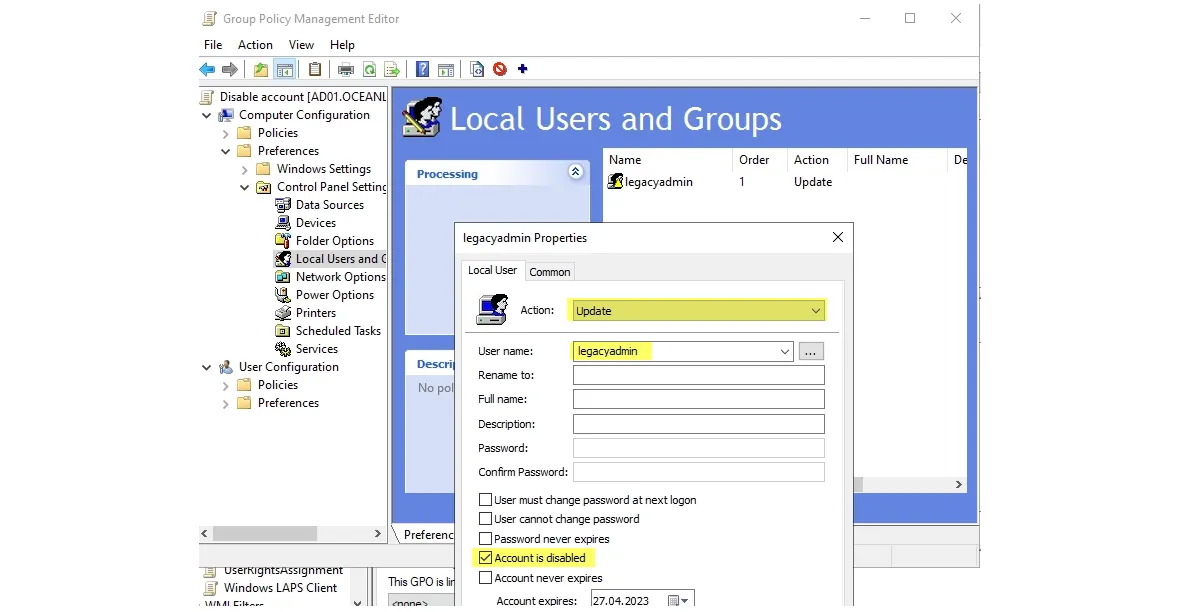
You also want to disable the account that legacy LAPS was managing. (In case you now have a new dedicated for Windows LAPS) For this, leverage a GPO:
Schema extension
Not recommended to remove the schema attributes from legacy LAPS.
Resources
Monitoring
Event viewer
Applications and Services Logs>Microsoft>Windows>LAPS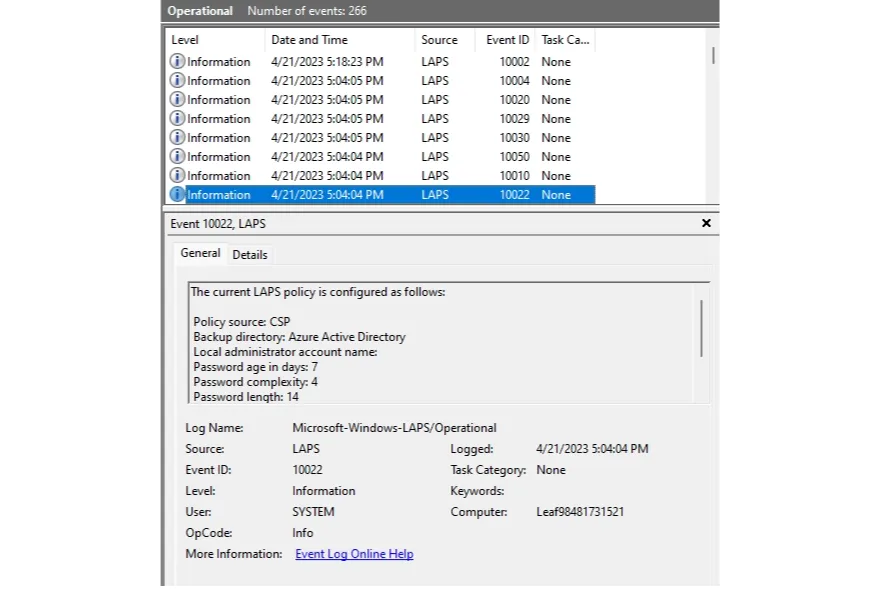
Registry
| Policy type | Policy registry key root |
|---|---|
| LAPS CSP (from Intune) | HKLM\Software\Microsoft\Policies\LAPS |
| LAPS Group Policy | HKLM\Software\Microsoft\Windows\CurrentVersion\Policies\LAPS |
KQL
AuditLogs
| where TimeGenerated > ago(360d)
| where OperationName == 'Recover device local administrator password'
| mv-expand TargetResources
| extend DeviceName = TargetResources.displayName
| extend Actor = InitiatedBy.user.userPrincipalName
| extend DeviceId = TargetResources.id
| project TimeGenerated, ActivityDisplayName, Actor, DeviceName, DeviceId
Source: Gist by nicolonsky
Related posts