
Introduction
This post is a summary for Defender for Endpoint security settings management, also known as Unified Settings Management. It will walk through all necessary steps to understand, plan, setup and use the features. Furthermore I will give recommendations for field deployments, tips and more. There are already some good posts on this topic, but I wanted to make my own summary, also as part of a learning process.
What is Unified Settings Management?
Defender for Endpoint (MDE) is a cloud-based extended detection and response (XDR) product that lives in the Microsoft cloud ecosystem. Security settings management is a feature part of it.
Intune plays an important role for this feature, since device management is originally reserved to Intune. Device management i.a. means configuration management, which is the process of applying policies that contain settings to configure a system.
Security settings management leverages concepts of Intune to deploy security settings to endpoints/devices, without the need of Intune 😉 That means, settings management from Defender can be used to deploy policies to devices which are only known to Defender for Endpoint. In a nutshell:
- Device is only onboarded to Microsoft Defender for Endpoint
- In Defender for Endpoint you can configure security configuration policies
- Defender for Endpoint can apply those client-side security policies on those systems
Management comparison 🧭
It might be helpful to understand the scope of different management scenarios.
| Option | MDE Settings Management | "Classic" Intune onboarding |
|---|---|---|
| Configuration management scope | Minimal -> only security policies | Full configuration of every system aspect |
| Onboarding | With package and installation script | User- / device onboarding |
| Remote actions | Defender for Endpoint supported ones > security related | Intune > more system and general |
| Client deployment mechanism | New DM / MMP-C (read more) | Classic MDM + IME |
| Prerequisites | URL availability (dm.microsoft.com) and MDE configuration | URL endpoints, MDM scope, enrollment settings, policies in Intune |
| Licensing | Defender for Endpoint license | Intune license (at least plan 1) |
Use cases
There are a few scenarios to choose Defender security settings management, such as:
- ☁️ Secure with cloud-only: Apply policies and manage with fully cloud-based Defender for Endpoint. Onboarded devices have no dependencies.
- 🪶 Secure non-enrolled endpoints: No full enrollment into Intune or other MDM is needed. Any endpoint can be equipped with this feature, ranging from BYOD up to corporate endpoints that are not (yet) in Intune.
- 🛂 Securing non-domain endpoints: Devices, particularly servers may be outside of the corporate domain, in a DMZ or similar. Since no other management system is in that zone, you can use security settings management and configure from the cloud.
Advantages
The advantages of this feature include:
- Only Defender for Endpoint onboarding needed, no Intune enrollment
- Fully cloud-based, no dependency to network or on-premises resources
- Easy configuration and management
- Central settings monitoring
- Cross-platform support
Prerequisites
- Licenses: Defender for Endpoint
- Roles and RBAC: Security administrator
- Supported platforms: Windows 10/11, Windows Server, macOS, Linux
- Connectivity: new network endpoint: *.dm.microsoft.com and ideally also to Intune + Defender network endpoints
- Join state: No need to join via Entra or hybrid -> synthetic registration read more - Devices that are already joined will be satisfied.
Concept
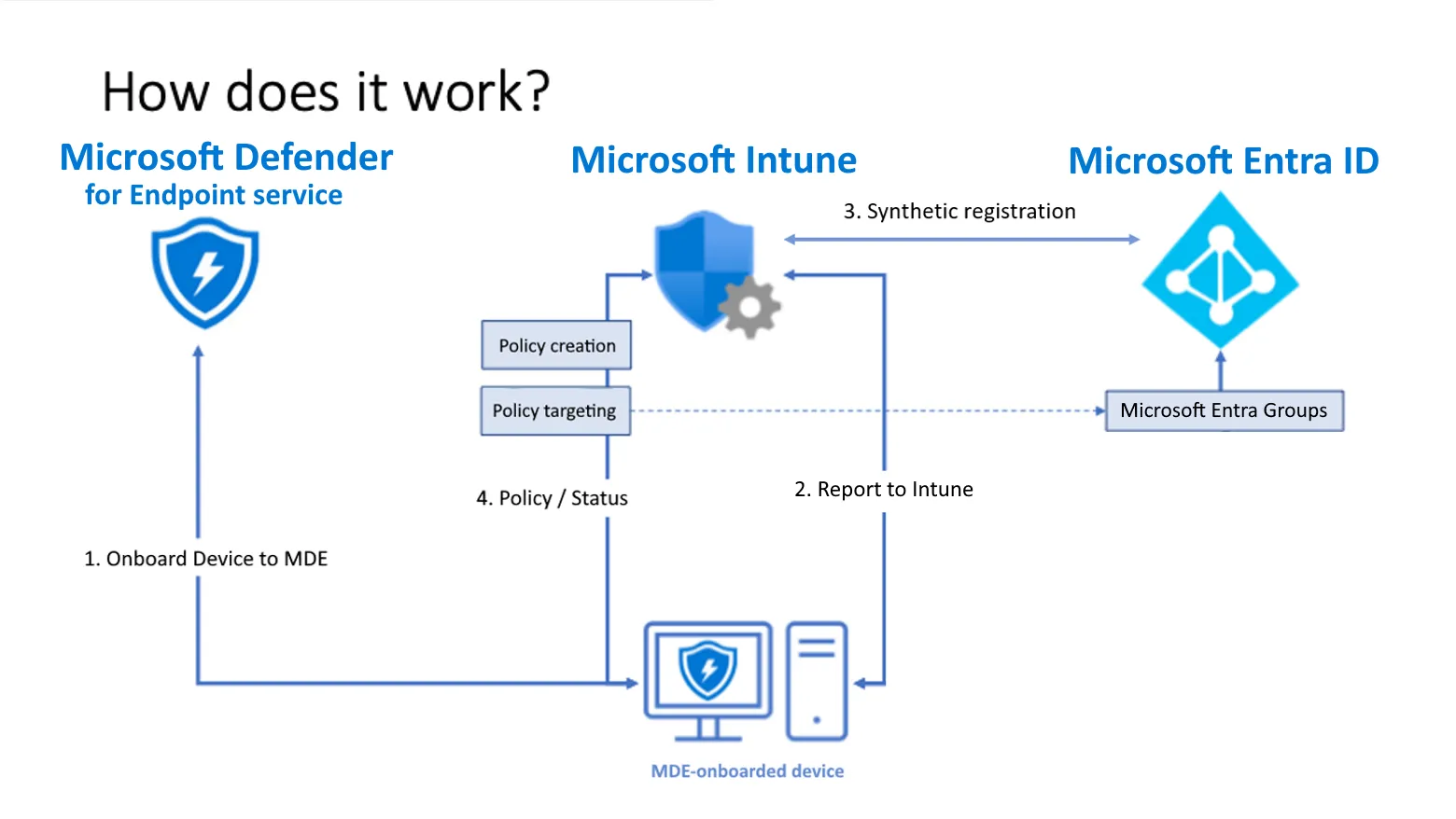
Intune and Defender for Endpoint work together to apply endpoint security policies on MDE onboarded devices. A specialty is in step 2./3.: Devices will get a record in Intune in order to target them with policies. In case it is not yet in Intune or not fully registered in Entra ID, it will automatically generate a so-called synthetic object. This is nothing more than just a representation of that MDE only device in Entra ID.
Synthethic endpoint in Entra
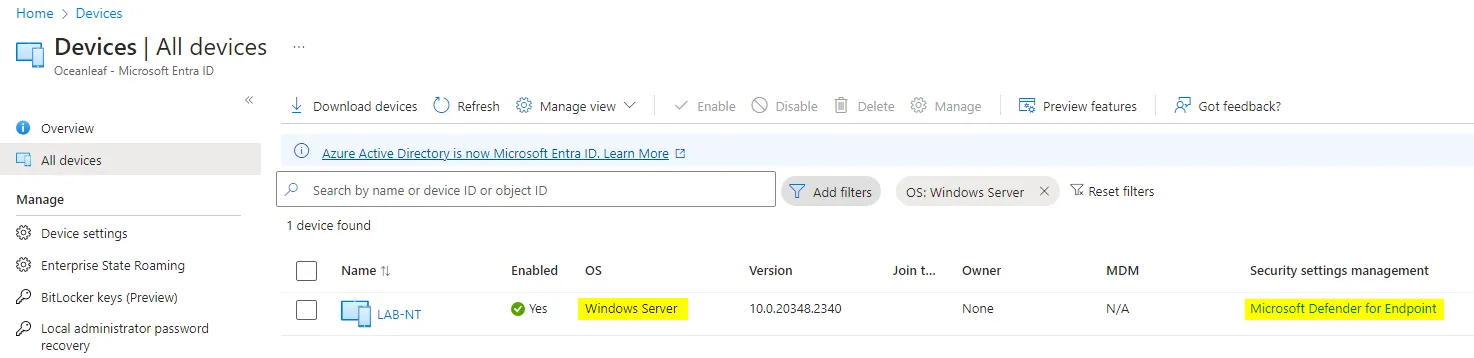
- See the OS identification of 'Windows Server', which is new
- See the security settings management value which states it is Defender for Endpoint
MDE managed endpoint in Intune
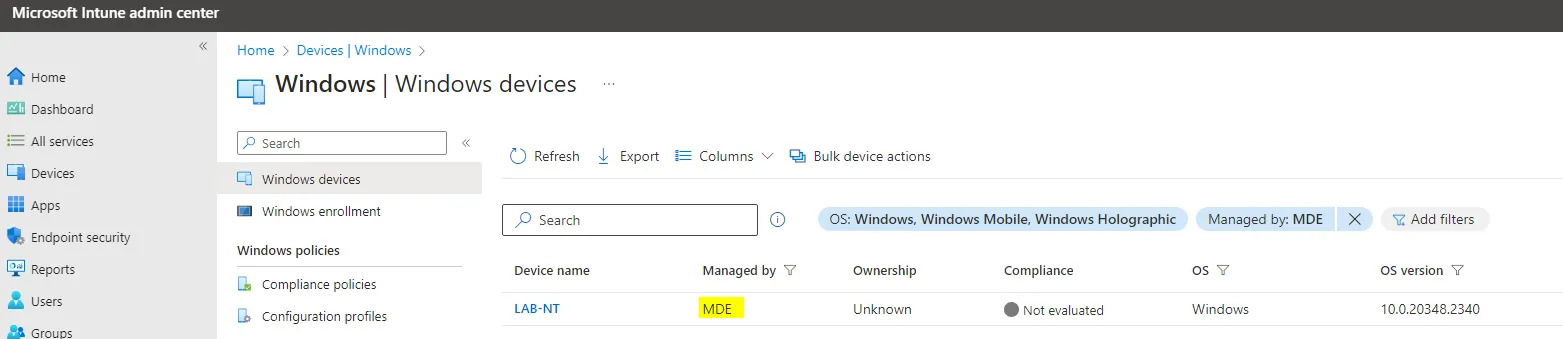
- See the managed by value 'MDE'
- Remote tasks are not possible, however monitoring of policy assignment is possible
Supported profiles by platform
Setup
Enable tenant settings
First, we need to enable the tenant feature of unified security settings management in both Intune and Defender for Endpoint. At this point the fundamental connection should already be established, as I describe in this post:
Intune
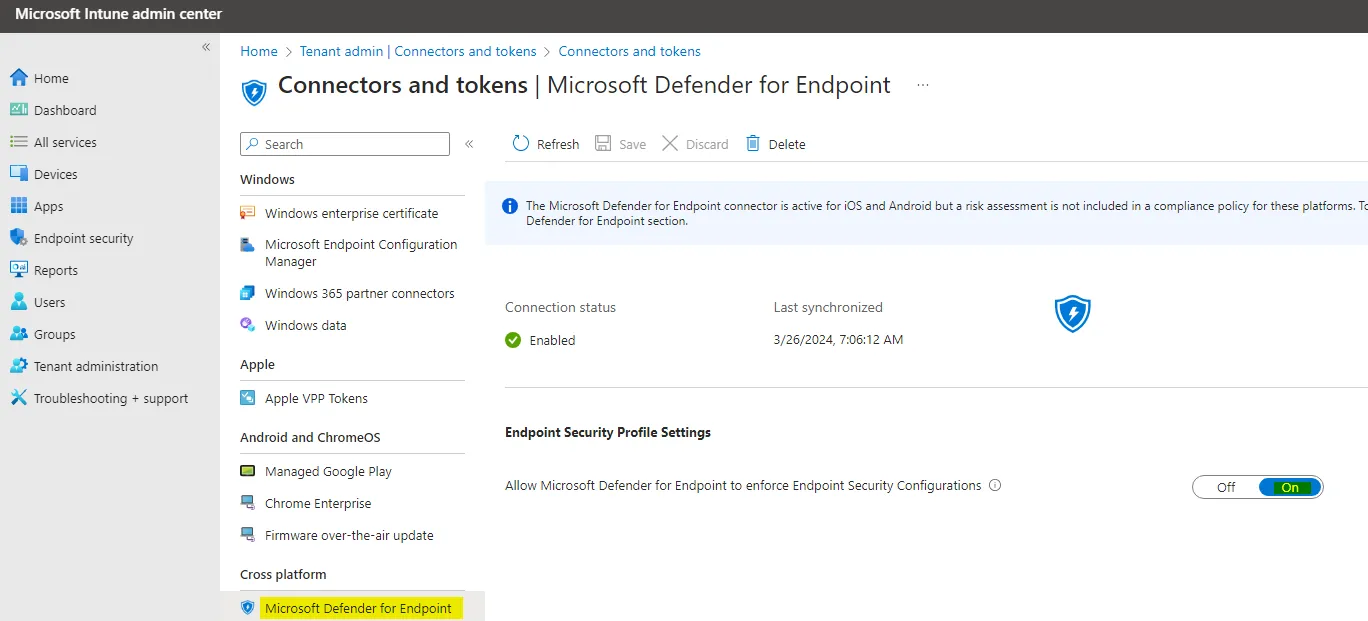
Go to Tenant administration > Connectors and tokens > Microsoft Defender for Endpoint and enable 'Allow Microsoft Defender for Endpoint to enforce Endpoint Security Configurations'
Defender for Endpoint
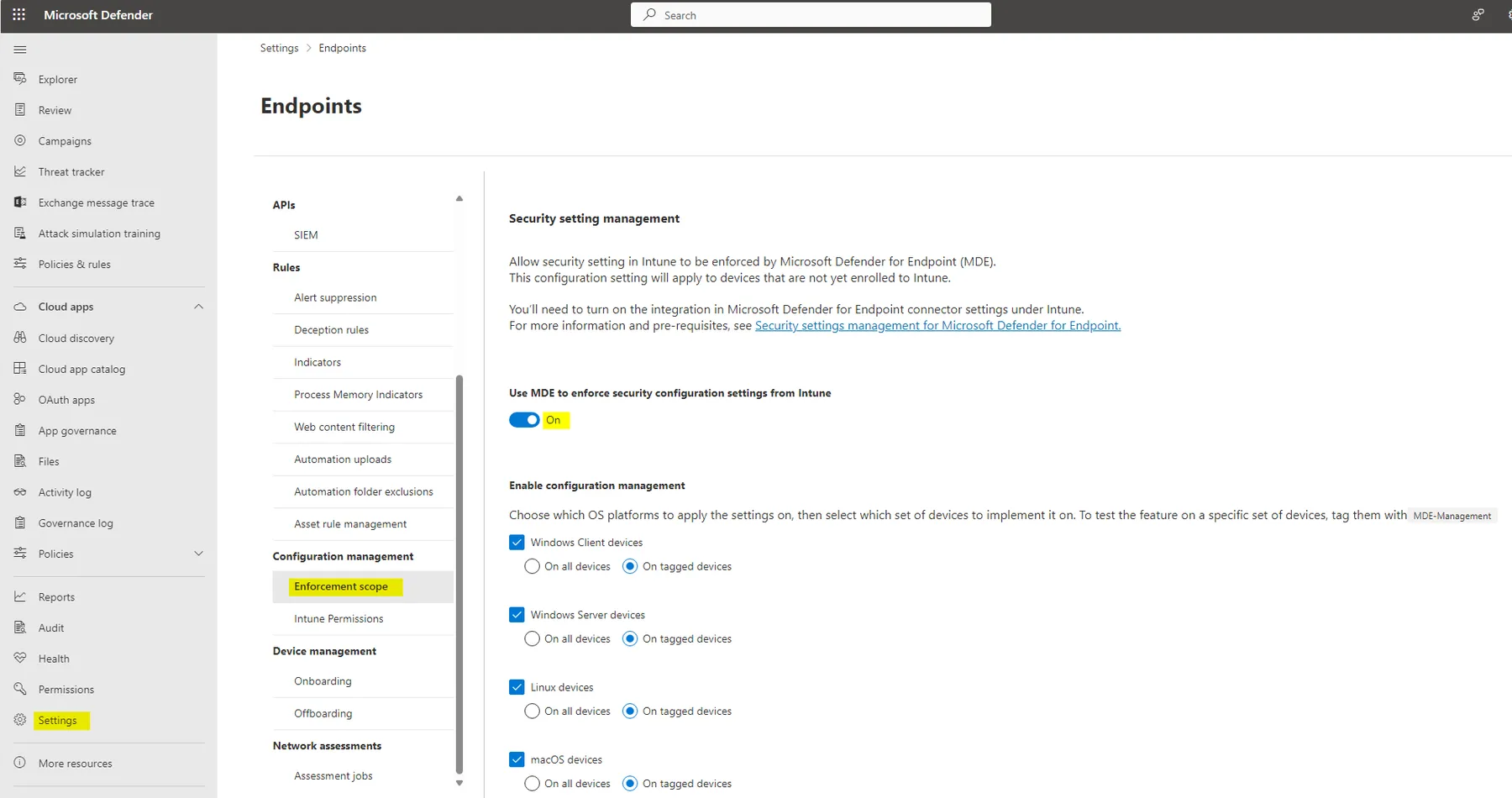
Go to Settings > Endpoints > Enforcement scope > enable 'Use MDE to enforce security configuration settings from Intune' and also enable the platforms you want. Either choose all devices or only tagged devices.
Tagging endpoint
If you choose to manually tag endpoints in MDE, you need to add the tag:
MDE-Management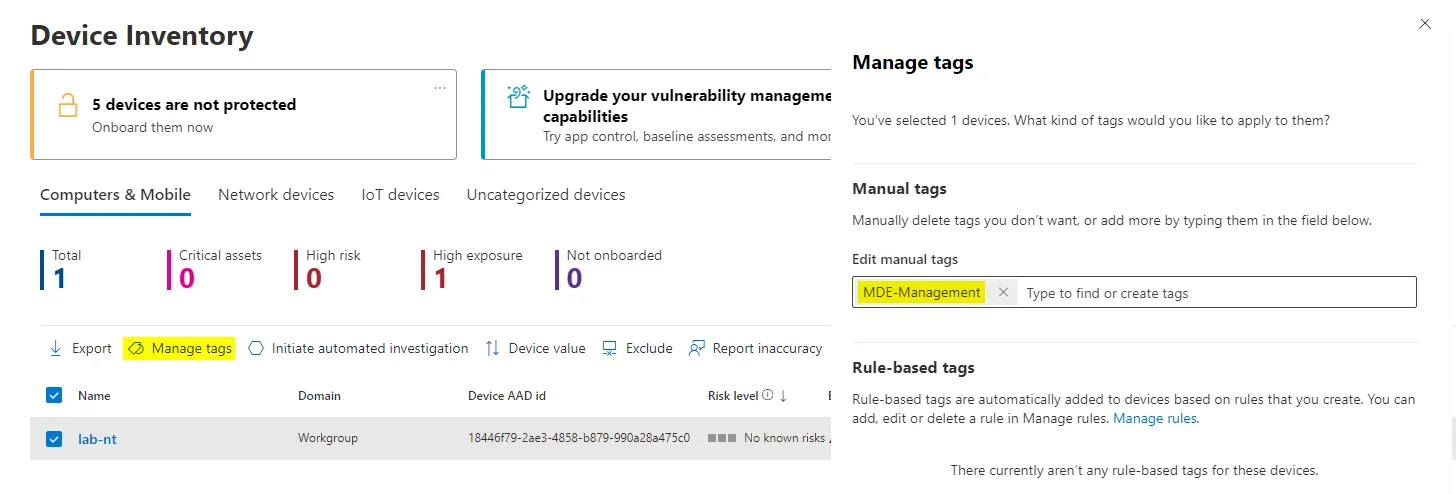
To endpoints, that should be onboarding with settings management into Entra and Intune (showed above).
Create policies
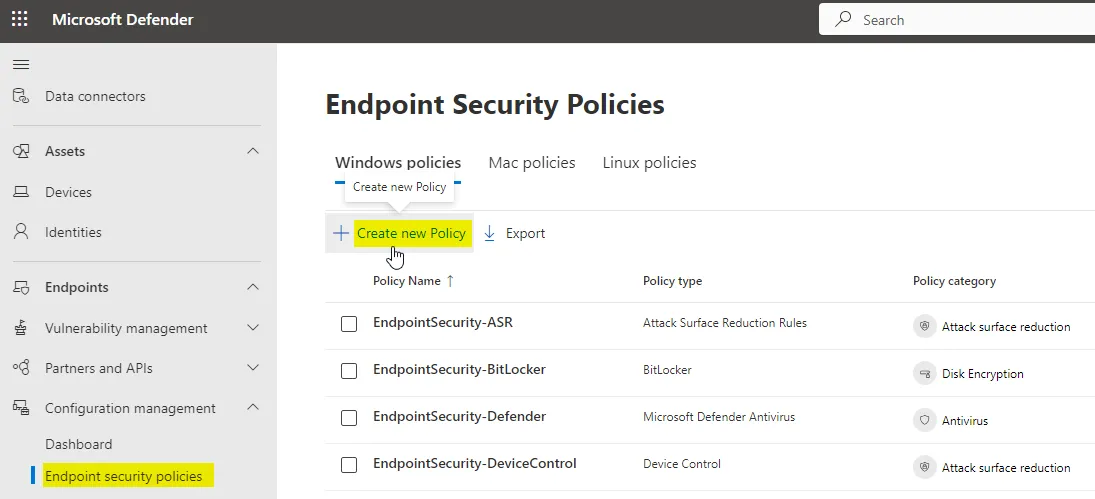
In Microsoft Defender, navigate to Configuration management > Endpoint security policies and create a new policy.
Depending on the platform and template you can now configure:
- Policy name (recommendation: MDE-EndpointSecurity-Type-Policyname)
- Settings configuration - configure the available settings according to the platform and template
- Assignments - include/exclude to Entra security groups > create a new one and include the endpoints you want to target

Settings configuration
Equipping endpoints with endpoint security policies is the goal. Although not all templates/policy types are supported, you should strive to the best possible protection. Orientate with frameworks and best practices to apply security configuration based upon the platform. To dive more into it, read my blog post on security baselines
For cross-platform security I can recommend the following frameworks:
- Windows & Windows Server = Security Compliance Toolkit, STIG, CIS
- macOS = Security Compliance Project
- Linux = Guide to Infrastructure Hardening
Targeting endpoints
Targeting the endpoints you want to protect with policies works conventionally with including Entra group assignments on policies.
If you want to identify the MDE settings management onboarded devices dynamically check out this rule:
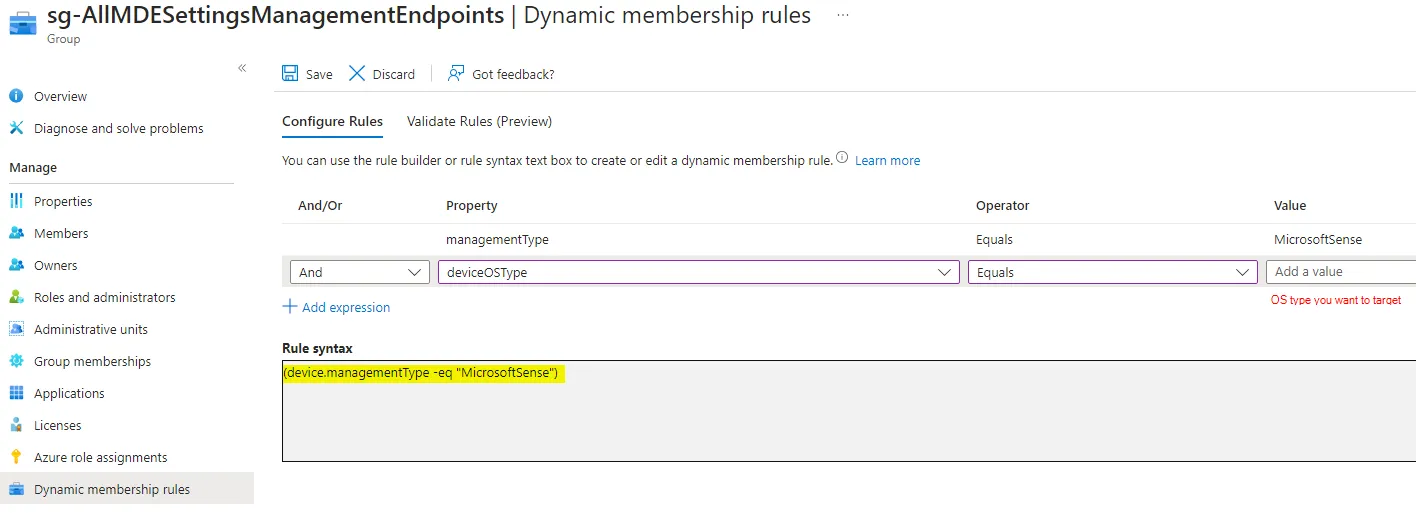
The dynamic membership rule syntax:
(device.managementType -eq "MicrosoftSense")Monitoring
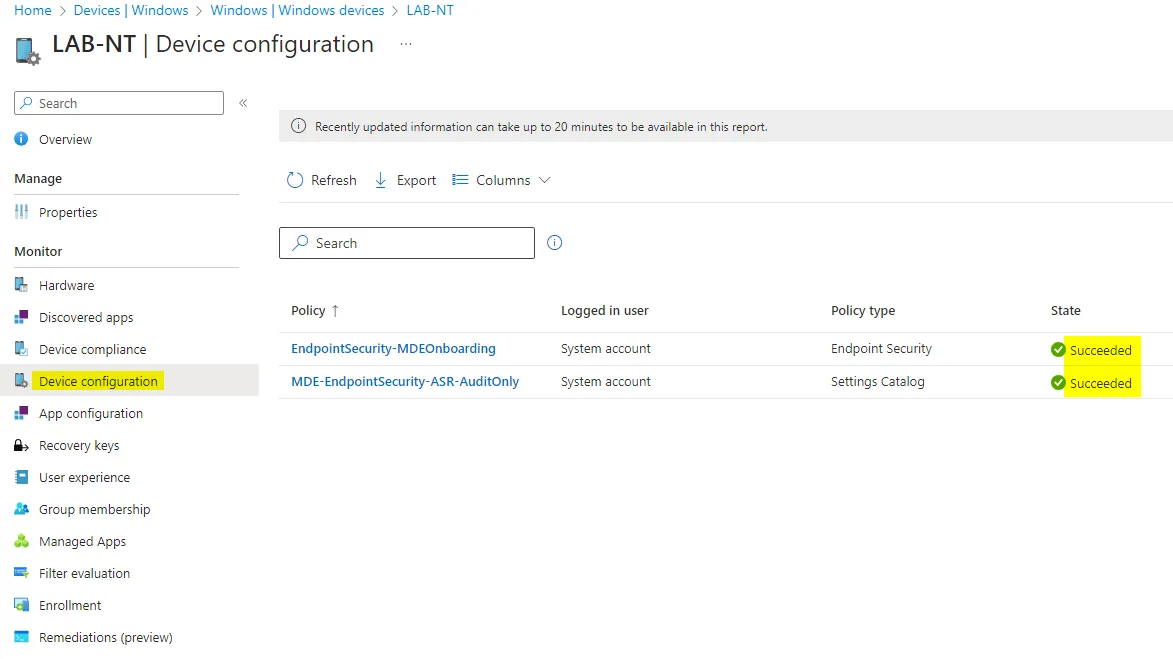
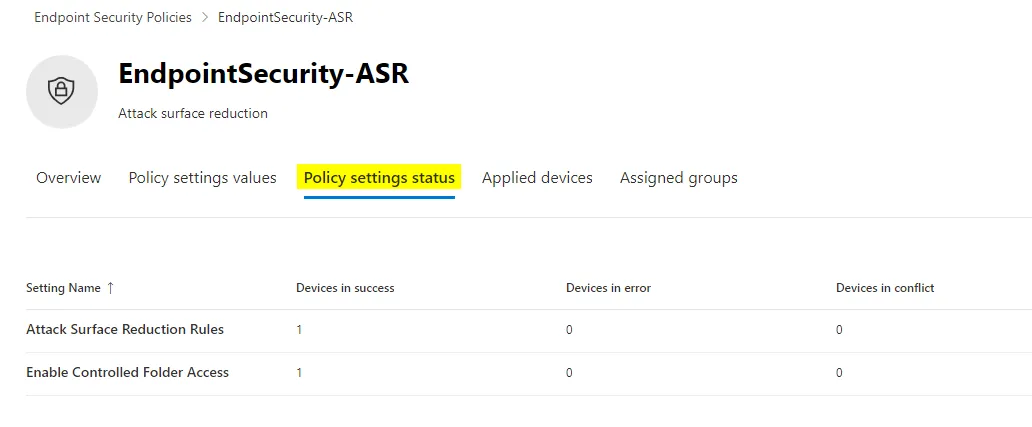
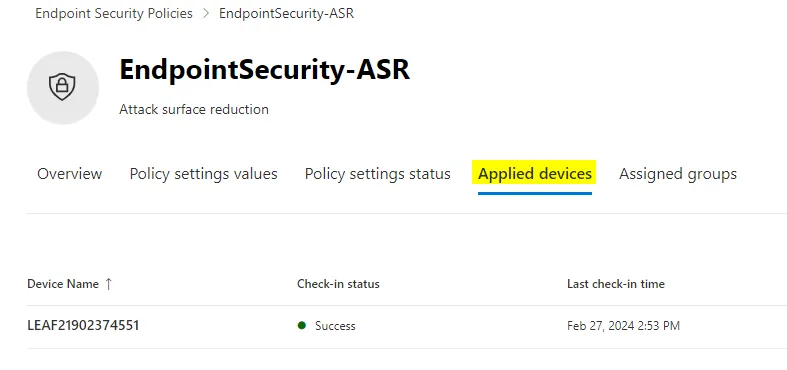
The policy sync interval from the endpoint to the MDE service is 90 minutes. It is also possible to trigger the sync manually as a remote action on the endpoint inventory. Monitor the deployment status and settings application of the policy to the endpoint from both the Intune and Defender portal:

Related posts