Endpoint Management with Microsoft Intune
The easy Intune Multi Admin Approval Guide
On this page

Introduction
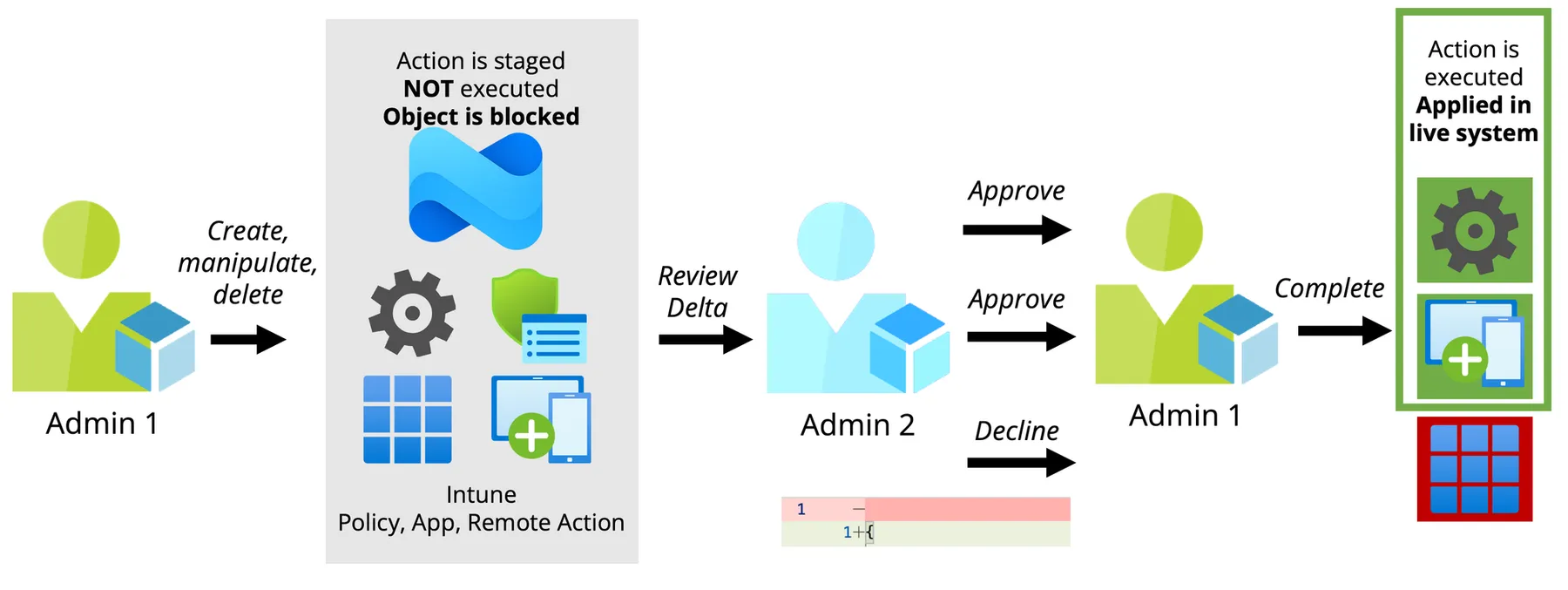
Multi Admin Approval (MAA) is an Intune Tenant feature that requires two administrators for significant configuration changes before they are effectively implemented and go live.
- Admin 1 creates, modifies, or deletes an Intune object (such as a Policy, App, or Remote Action).
- The action is then staged, and the Intune object is locked for further editing.
- Admin 2 can review the change request, including the specific deltas (differences), and decide whether to approve or reject the change.
- If the change is approved, Admin 1 can complete the task, and the modification is officially applied within Intune.
Recommendation
- Intune Multi Admin Approval should be evaluated for every tenant. The following actions in Intune are particularly significant and critical, and should always follow a dual control principle:
- Compliance Policy (since these impact Conditional Access)
- Device delete, retire & wipe (since there is no recycle bin in Intune)
- Role (since this allows the RBAC system to be modified)
Considerations from the field
- Multi Admin Approval is managed via Access Policies in the Intune tenant settings. To create an Access Policy in the first place, two admins are already required.
- Not all Intune objects are supported - see list of supported policies & actions
- A business justification is mandatory for every action within Multi Admin Approval (for both the requesting admin and the approving admin).
- Multi Admin Approval works on top of existing Intune permissions and can be combined with the Intune Administrator role or Intune's own RBAC.
- The Approver Group (admins who can approve or reject changes) should always be created with role-assignable groups enabled - otherwise, it could lead to privilege escalation.
- Global Admins in the tenant can always bypass Multi Admin Approval by creating a second account for themselves.
- MAA does not support automations with Graph API Application Permissions, because no user is logged with the request.
- Once a request for an object has been submitted, it is locked until it is either approved or rejected.
- Admins do not receive notifications about newly submitted Multi Admin Approval requests.
Configuration walkthrough
Experience
powered by Oceanleaf
Related posts