
Windows Hello for Business Cloud Trust - Modern approach
Windows Hello for Business (WHfB) is a modern attempt to go passwordless, reinforce security and increase end user usability. It leverages Windows account authentication services to get access to resources, or in the simplest scenario: login to your device.
Key facts
- WHfB is an authentication method that replaces username and password and enables strong two-factor authentication
- WHfB rises device security by a new type of user credential biometric (facial recognition or fingerprint) or PIN, which is tied to a device by a private key (generated in software, hardware bound key or with a trusted platform module, TPM) >this reduces the vulnerability of lateral device movement in a domain and credential theft. With a PIN you can unlock only one device without using your password. Your password is your most valuable secret, because you can log in to any cloud resource anytime, anywhere. (without MFA)
- To implement WHfB you need to choose a deployment model and a trust type
- Windows Hello and Windows Hello for Business is not the same. Windows Hello stores security information only on the device (also known as convenience PIN) and Windows Hello for Business uses asymmetric (public/private key) or certificate-based authentication. Read more
Solution overview
There are multiple variants to set up and use WHfB in an enterprise environment. Depending whether AD DS, Entra ID or with a sync (Hybrid), it would require a trust from the cloud to your on-premises. These hold different prerequisites, consume a different amount of effort and some are are more future proof than others.
Deployment models
-> Are relevant in association with your environment and your identity providers.
- Cloud only: cloud identities, no access to on-premises resources, Entra join
- Hybrid: AD federated identities with Entra ID
- On-premises: no cloud identities, no Azure resources
Trust types
-> Define the authentication to on-premises Active Directory. (if in place/hybrid scenario) There are different prerequisites for each trust type.
- Key trust: authentication certificates are not issued to end users, enrolled to domain controllers only
- Certificate trust: authentication certificates are issued to end users, enrolled to clients
- Cloud trust: uses Microsoft Entra Kerberos in combination with the functionality of SSO to on-premises resources (there are also more details and a deep dive to the authentication process)
Microsoft docs on the planning guide
Hybrid/Cloud only deployment + cloud trust is the modern way.
(Hybrid) Cloud Trust Deployment
The deployment and implementation of WHfB in a Cloud Trust deployment is fairly the simplest of all variants, the core components are: AD + Entra Connect Sync, Microsoft Entra Kerberos, domain controllers and a client management (MDM, SCCM). Unlike key trust and certificate trust, cloud Kerberos trust doesn't require a PKI. I would straight follow the instruction docs of Microsoft. Microsoft explains the topic well, but I want to share some extra information to some things:
How to deploy in a nutshell
- Make yourself familiar with WHfB in general and prepare the resources for this project, e.g.: find a business usecase and enlighten the management, set up a schedule (testing/pilot phase), define when - who - how the deployment steps are done, prepare a rollout strategy and publish end user guides
- Check current WHfB state and your environment (maybe there are already configurations done), check the AD attribute: msDS-KeyCredentialLink of users and computers, futhermore, definitely read about the unsupported scenarios
- Choose a trust type (as mentioned I would only and alwyas do cloud trust)
- Do the cloud trust deployment
4.1 Set up Microsoft Entra Kerberos in your hybrid environment You do this with a few PowerShell commands, this will create a Microsoft Entra Kerberos Server object both in on-prem AD and in your Entra ID tenant. It is important to regularly rotate the Microsoft Entra Kerberos Server key.
4.2 Configure Windows Hello for Business policy and deploy it to devices. In Intune admin center, you need to do two things:
- Create a configuration profile (settings catalog is the recommended way)
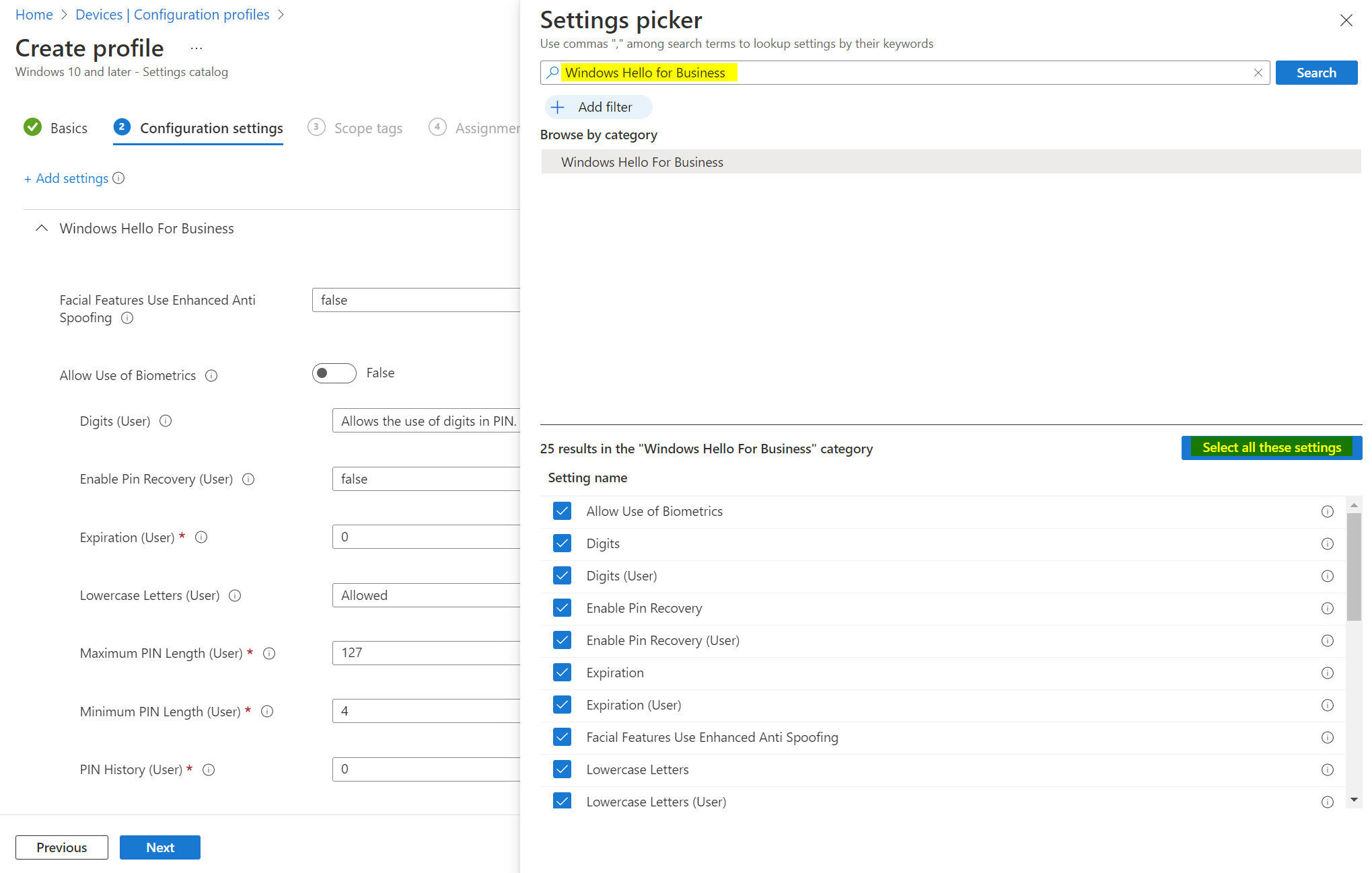
- Test it on a device by registering WHfB information (this will also trigger MFA) and look over the provisioning state (event log)
- Troubleshooting and adaptions (Troubleshoot hybrid and Hybrid FAQ)
- Definitely implement self-service PIN recovery and consider to disable other credential providers, so username and password can be completely eliminated
Read more on my blog:
 Niklas Tinner
 Niklas Tinner
 Niklas Tinner