Kickstart macOS management with Intune
Introduction
The macOS journey with Intune is omnipresent and I can confirm, that now is the right time to check out what's possible and do some exploration. 🧭 This post will be about how to set up a macOS VM and manage it with Intune. I will walk through the key steps to get your Mac instance, enroll it into Intune and deploy policies and apps. If you are new with macOS and Intune, please check out my introduction post:
Scenario
This scenario forsees, that we have a virtual macOS machine to enroll, deploy, monitor, manage and test out features with. I recommend a VM to have an isolated environment and break nothing productive and be more flexible.
Prerequisites
- Mac device > MacBook or iMac
- UTM as virtualization tool (it's free and open-source and easy to use 👍)
- Intune tenant and the Intune admin role (if you are new to Intune check out my full series)
- Intune plan 1
Guide
This part is divided in 4 chapters:
- Set up macOS virtualized machine 🎁
- Prepare management with Microsoft Intune ⚙️
- Enroll your Mac! 🚀
- Manage the Mac 💻
1. MacOS virtual Machine
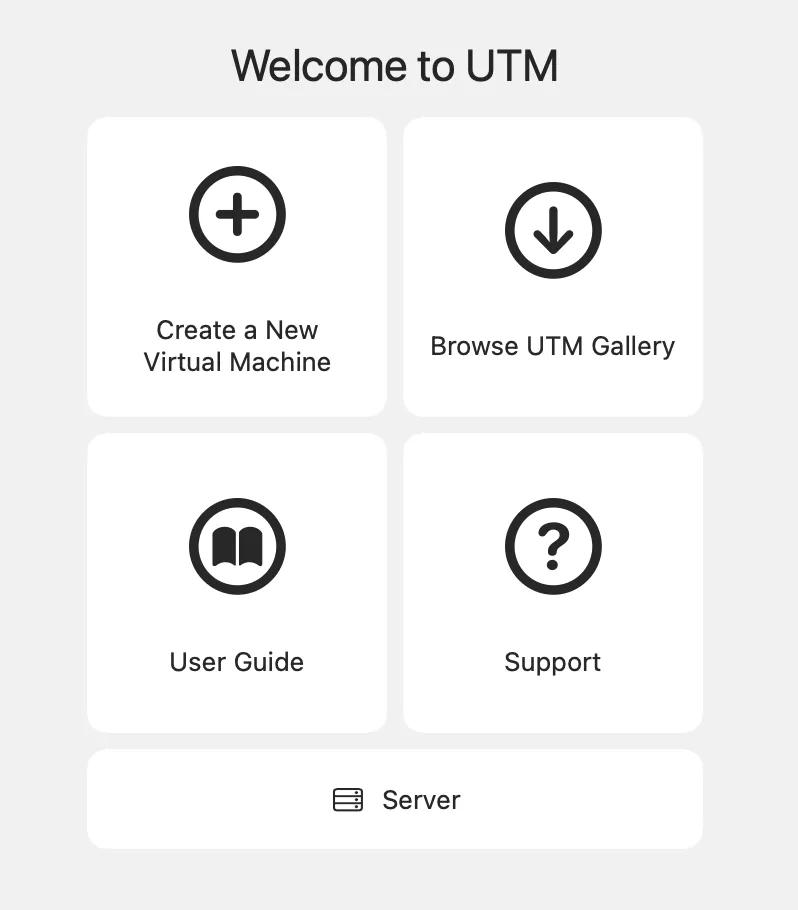
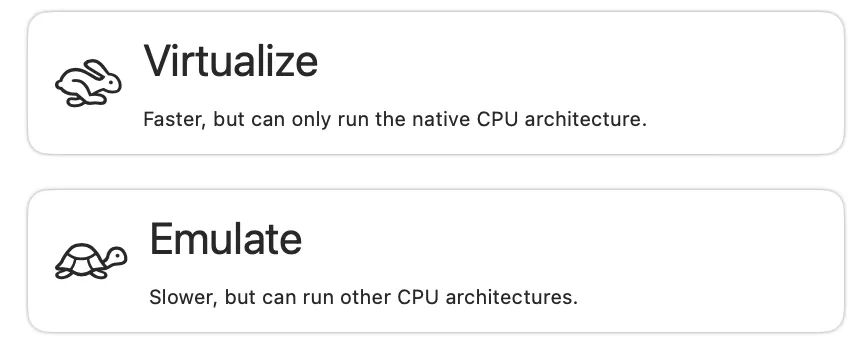
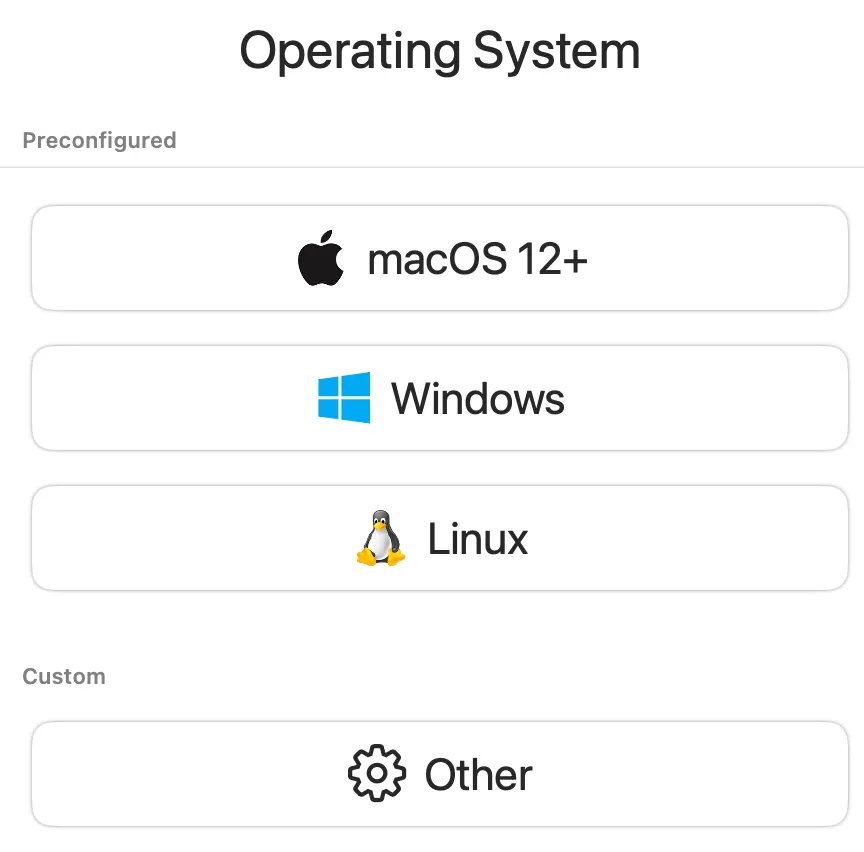
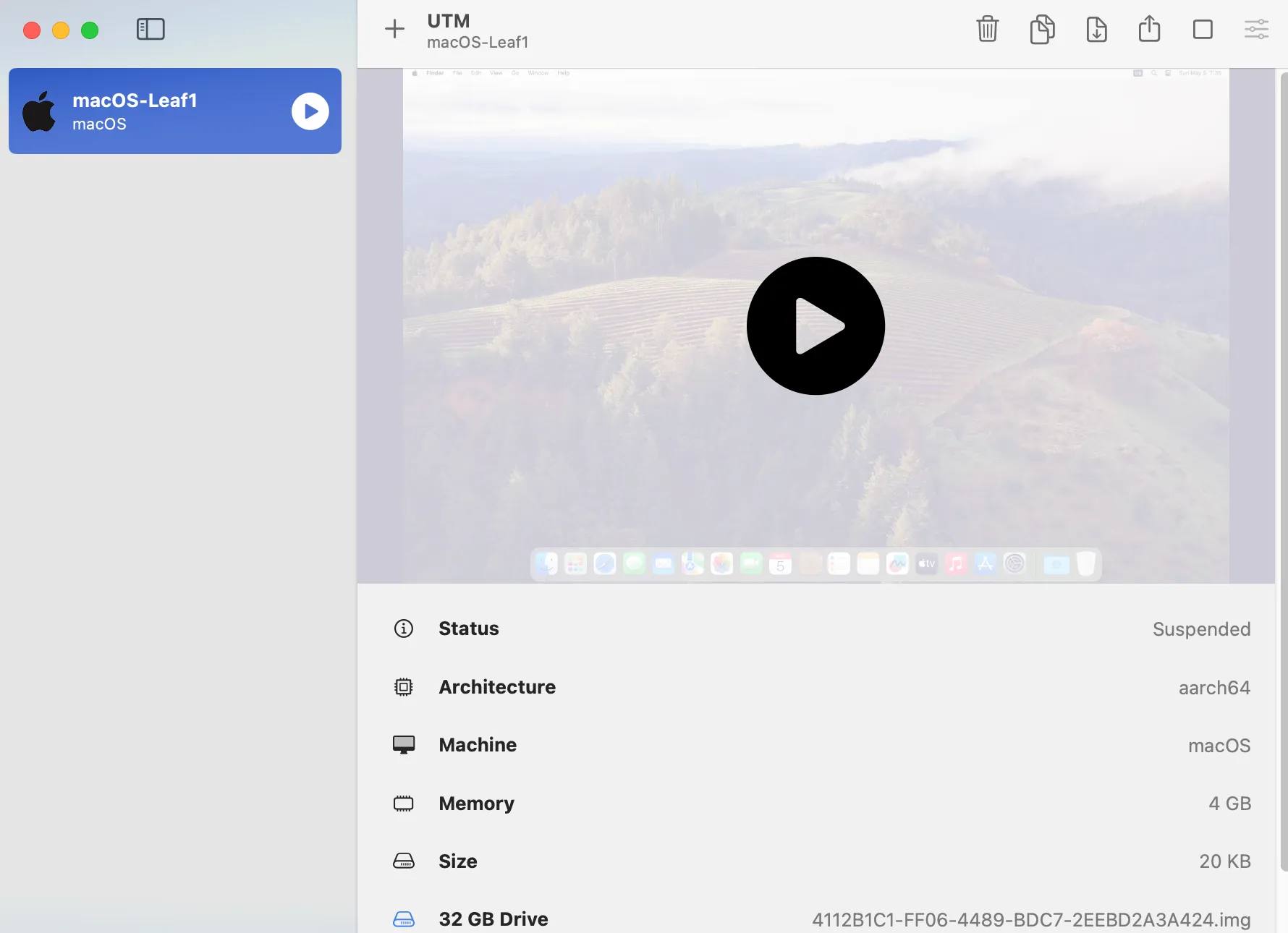
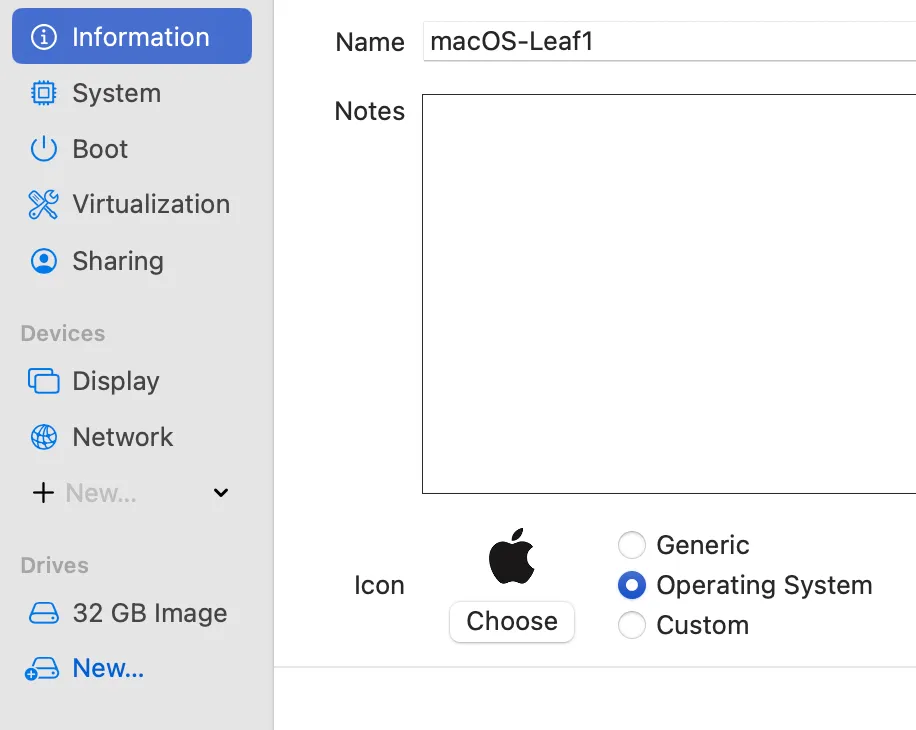
Download and install UTM and create your new virtual machine (the setup is very simple and takes about 30 minutes):
2. Prepare management with Intune
When I start to prepare an Intune tenant for macOS, I go thorugh the following items:
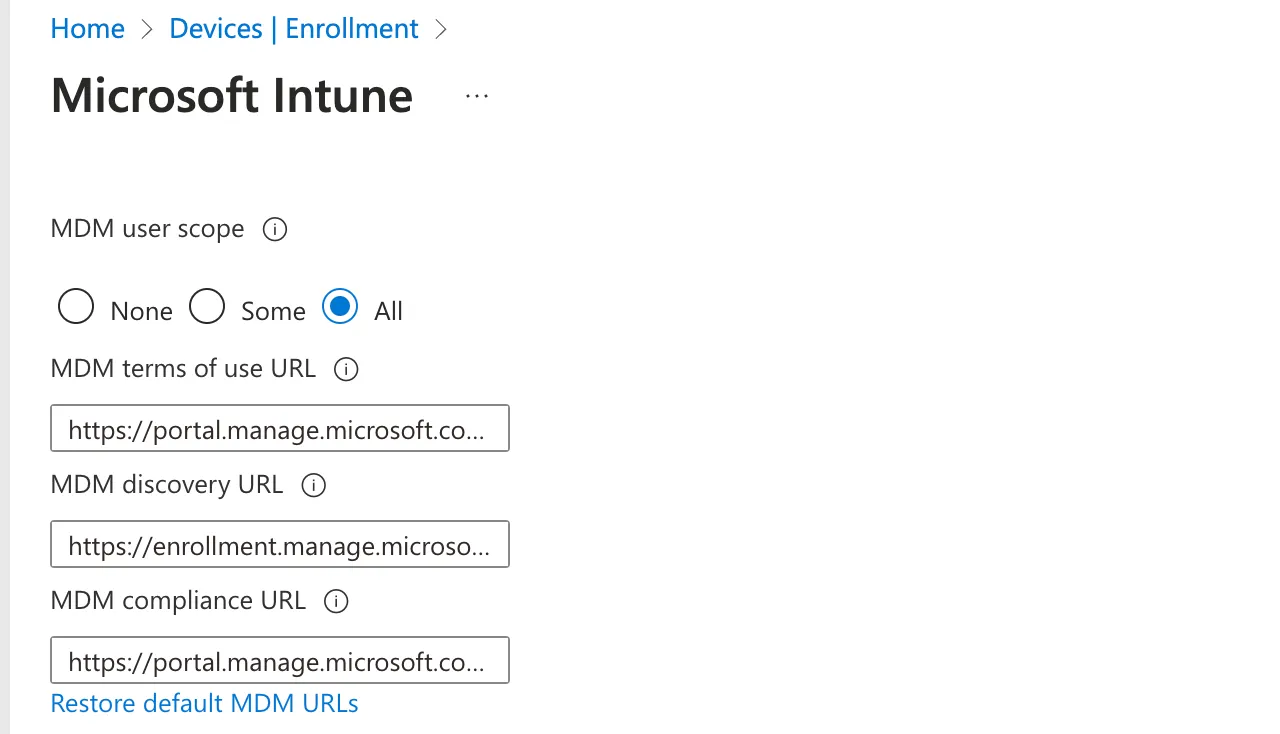
- MDM scope, device settings and mobility - Entra ID related settings that configure and allow Intune as MDM for your users
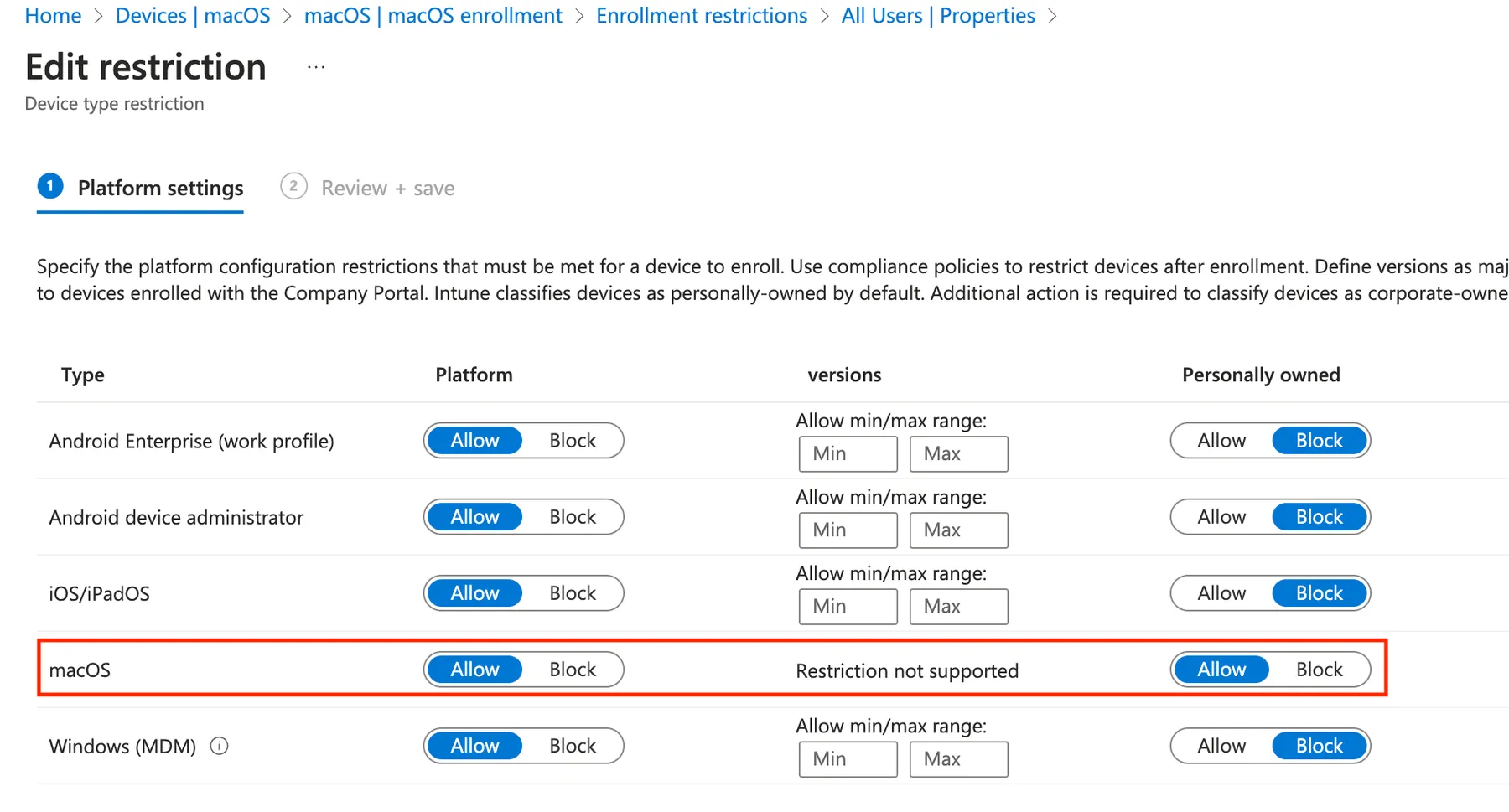
2. Device platform & limit restrictions - Configure device OS platform and enrollment limits
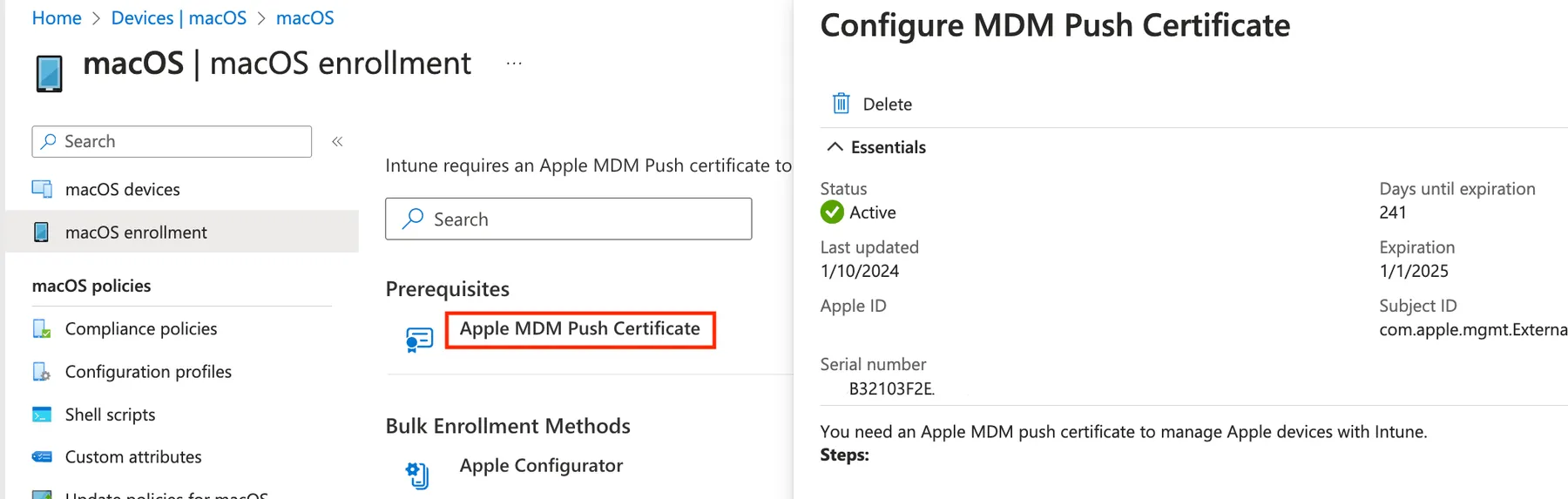
3. Apple MDM Push Certificate (APNs) - Required to install the management profile and manage any Apple device
4. Create groups & filters - Create a group/filter where your Mac is automatically added to target policies and other contents
Entra dynamic group query
(device.deviceOSType -eq "macMDM")Intune filter query
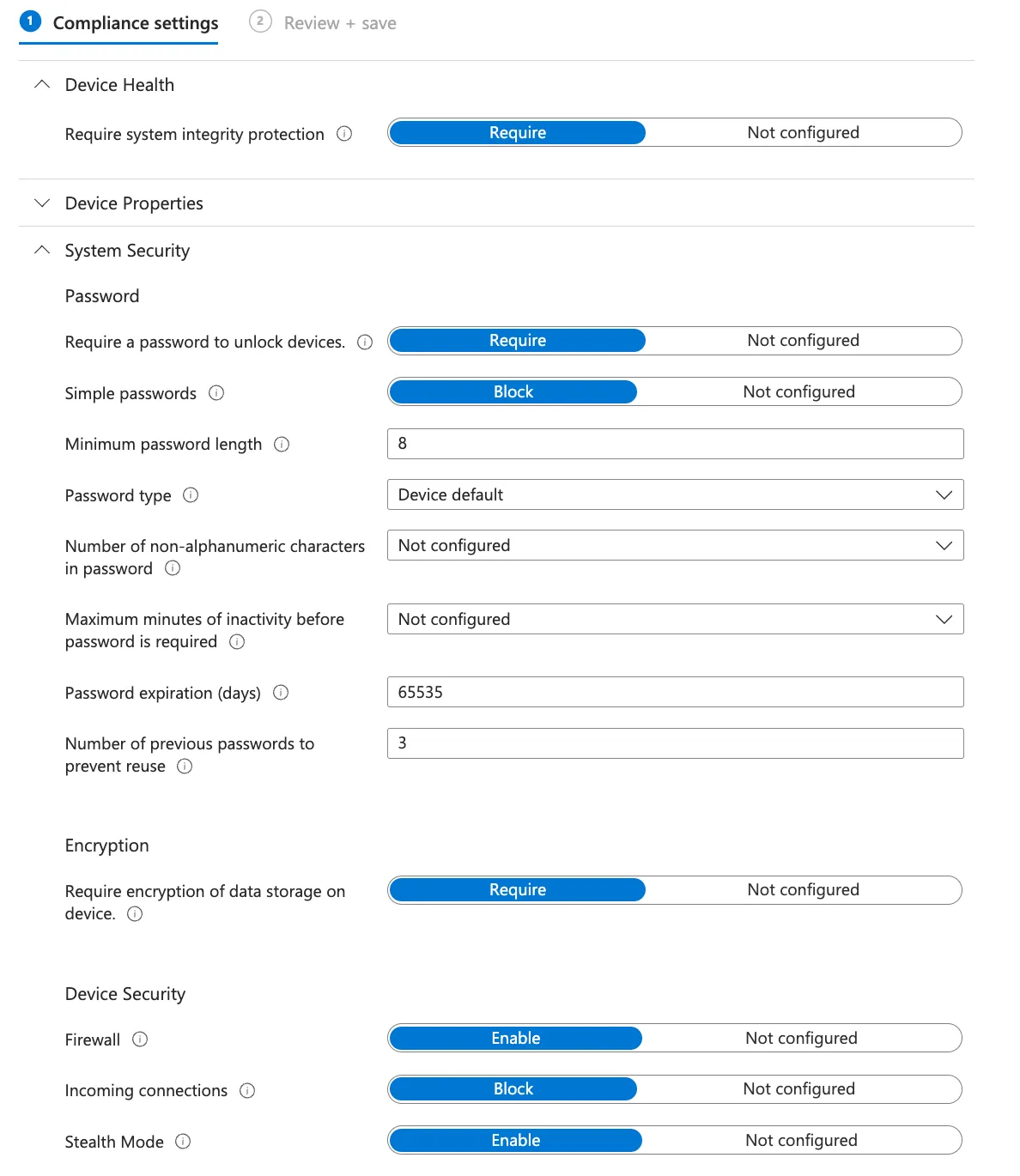
(device.model -contains "Mac")5. Compliance policy - Check system health and status to be compliant and access corporate resources (to be combined with Conditional Access)
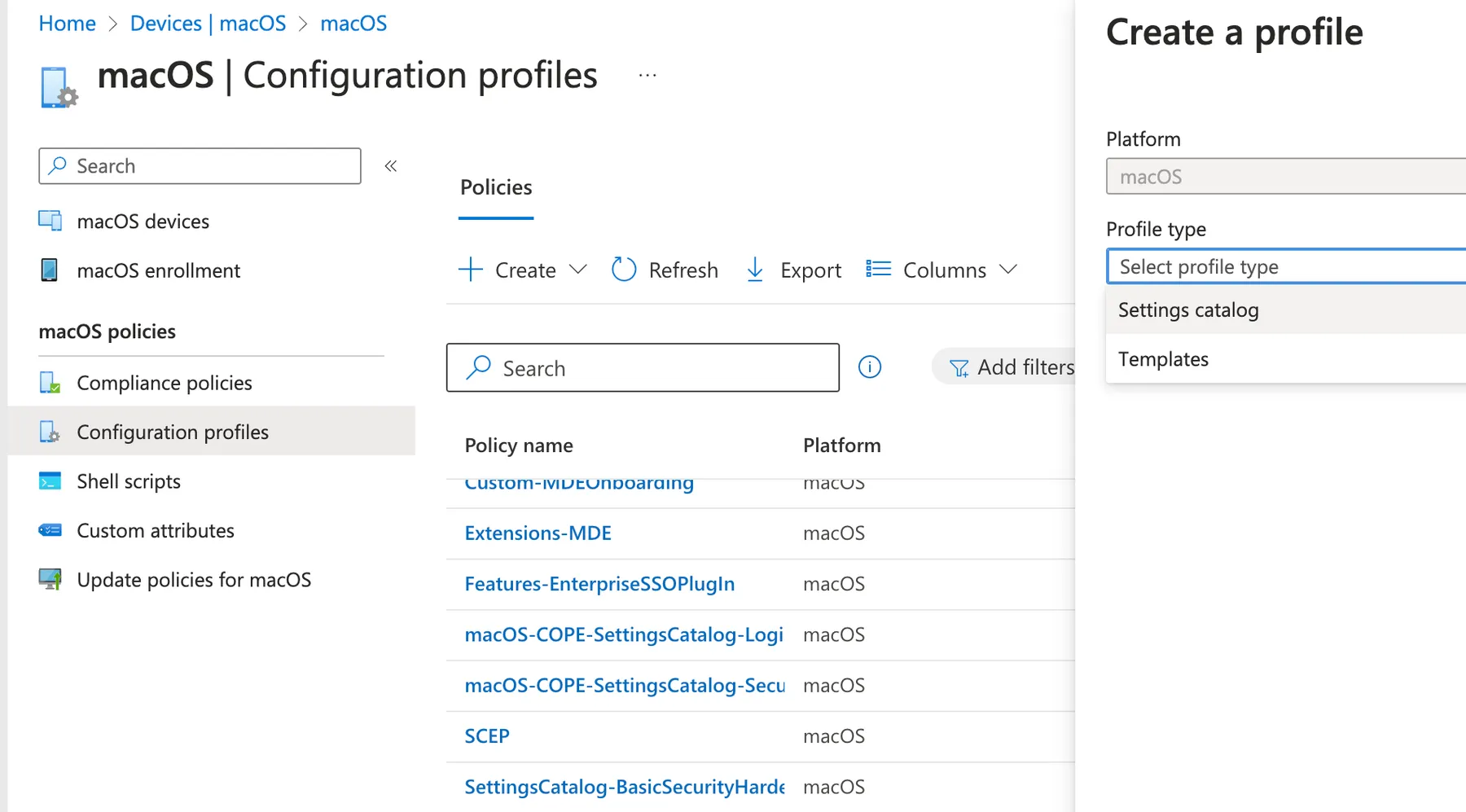
6. Configuration profiles - Configure system aspects, look & feel
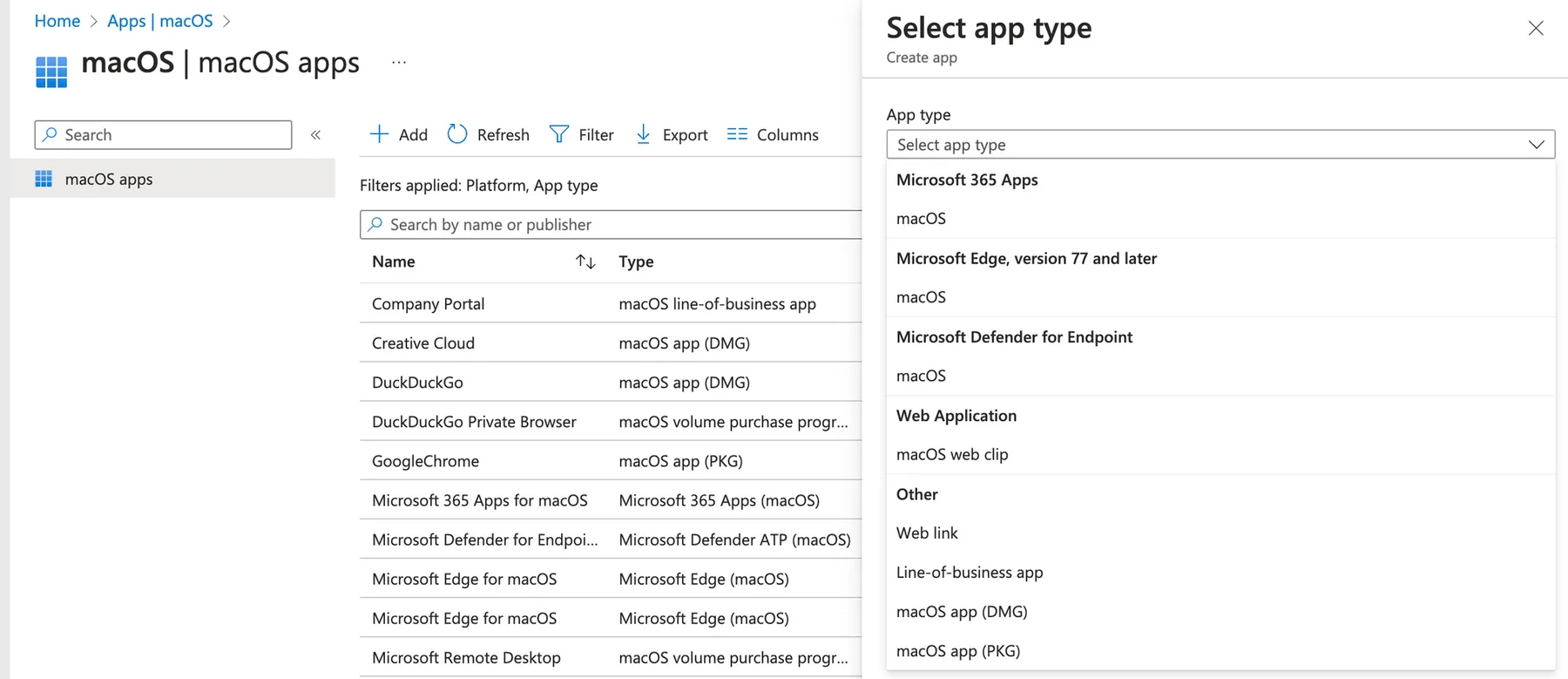
7. Deploy apps - Deploy different app types through to your endpoints
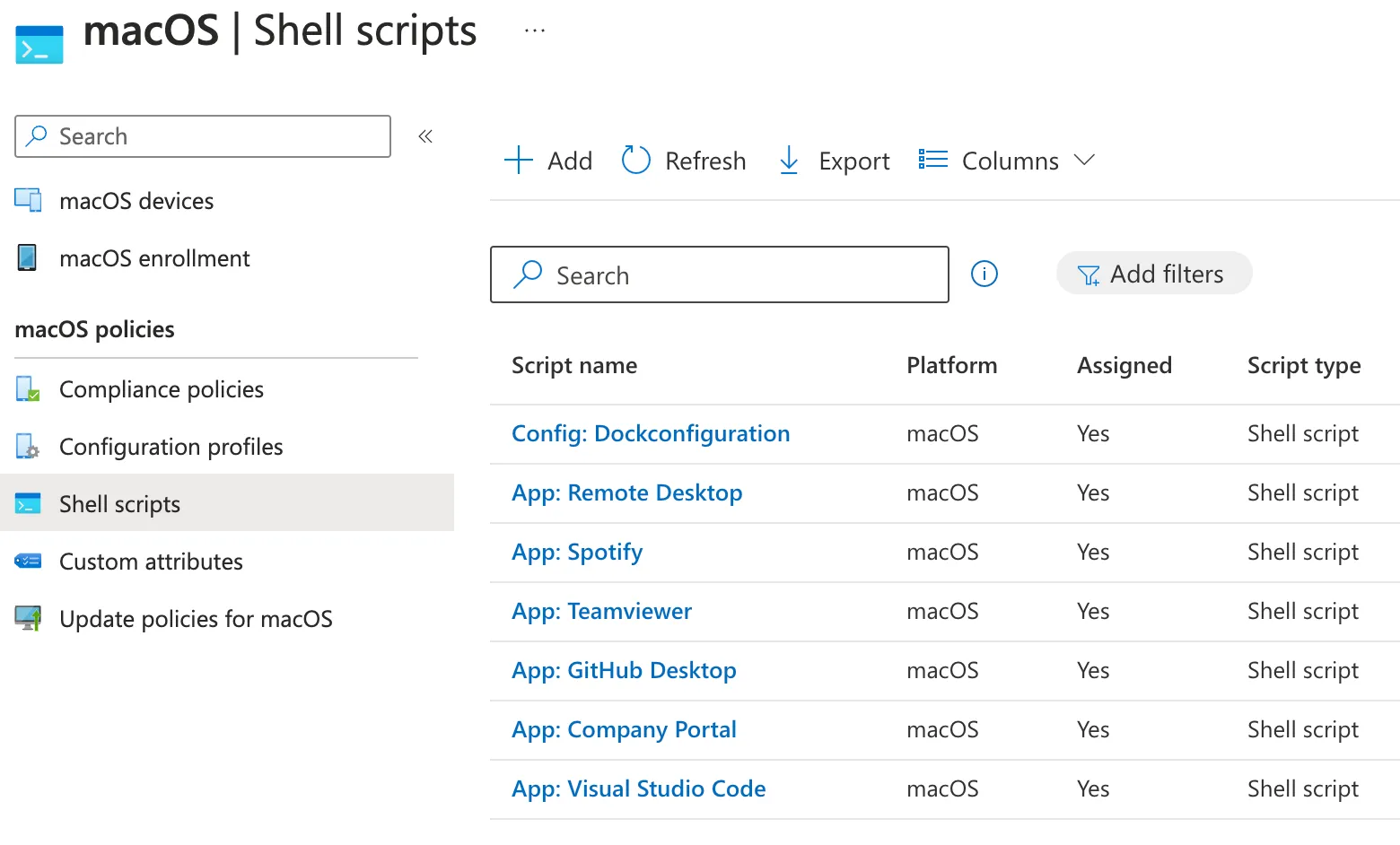
8. Shell scripts (optional) - Run shell scripts to do anything you want
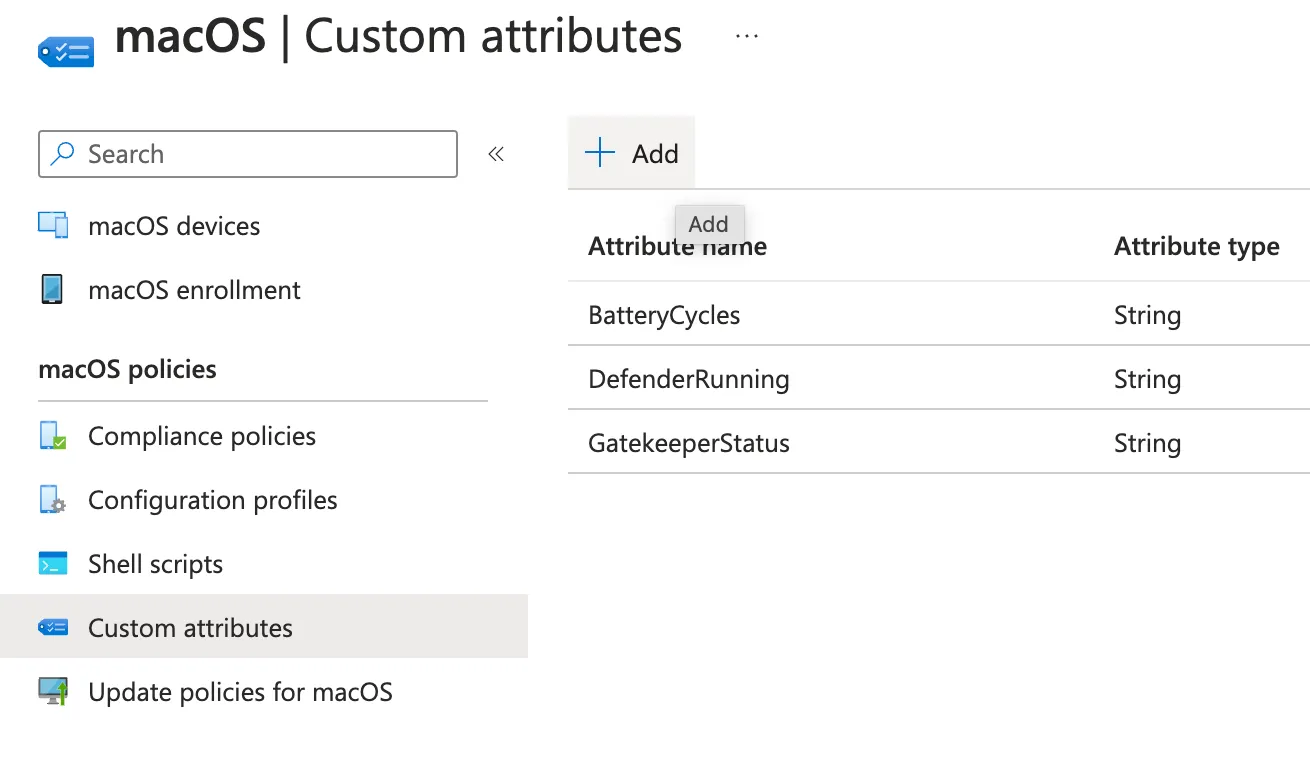
9. Custom attributes (optional) - Collect custom inventory data
3. Enroll your Mac!
To enroll your Mac you need to:
- Download Company Portal on the Mac from aka.ms/enrollmymac
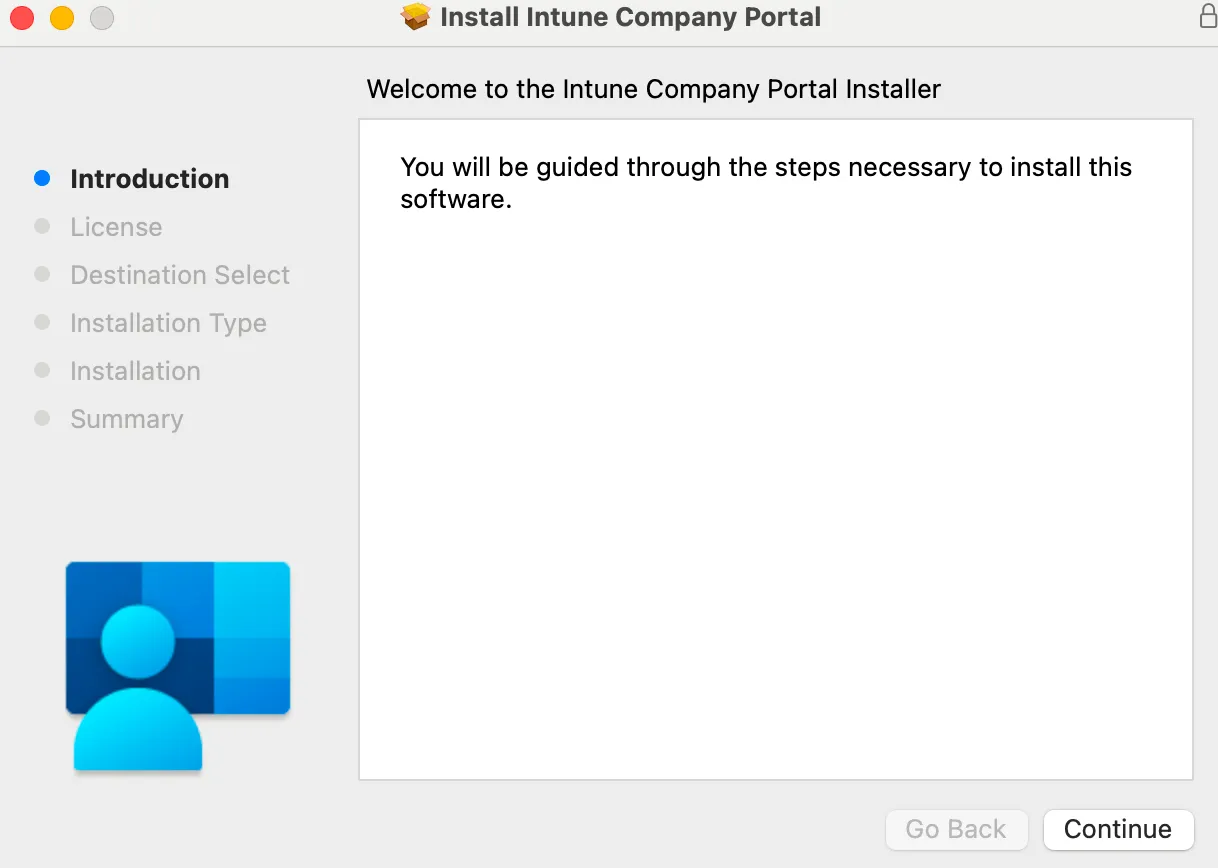
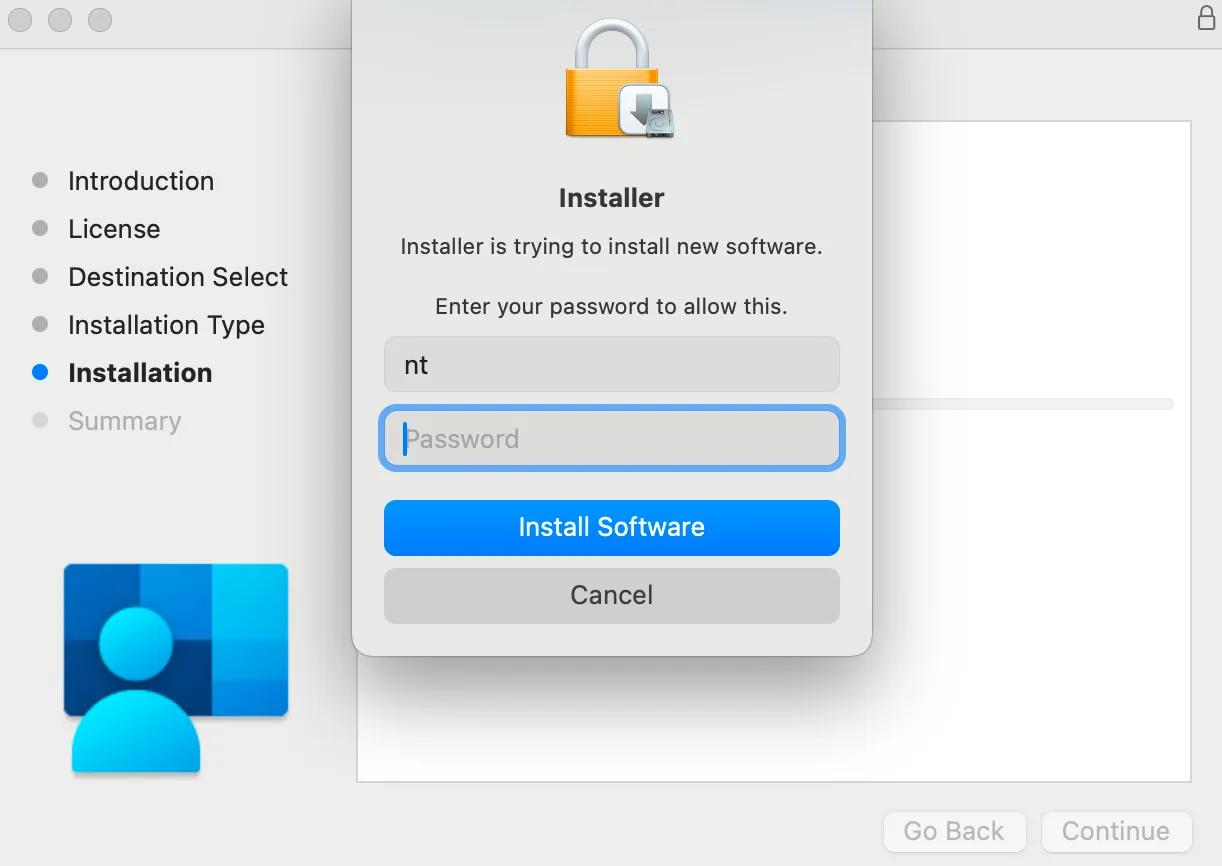
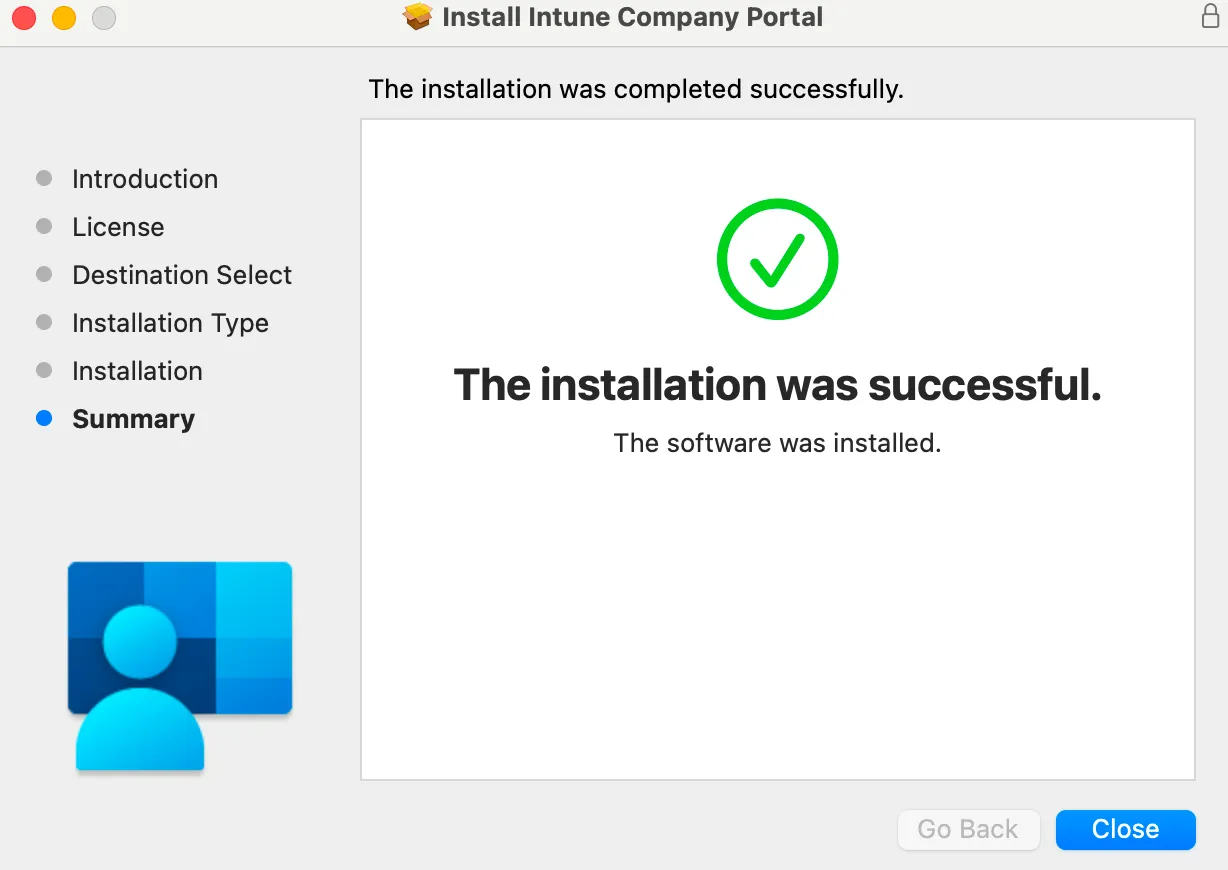
- Install Company Portal
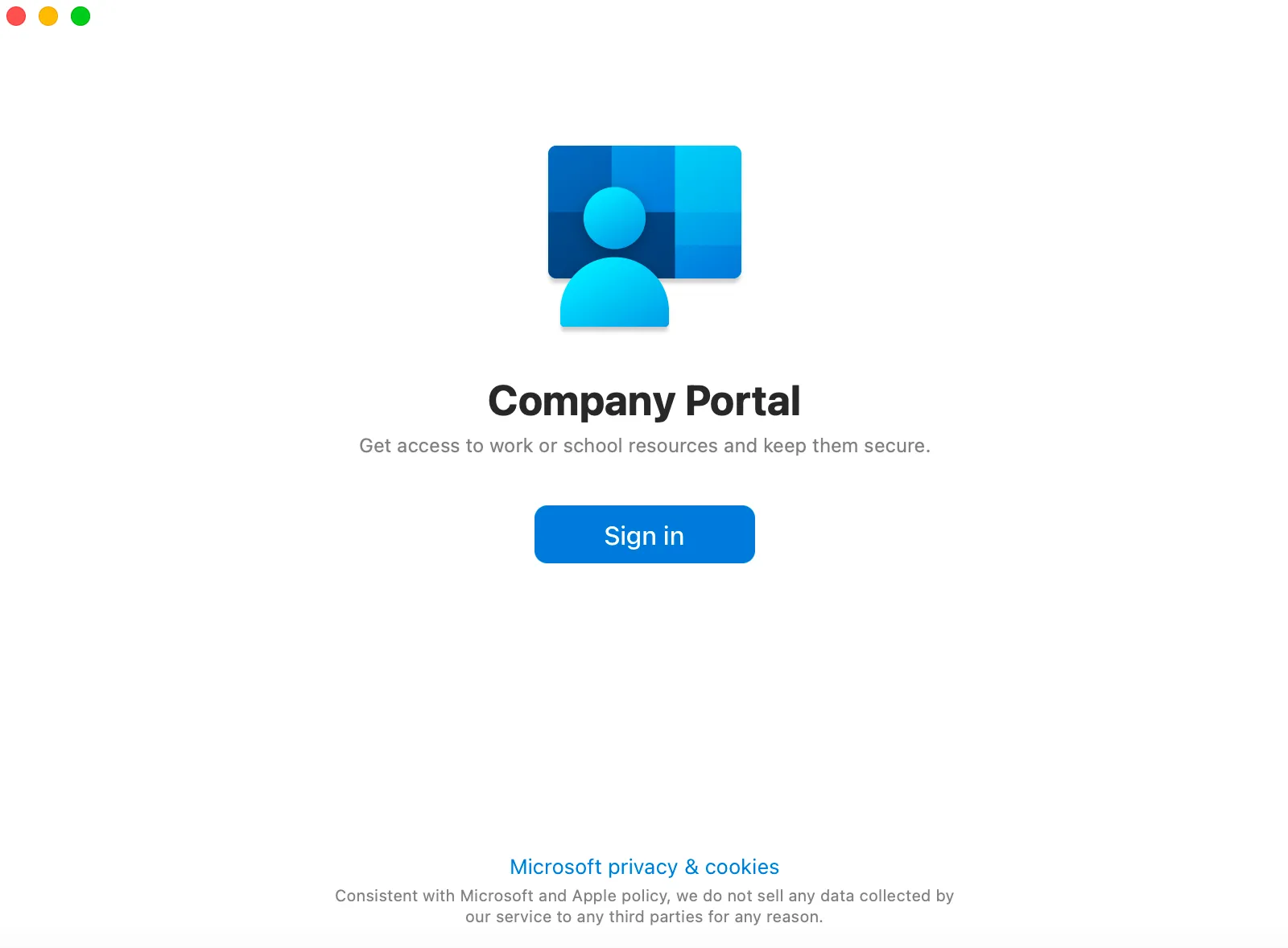
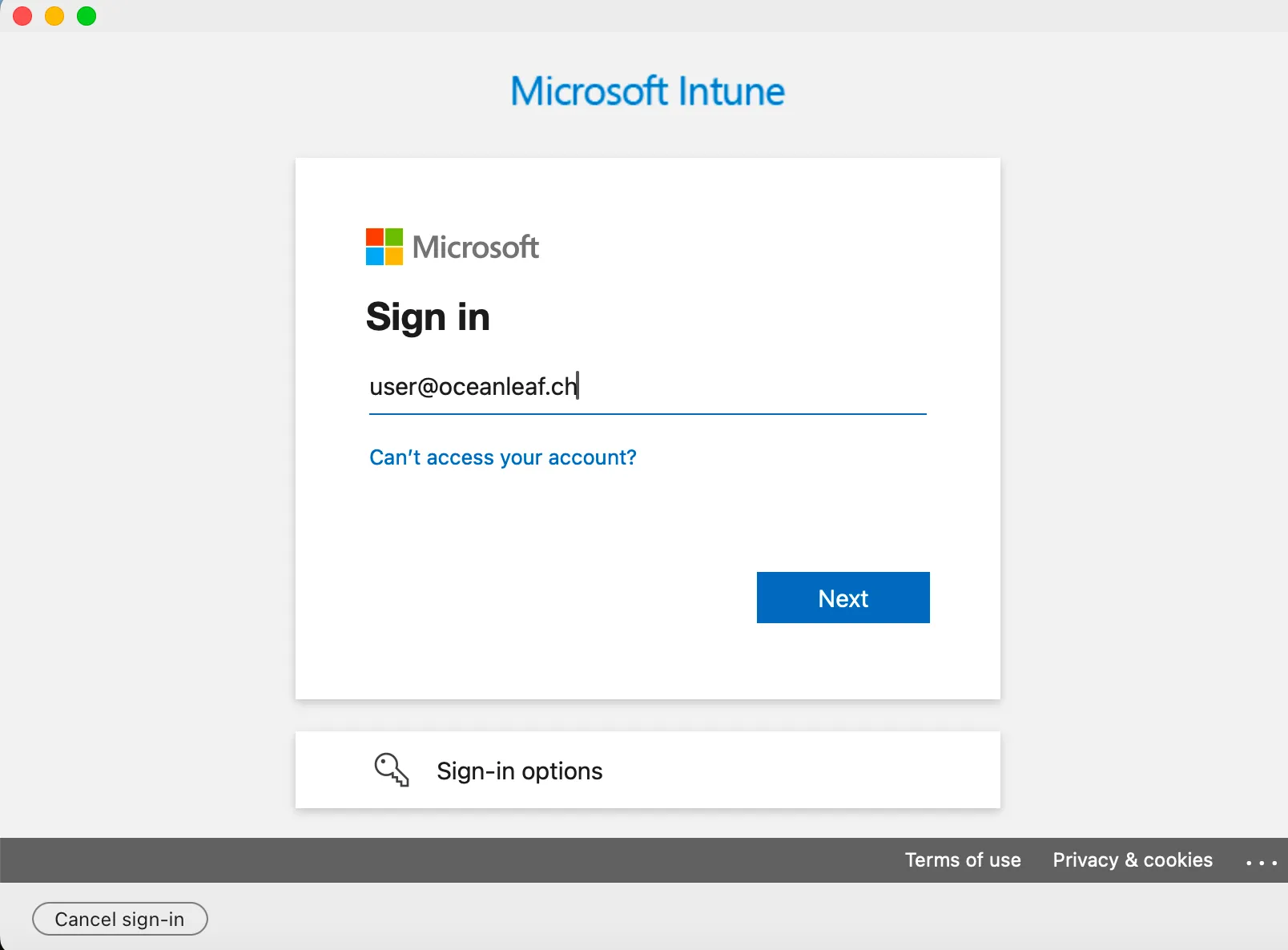
- Launch Company Portal, sign in with your Entra account
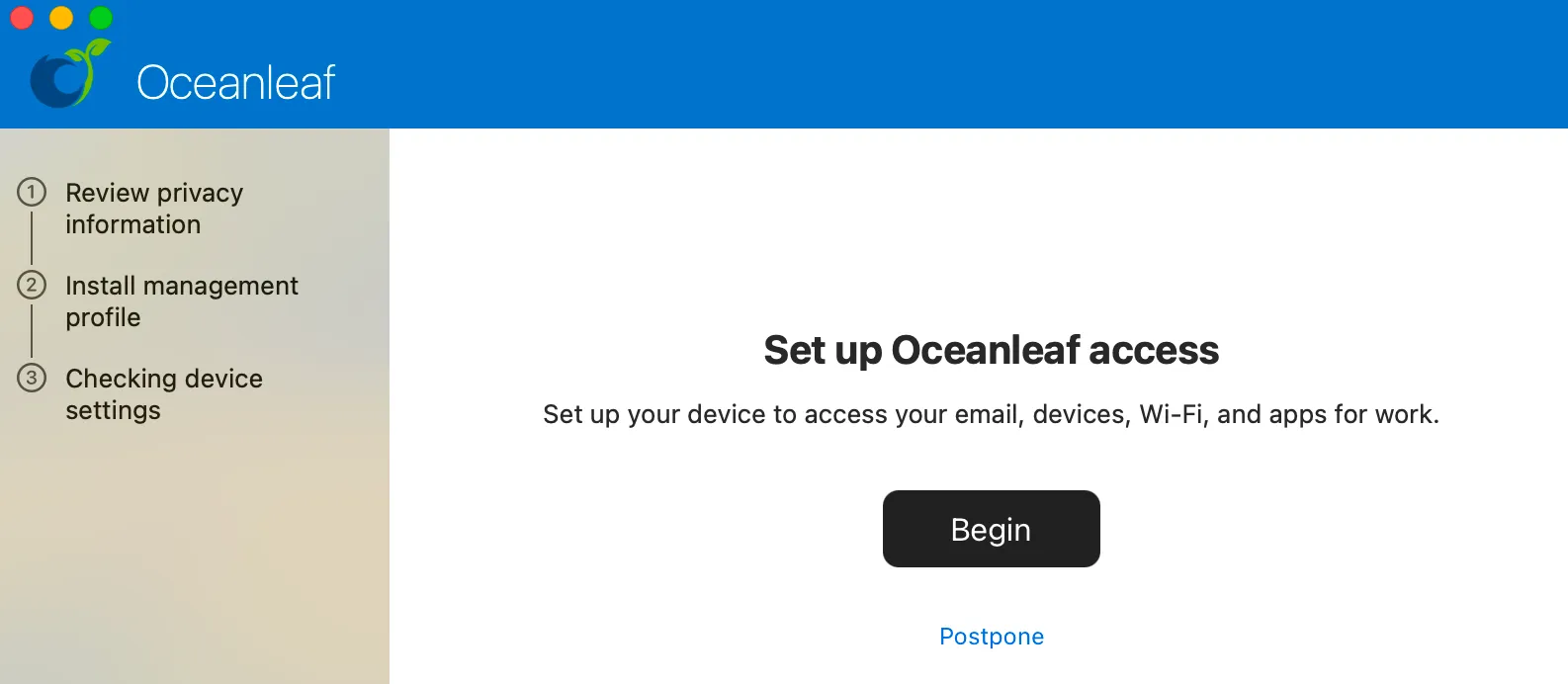
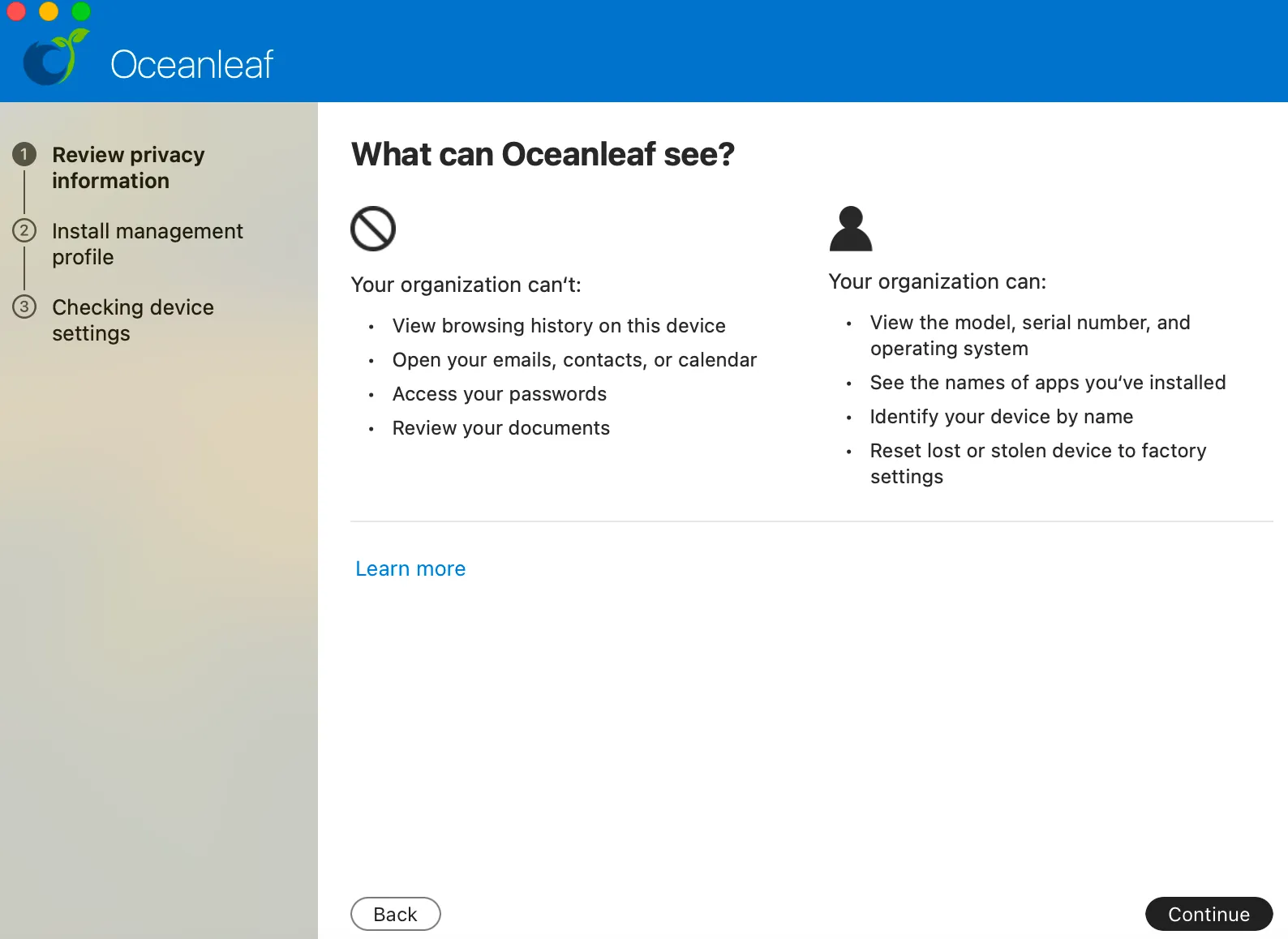
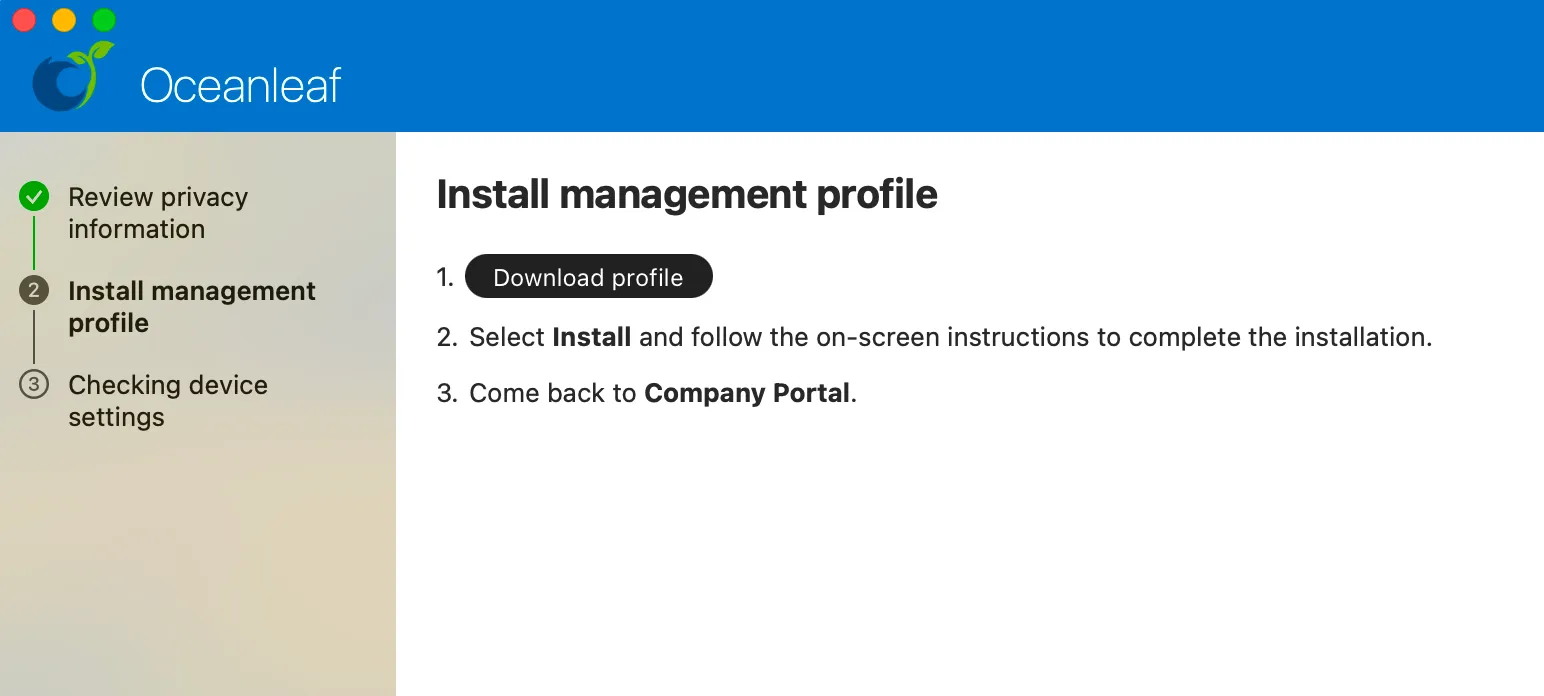
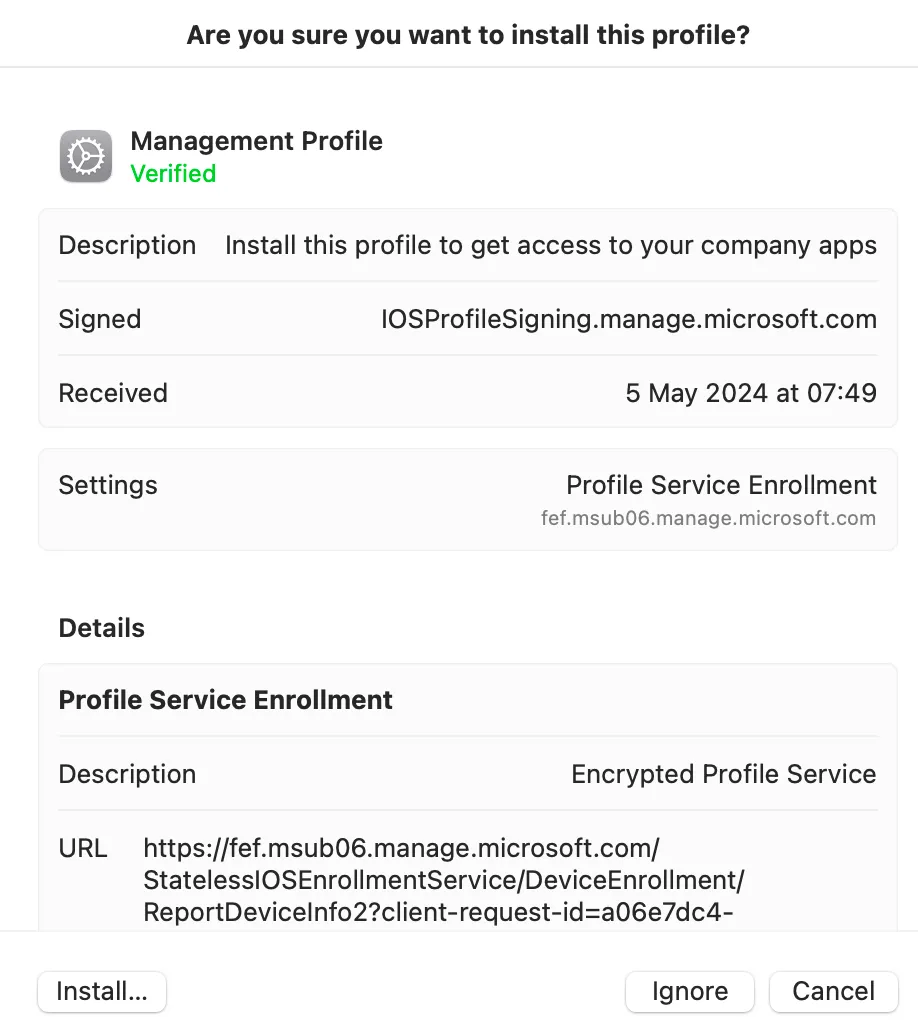
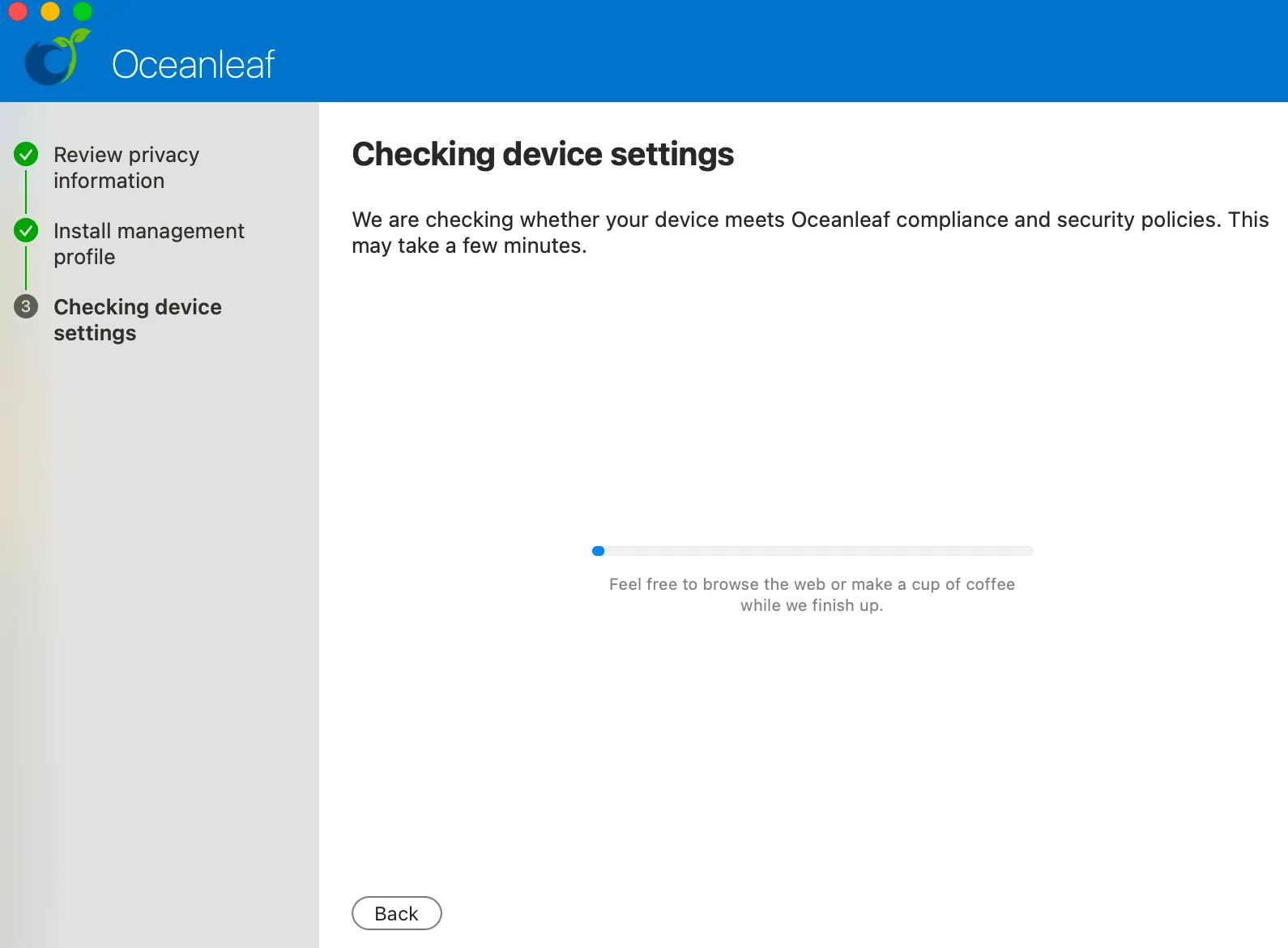
- Go through the enrollment steps, including to install the management profile
Company Portal installation

Enrollment
4. Manage the Mac
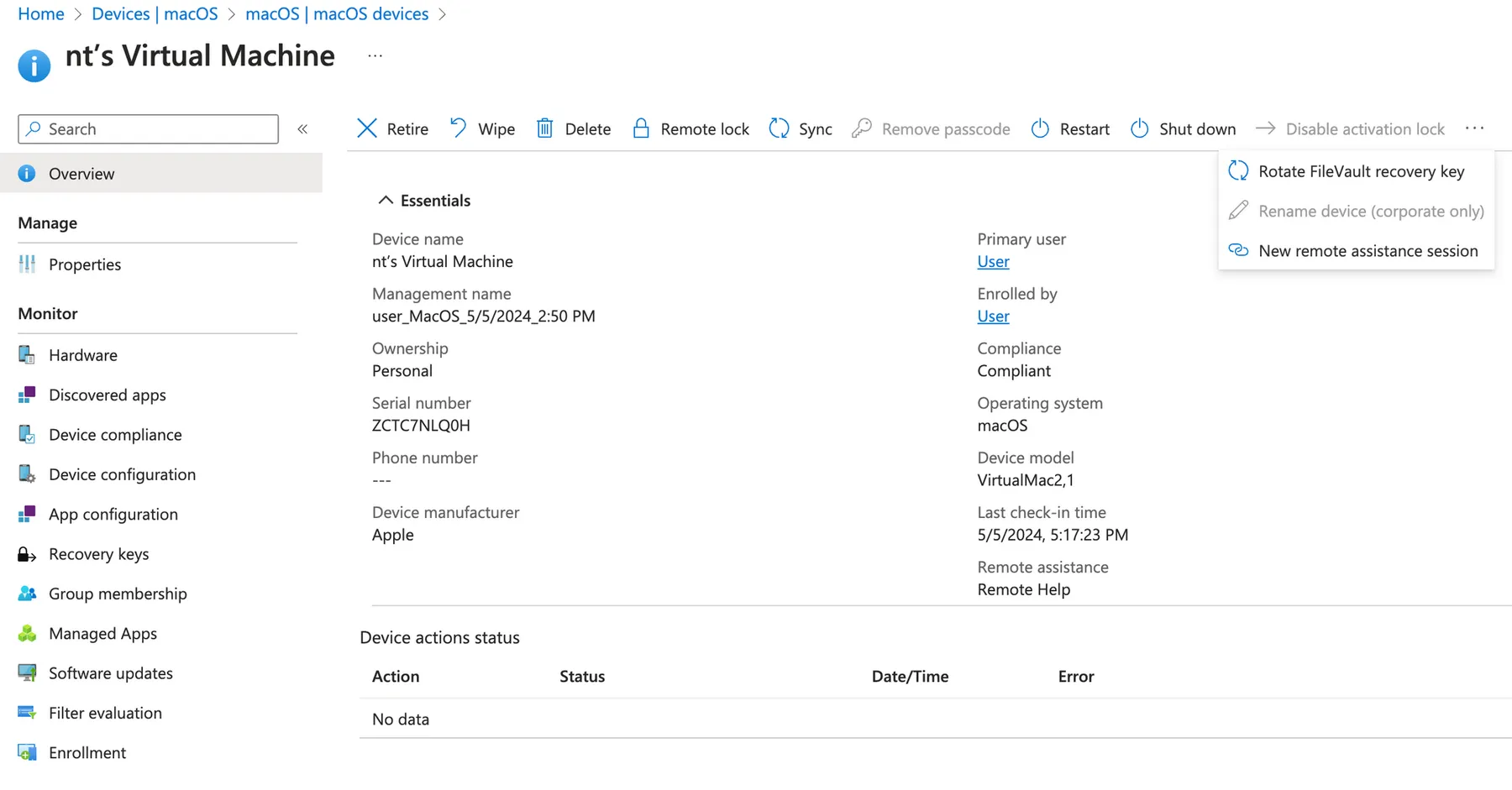
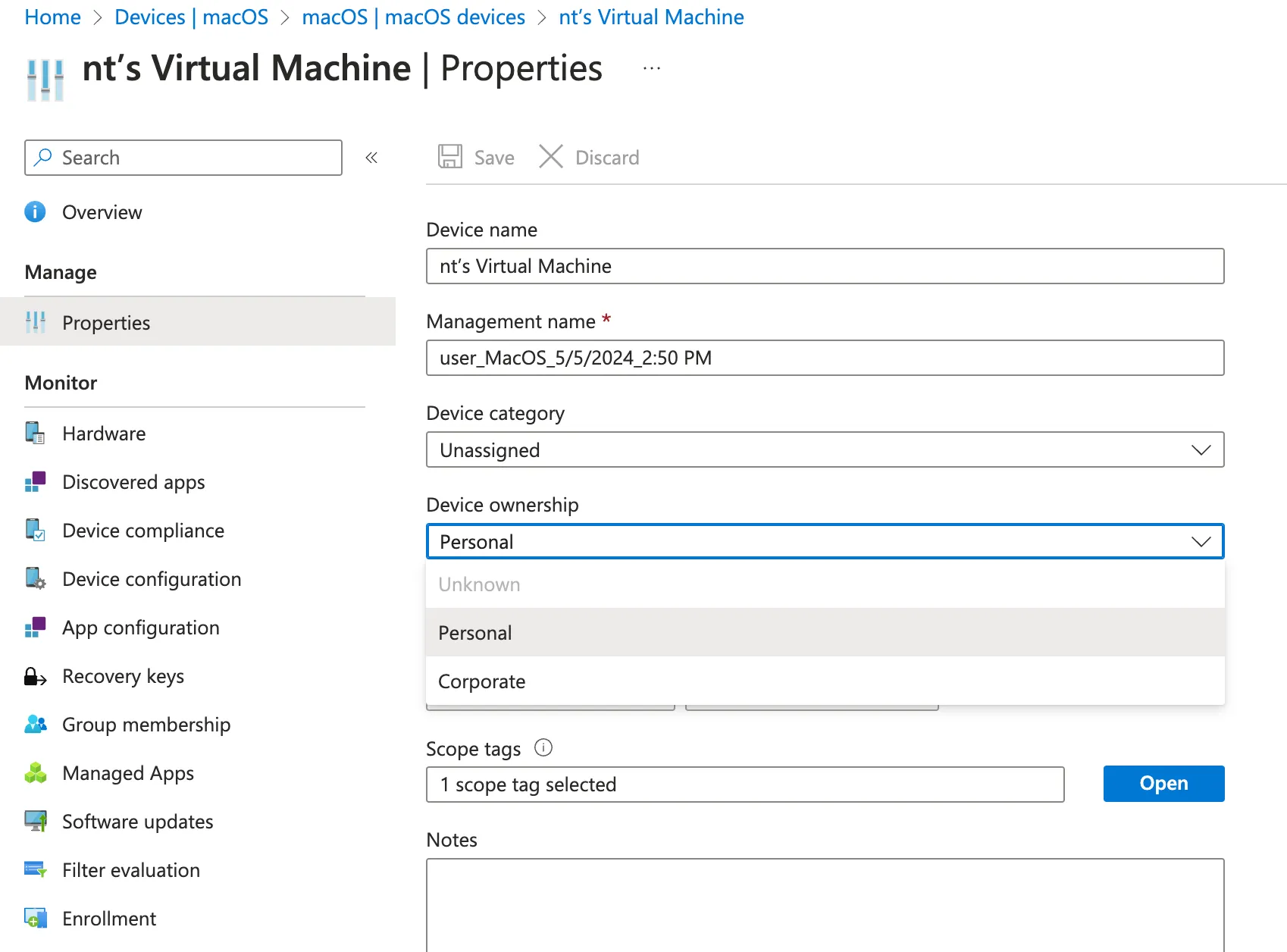
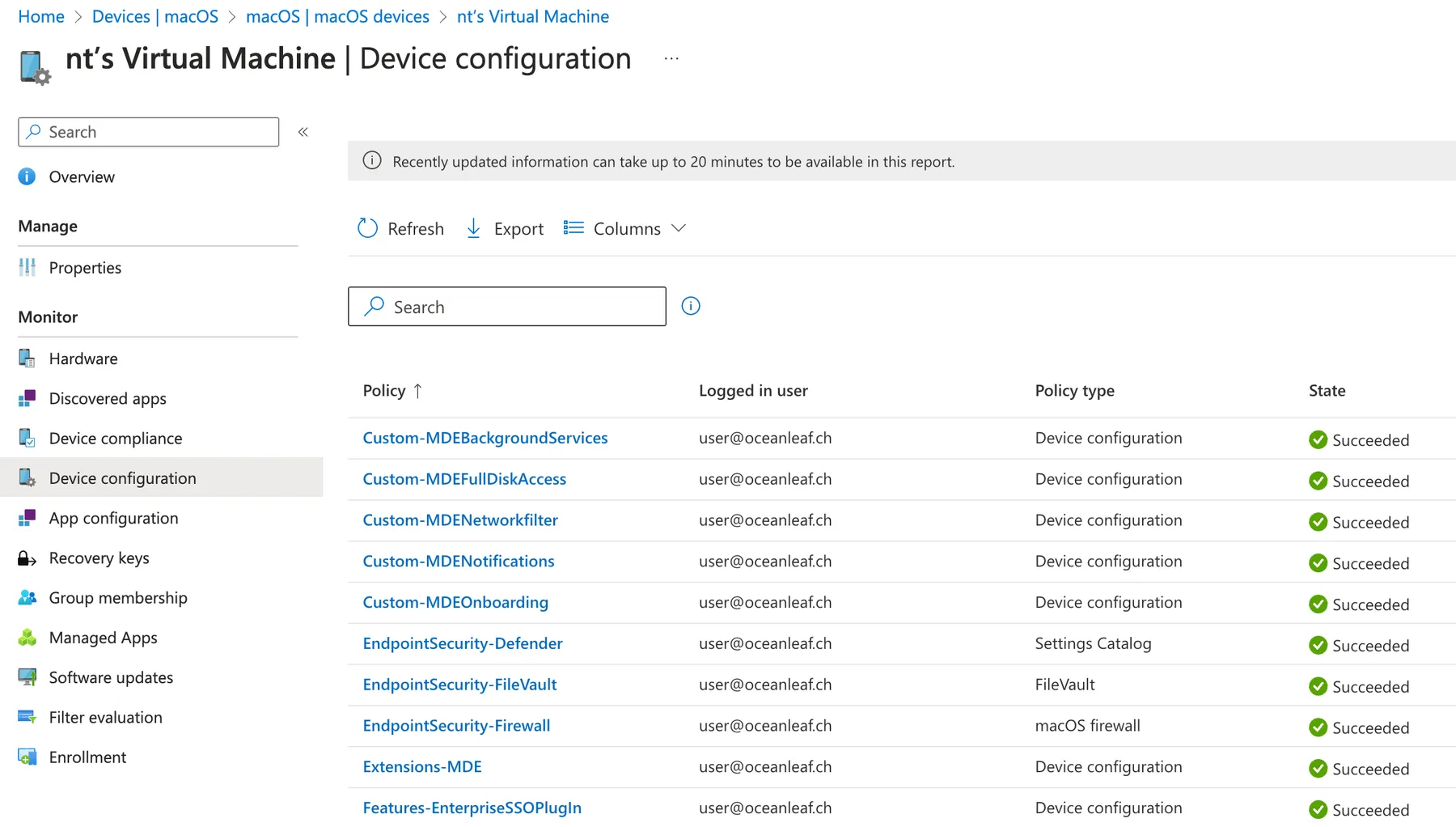
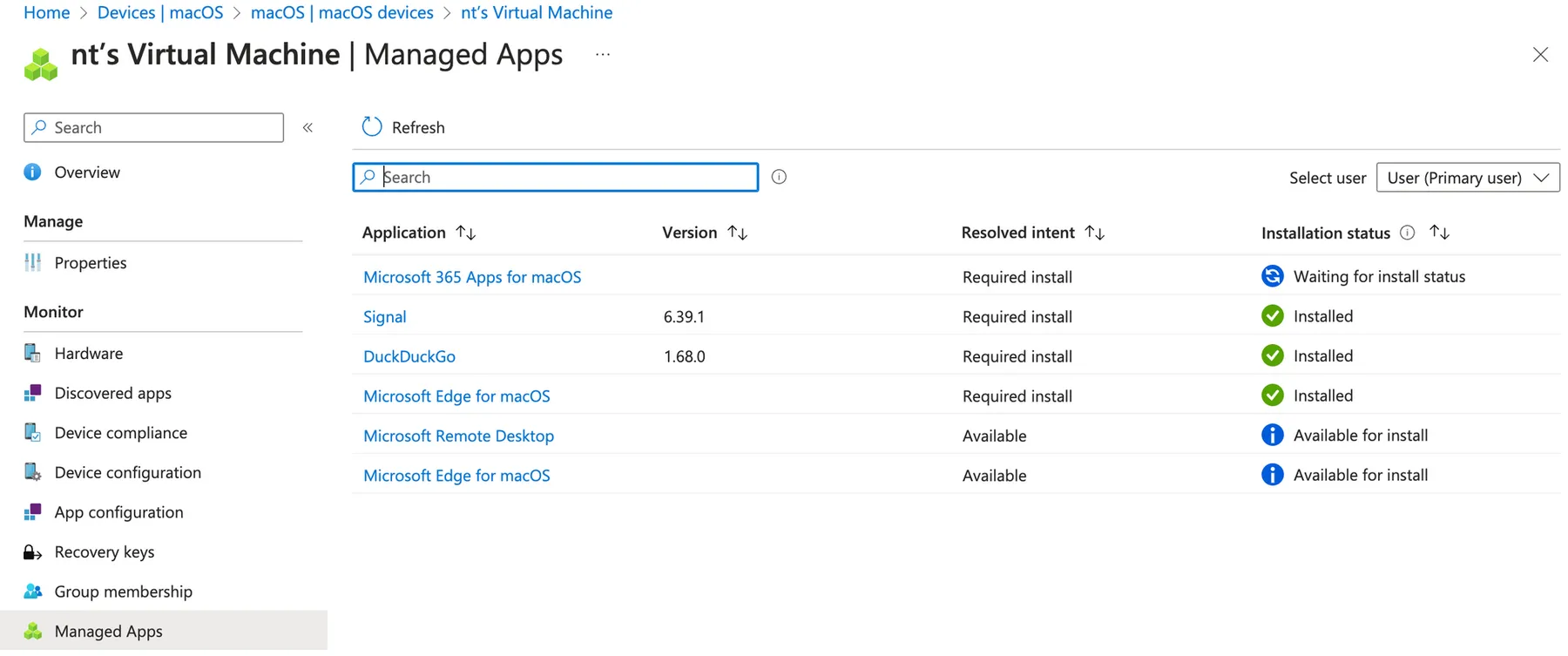
After the enrollment I recommend to restart the Mac to apply all policies (especially FileVault and password policy) succesful and get compliant. Next step is to perform remote actions and monitor the endpoint through Intune:
Bonus: Intune - macOS repo
To kickstart your Intune management journey, I have created a little repo with some default Intune policies and profiles ready to import. Settings Catalog profiles can be imported directly and for the rest you need Graph or tools like IntuneManagement.
Next steps
Here is some inspiration on next steps, that I will feature in the upcoming blog posts:
- Set up Declarative Device Management (DDM) policies for updating
- Add more configuration profiles/settings catalog (including SSO like Platform SSO)
- Enroll the Mac into Defender for Endpoint
- Deploy & package apps
- Add scripts + custom attributes
- Conditional Access integration
powered by
Related posts