
The way from ADFS to Entra ID managed authentication
Base concepts
Federation services have found their journey to the cloud. Known on-premises Active Directory Federation Services (ADFS) was the origin way to provide local identities for authentication and authorization purposes. But this is not the recommended way anymore, instead using Entra ID.
The equal thought is for the applications that needed such a authentication layer/provider. In Azure, we talk about Enterprise Applications and App registrations, as described here.
ADFS
Active Directory Federation Services is a server-based role, that is part of most domain networks. Single-sign-on with a federated identity that authenticates to any kind of application and claim-based access control for authorization. It is basically the platform to implement when attempting for application security.
Entra ID
Microsoft Entra ID is not just AD in the cloud. It is the main identity- and access management product in the Microsoft cloud, that offers more suitable features. It is a IDaaS, identity as a service solution across apps located everywhere.
Readiness
Concepts
Before starting the journey, you should be clear about the final situation:
- ADFS service disabled, authentication requests handled by Entra ID
- Password hash sync enabled on Entra Connect
- No federated domains, instead cloud managed domains
This is for sure best practice and simply the future. ADFS is a complex product, requiring special rules and even proxies. With Entra ID we are server-less, easier to manage and even more reliable.
Some organizations find that their password hashes should not be in the cloud. But also for this case you can get rid of ADFS. Read about Pass-through authentication, where you keep your passwords and can use Entra ID authentication. For my case, I want to go with password hash sync, as it is more convenient.
Technical
Get federated domain
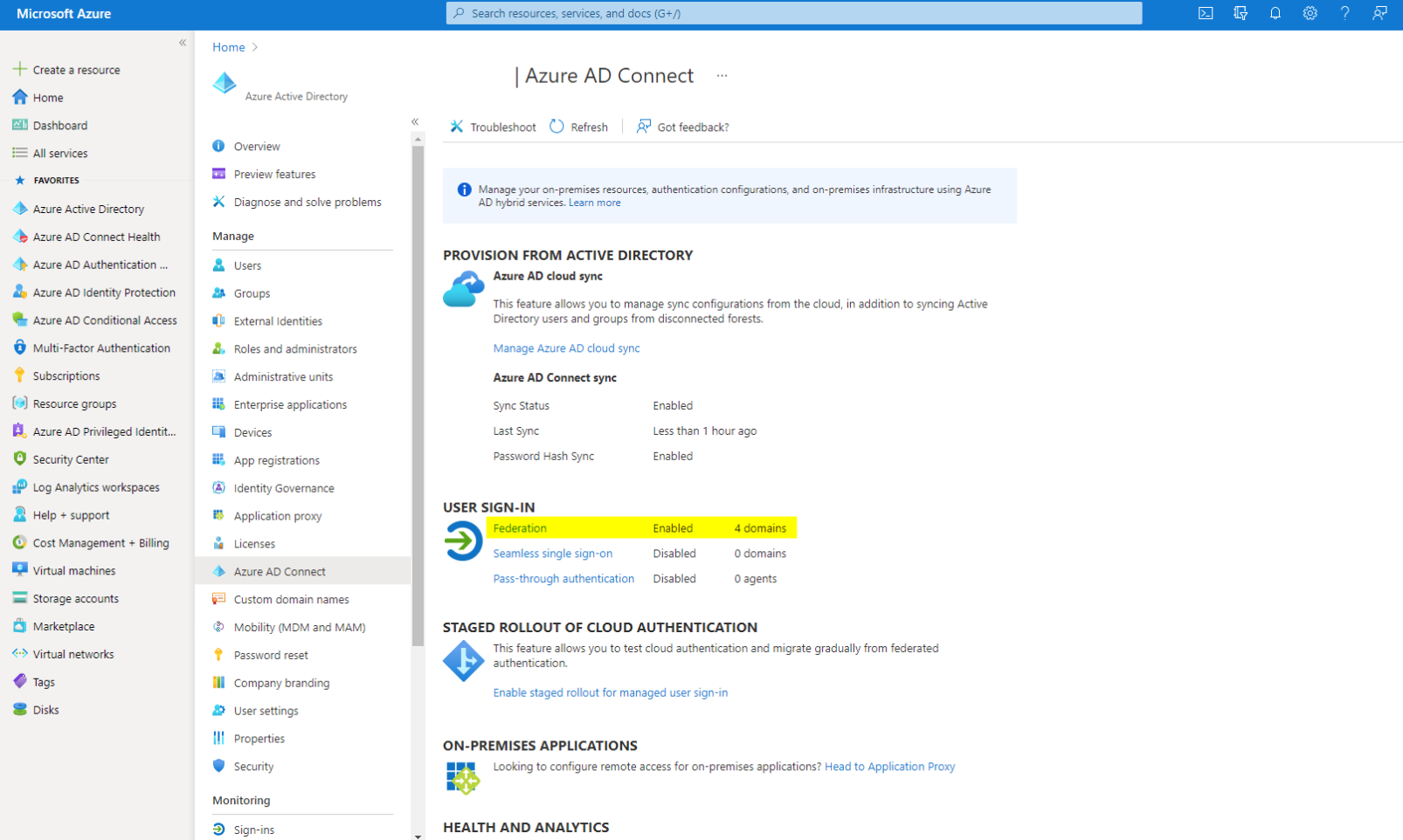
First of all, I would consider a look into Microsoft Entra ID>Entra Connect>User sign-in, there Federation.
Save Domain details
It is always good to have a configuration saved, which is functional and can used for rollback. To achieve this for M365 side, run following commands:
- Log in to your Microsoft tenant with Microsoft Graph PowerShell
Connect-MgGraph -Scopes "Domain.ReadWrite.All", "Directory.AccessAsUser.All"
- Copy the following output: (insert your own domainname)
Get-MgDomainFederationConfiguration -DomainId domain.com | fl *
Subsequently we are going to save the ADFS config. Run this command from the ADFS server, to ensure functionality.
(Get-AdfsRelyingPartyTrust -Name "Microsoft Office 365 Identity Platform") | Export-CliXML "C:\temp\O365-RelyingPartyTrust.xml"
Entra Connect
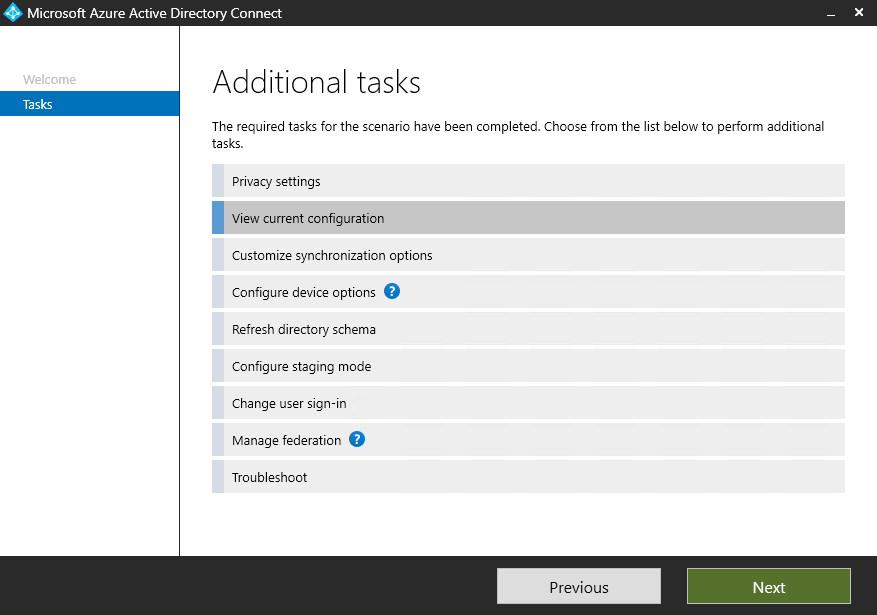
To enable password hash sync, install or upgrade to the latest version of Microsoft Entra Connect. Take a look at the current configuration in Entra Connect. The second thing to check is, if password hash synchronization is enabled. The last prerequisite is to verify if ADFS was configured with Entra Connect. On the "review your solution" section, you should see anything that conducts to ADFS. If not, you are required to use Powershell to convert your domains. This is what I am going to do.
Configuration
If you have prepared for the implementation, you are now only a few commands away from the target. To prove everything works, it is good to have some test accounts of the domains you want to switch from ADFS to Entra ID.
- Log in to your Microsoft tenant with Microsoft Graph PowerShell
Connect-MgGraph -Scopes "Domain.ReadWrite.All", "Directory.AccessAsUser.All"
- Convert your domain from federated to managed (insert your own domainname)
Update-MgDomain -DomainId domain.com -AuthenticationType "Managed"
-
Verify the status:
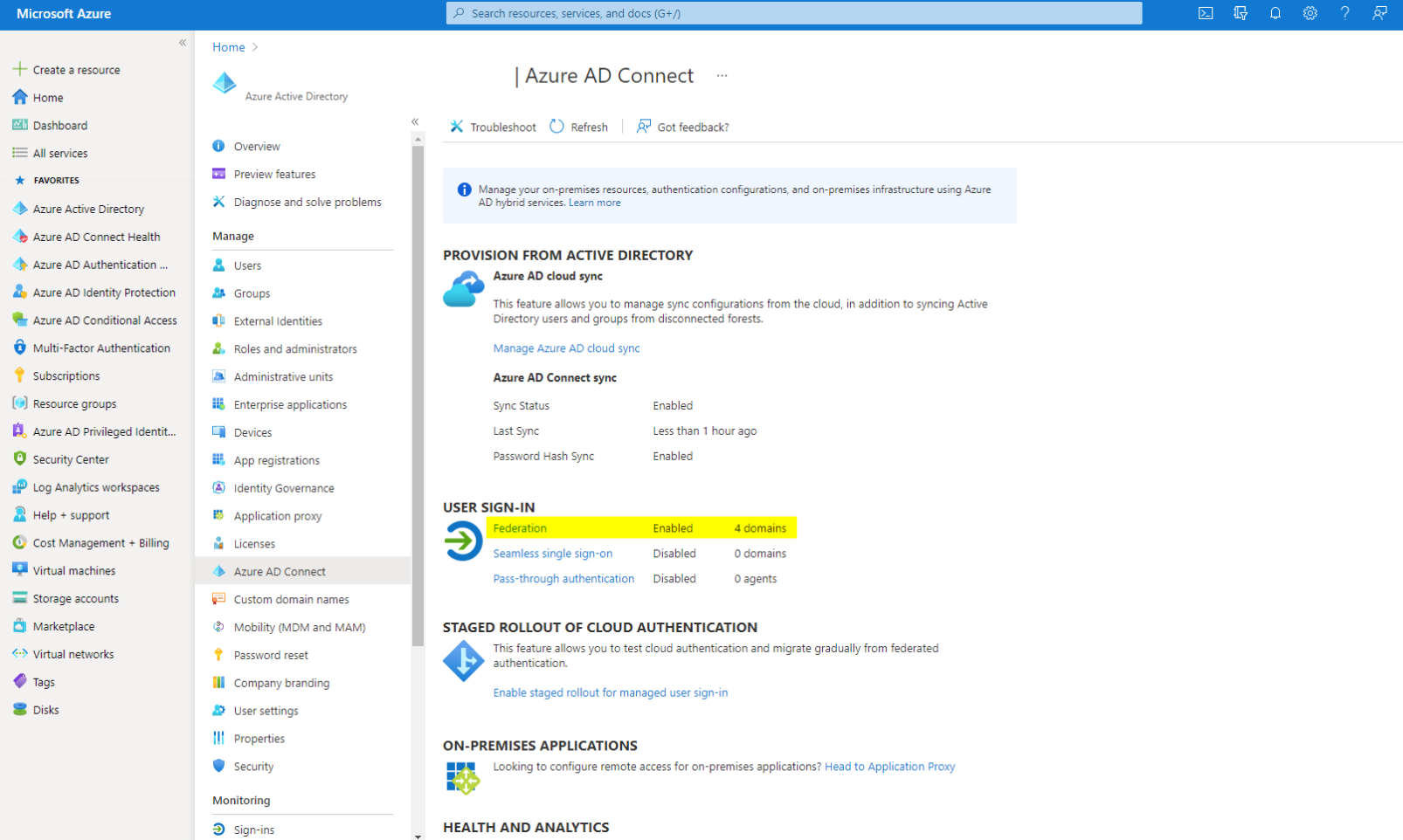
Get-MgDomain -DomainId domain.comshould now show the authentication type Managed. You can also check it in the Microsoft Entra admin center under Entra ID > Entra Connect.
-
If the count of domains decreased, and the domain you converted is not enabled for federation anymore, you can move on and run an Entra Connect initial sync
Start-ADSyncSyncCycle -PolicyType Initial
This will start an initial synchronization and will update all attributes you changed. I recommend doing this after each converted domain.
- Finally, try to log in with an account of the domain. Notice that the URL is forwarding you to a microsoftonline.com site, instead of ADFS.

Please be aware that after you ran the Update-MgDomain command, the conversion can take up to 60 minutes. During this time, new sign-ins to browser-based apps may not prompt for credentials as expected, so plan this delay into your maintenance window.
Through the sync of Entra Connect, the password hashes do get updated every 30 minutes in the cloud and this will also affect on users which change their password on-premises.
Outages
Let's talk about potential unwanted influences for your systems and applications. Password Hash Sync will usually prevent you from any outages, as your hashes are already in the cloud. Even if ADFS were to fail, this mechanism would work. So thats a clear benefit. When it comes to setting domain authentication, users may experience some failed logins to Microsoft 365 services that use Entra ID as identity provider. But cookies and caching of credentials should bypass this problem for the users. Although, if you have a lot of login attempts that come directly to M365, a clear communication is probably the preferred way.
Risks and rollback
Luckily, any changes made through this method can be easily reversed. Use the cmdlet New-MgDomainFederationConfiguration to convert the domains back to federation with ADFS. More information
In addition, it helps to execute the tasks from the technical readiness. With this you should be fully safe and prepared for any disadvantageous situations.
When it comes down to risks, there is barely anything to consider. Take your time, make a plan and get all the information you need.
Decommissioning ADFS server
Last, it is about building back the ADFS server. I would not shut down the server right away after the Powershell commands, but disable the relying party trusts.
After this, I would still let the server alive for at least 2 weeks, to guarantee full functionality across the enterprise, in each use case. Don't forget to think of proxies or legacy connections to ADFS. And when you are satisfied with all these considerations, you can shut down and delete the server with a clear conscience.