Enable network authentication with Entra ID only joined devices & Intune

Introduction
This post is a brief summary of establishing network connection (wired or wireless network) on Intune managed devices, from my experience.
Challenges
-Entra-only joined devices are not present in Active Directory and therefore certificates can not be issued by the PKI, resulting that clients can not authenticate with a certificate.
-Your network is one layer of your security perimeter and should be protected.
-Additionally, the configuration must be accomplished with Intune.
Solutions for network authentication
- Open (no authentication)
- Pre-shared key (password)
- Certificate authentication <- this posts focus
- User authentication with username + password
Background: Kerberos unconstrained delegation cloud allow attackers to extract Kerberos keys from the isolated LSA process. NTLMv1 classic authentication is attackable. Learn more from the Microsoft docs
Certificate-based authentication
My recommendation is to achieve authentication to your corporate network through certificates, because it is the most secure way. Even though you need some technical prerequisites in place:
- Certificate deployment to clients - PKCS or NDES Intune

- Network profile configuration deployed from Intune
- Trusted Root certificate deployed to your clients (from the CA and authentication service server certificate)
- Configuration from your network devices / RADIUS setup
Network authentication
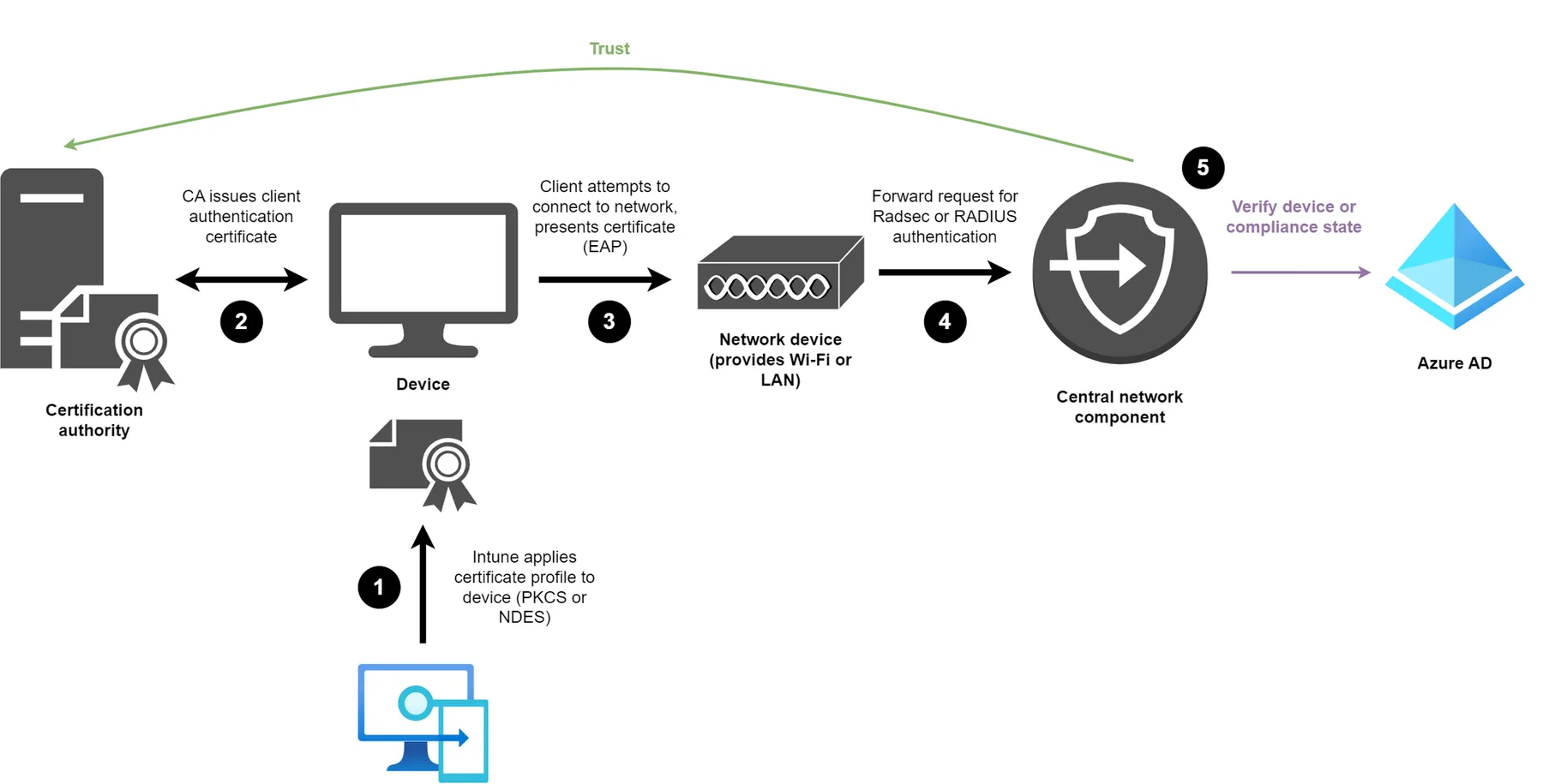
Another challenge is the configuration from the network side. Your clients typically talk EAP (TLS) with the end network device which could be an access point or switch and these then forward the request to a central component, that can handle RadSec or RADIUS protocols in order to validate the authentication request.
There are multiple validation techniques available, depending on the product and vendor. But to verify the request, the network component can do one or more of these checks:
- Verify the client certificate if it was issued by a trusted certification authority
- Check the Subject (Alternative) Name -> here it is important to configure these right in the Intune profile (correct attribute such as DNS)
- Confirm if an Entra ID device object exists (requires integration, usually Enterprise Application to view devices)
- Check the compliance state of the device (also requires an integration to Entra ID)
Intune profiles
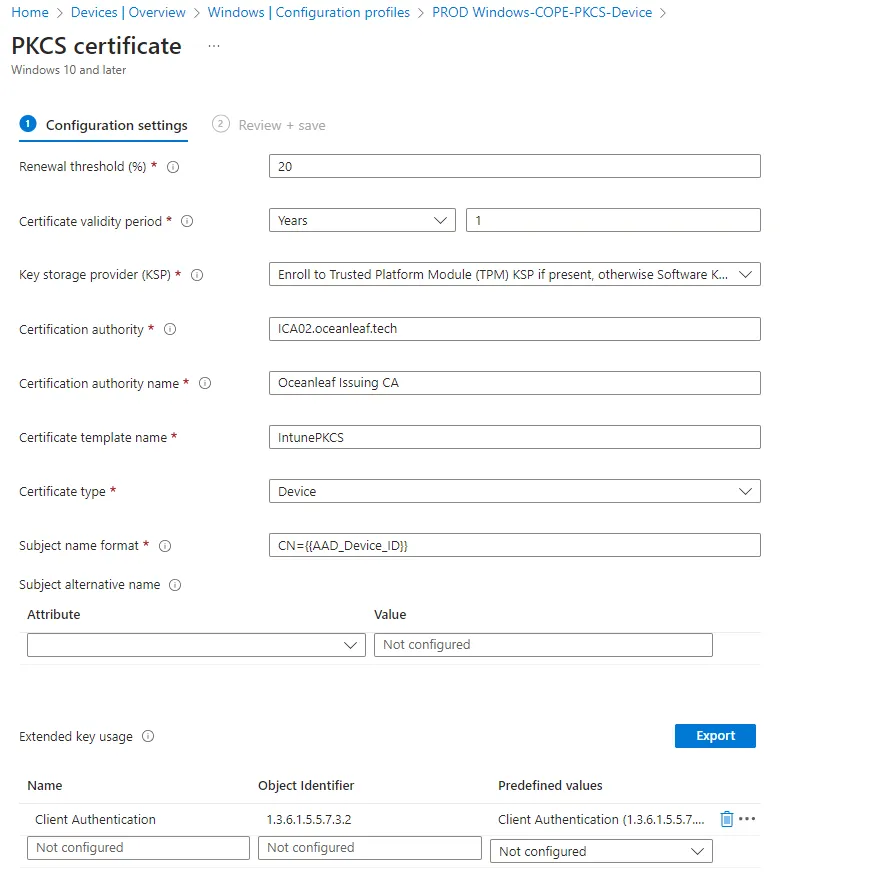
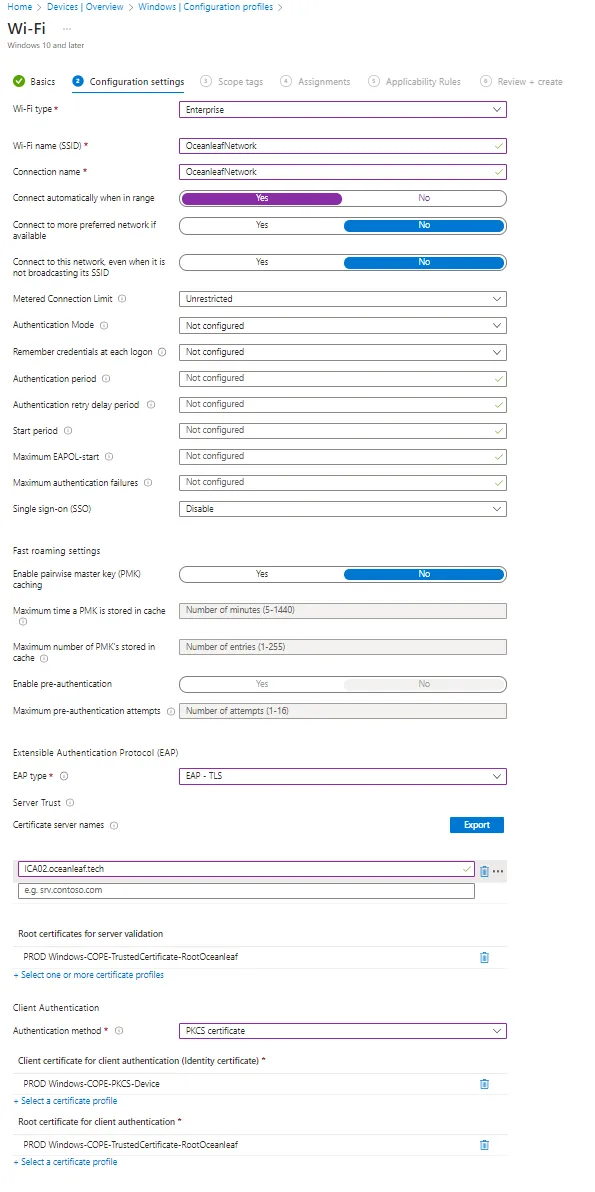
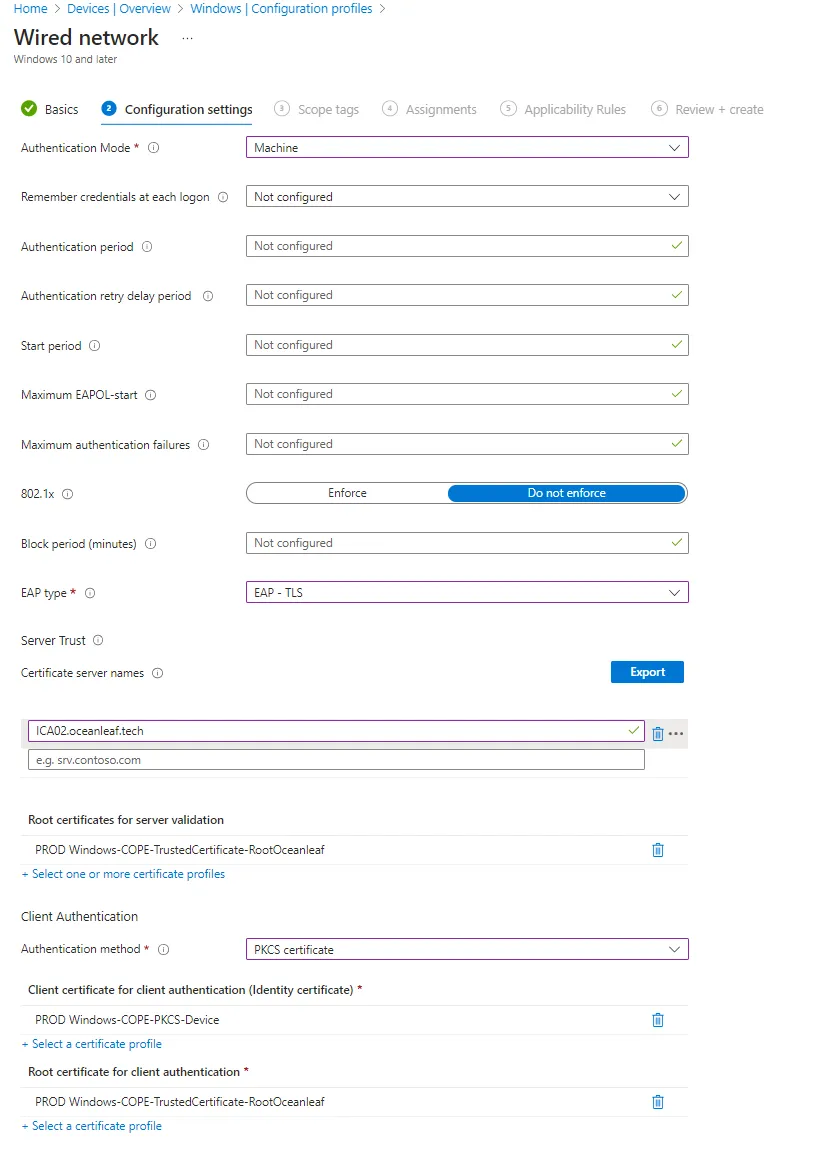
You need the following profile types:
- Trusted Root and Intermediate certificates (trust chain must be complete)
- PKCS or SCEP for certificate deployment
- Wi-Fi or wired network
See some samples:
Related posts