
Top 10 Entra & Intune Security Tips
Introduction
This post is a collaboration with Indefent where you will see the first 5 tips around Microsoft Entra and Intune in my post and the others in his blog post:
http://www.indefent.com/top-10-entra-intune-security-tips/
Let's jump right into it:
1: Intune compliance default setting
First off; Assuming your Intune devices have no compliance policy assigned, how would you imagine they would show up in the portal? Not compliant, right? Well, Microsoft sees this differently.
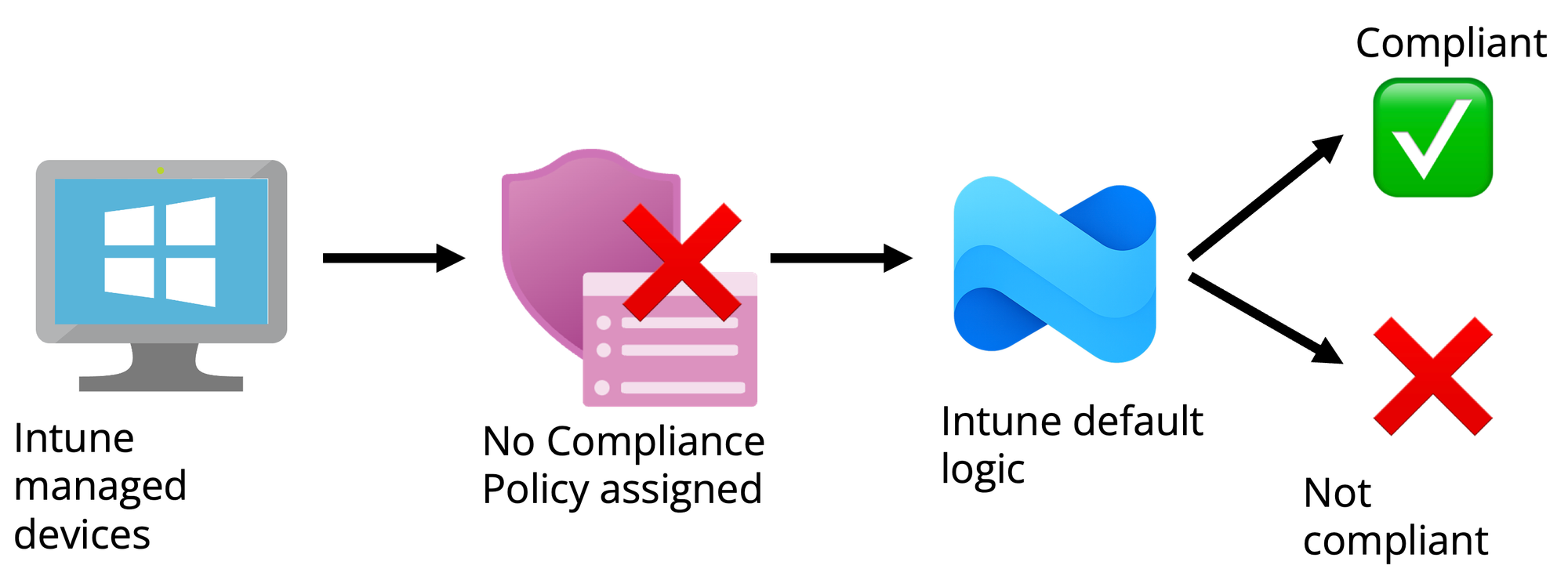
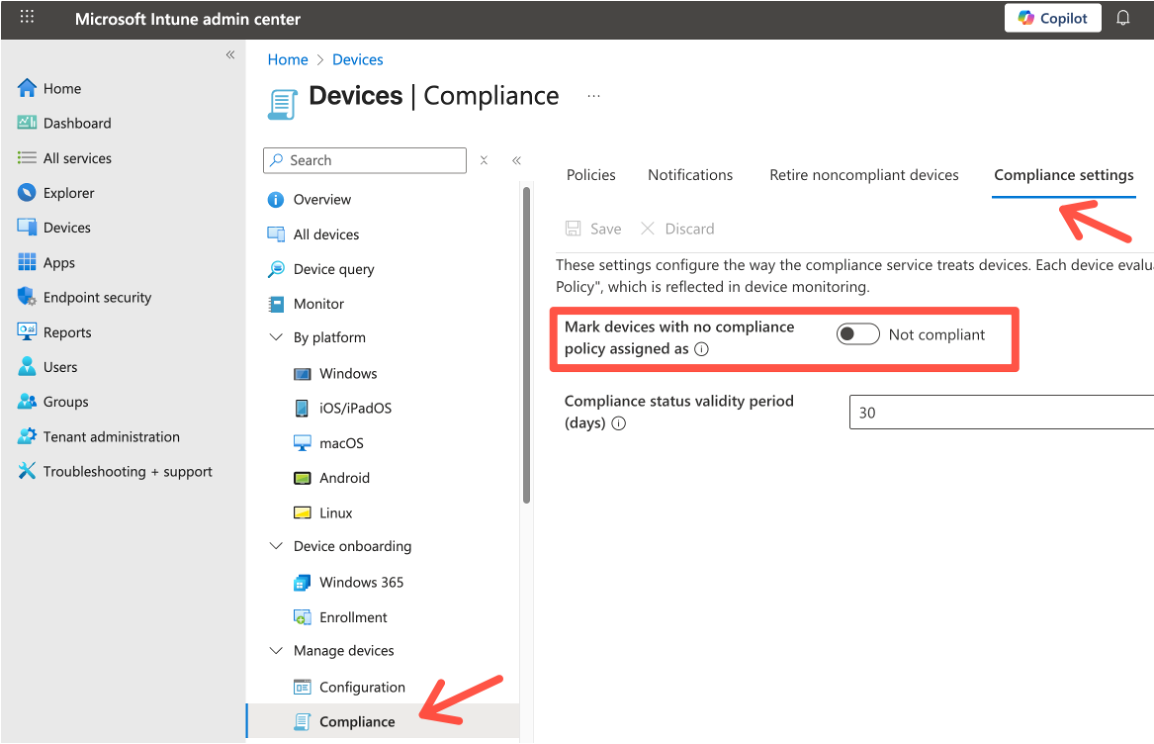
To verify/change this behavior go to the Intune compliance settings:
Read more:
 Niklas Tinner
2: Entra Authentication Methods
There are still a lot of tenants out there who rely on weak multi-factor authentication methods. Keep in mind, this is the hierarchy in terms of security:
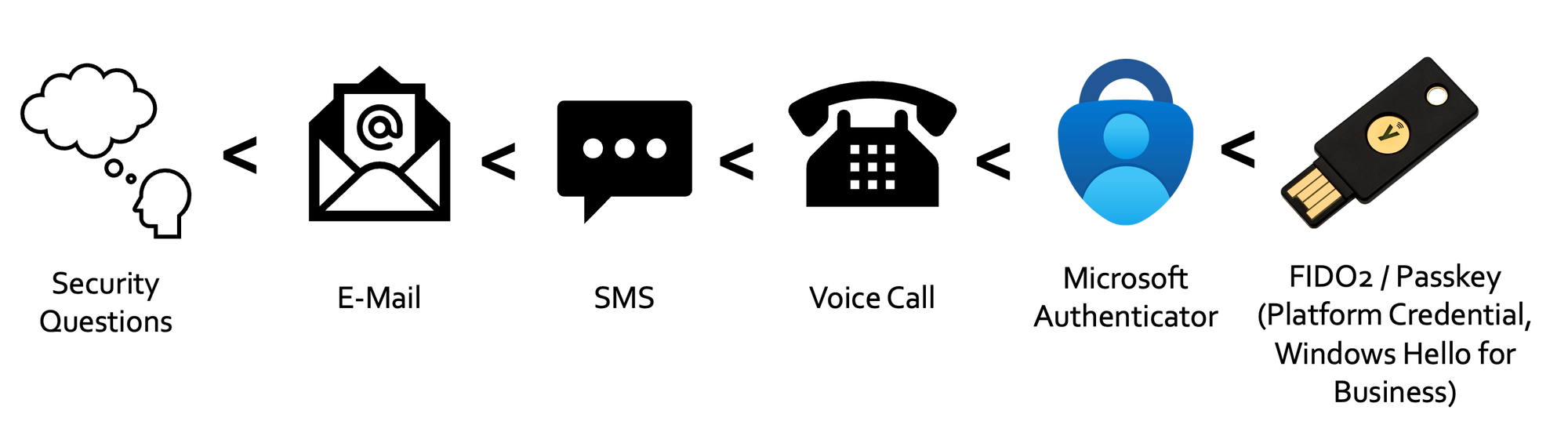
You should configure your enabled Authentication Methods and ultimately force FIDO2 or Passkeys for robust identity security - read more in this dedicated blog post:
 Niklas Tinner
3: Entra Authentication Strength
Multi-factor authentication is mandatory these days. However, as described before, there are weaker and stronger MFA methods. To enforce MFA with Conditional Access we all know this setting:
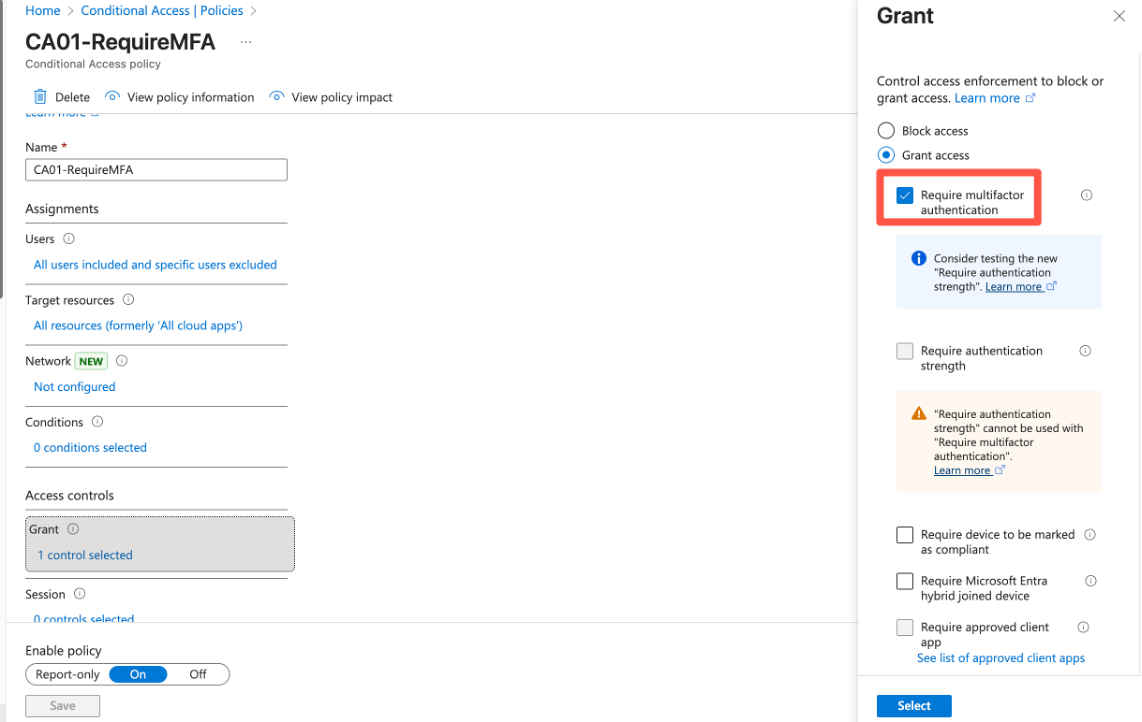
This setting requires any MFA method, without specific requirements. In Entra we have Authentication strengths to enforce specific methods, such as Phishing-resistant MFA or passwordless options. Microsoft offers these strengths built-in:
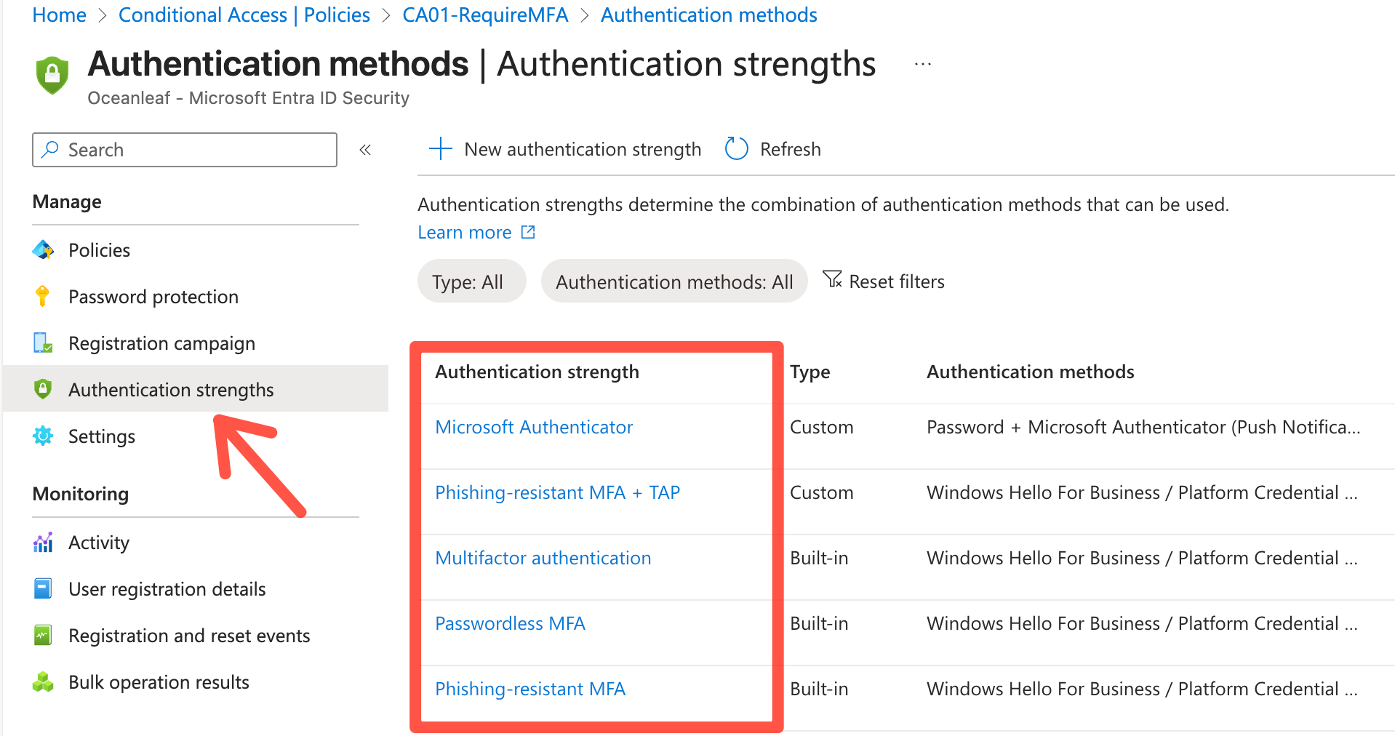
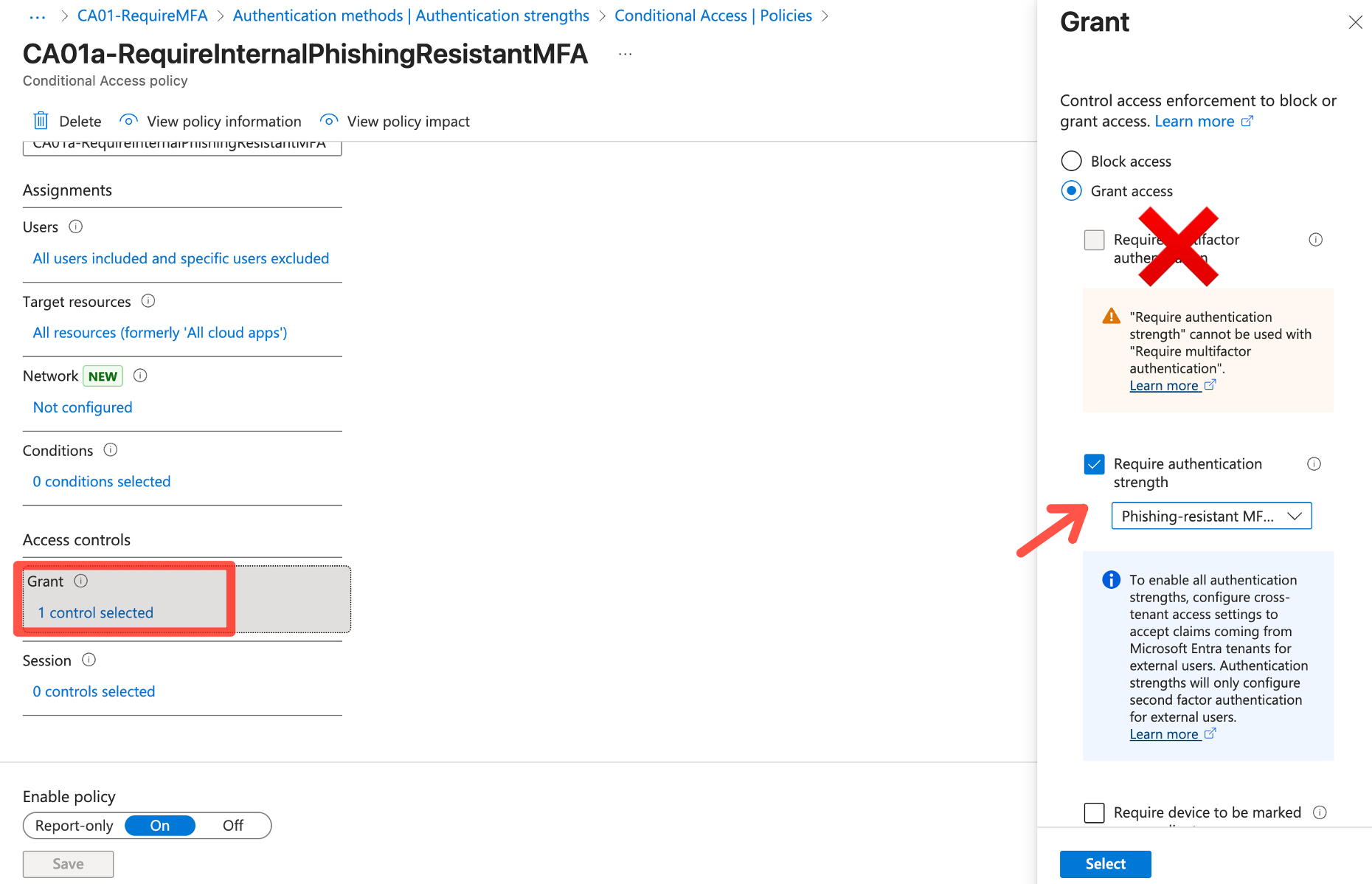
Use these strengths, instead of "Require multi-factor authentication" in your Conditional Access policies:
Read more:
 Niklas Tinner
4: Entra Log Analytics + KQL
Many customers don't save their logs to an Azure Log Analytics Workspace. In my opinion this should be mandatory, because:
- Default logs are only stored for 30 days
- In case of a security incident you need more and better insights
- Built-in filters and search is poor
- Use KQL and Azure Workbooks, as shown below for custom reports:
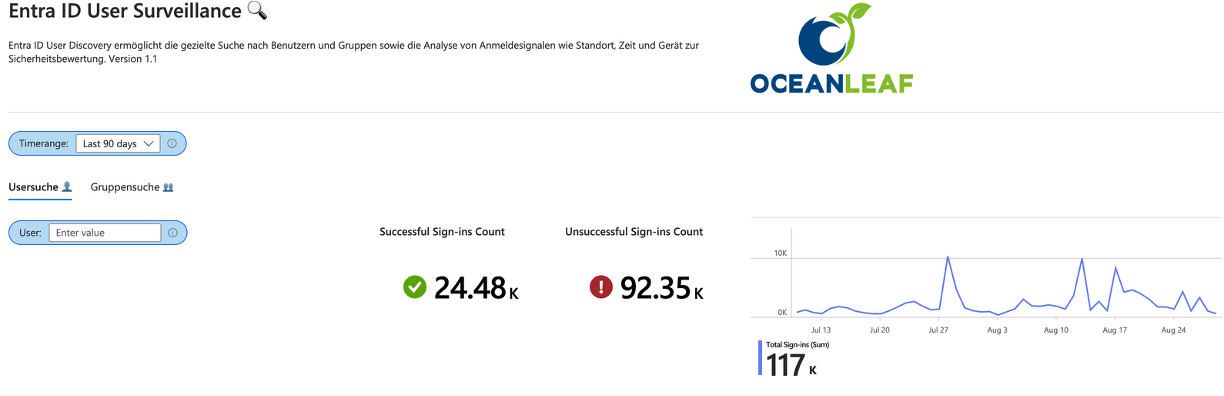
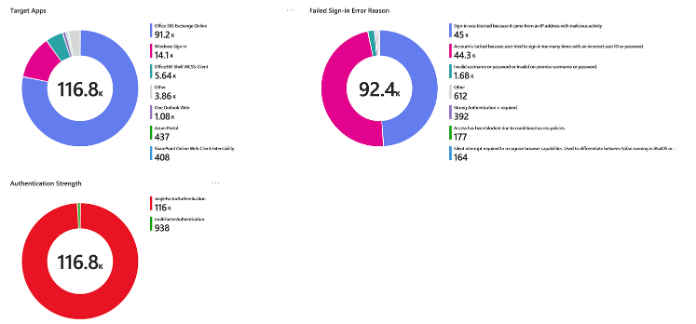
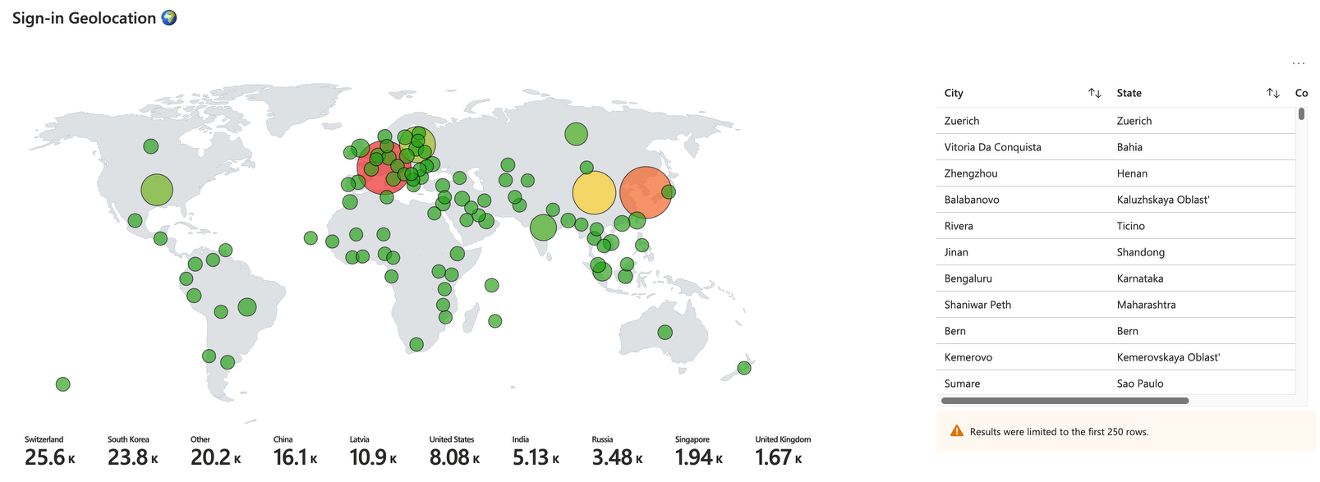
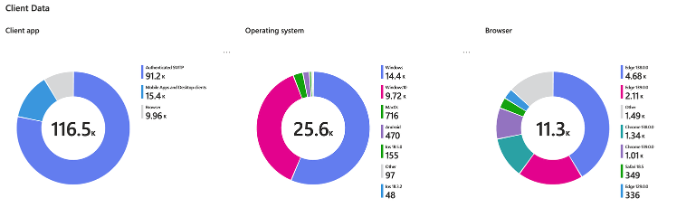
Configure in Entra Health & Diagnostics and connect it to a Log Analytics Workspace:
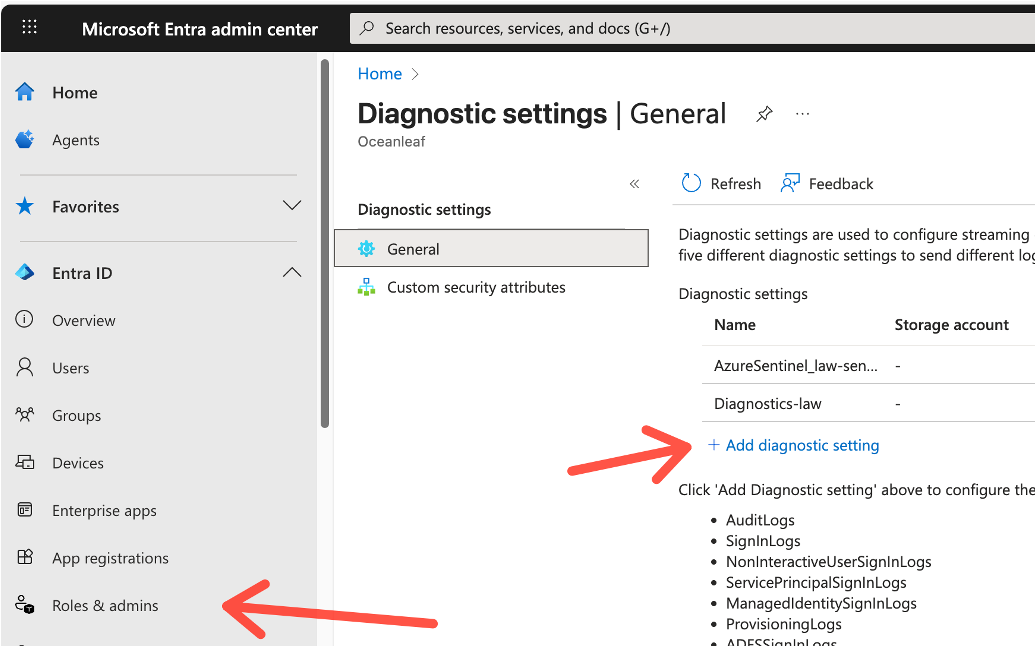
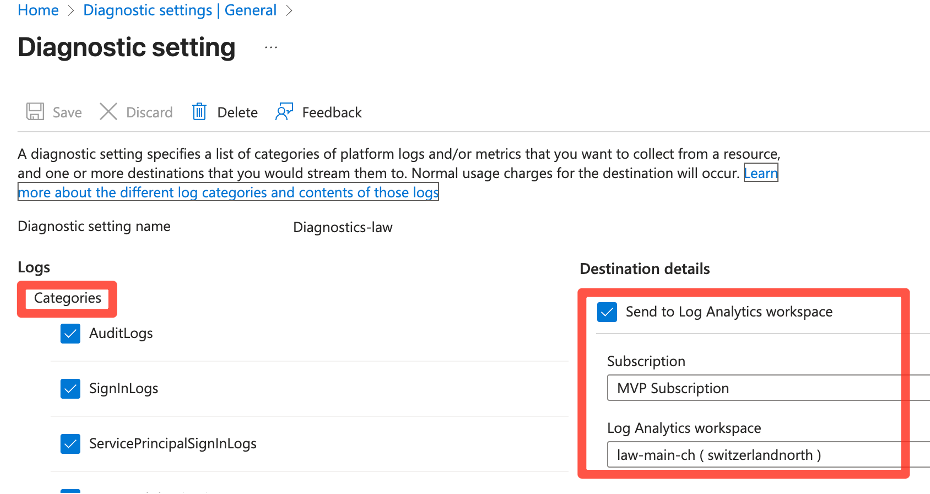
-Data Retention: Defines how long logs are stored
-Daily cap: Defines how much data can be ingested per day (will save your budget)
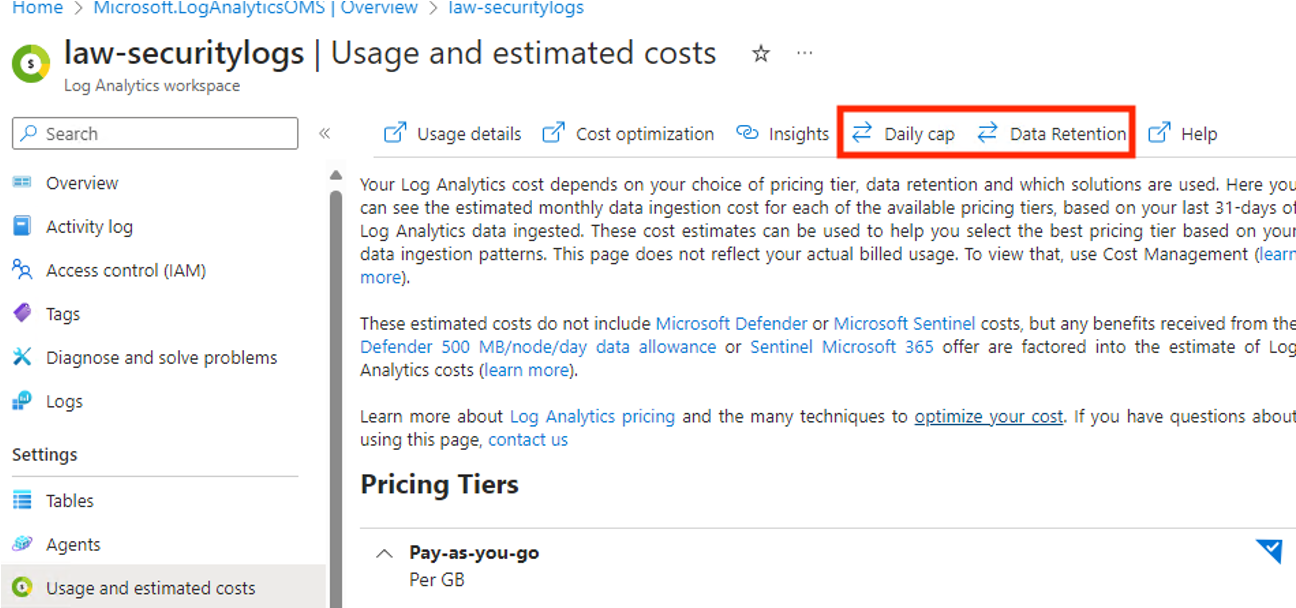
Read more:
 Niklas Tinner
5: Intune Security Baselines
Many customers solely use Intune for device staging and configuration management. However, security should be at top of mind - a modern endpoint security architecture should incorporate the following technologies:
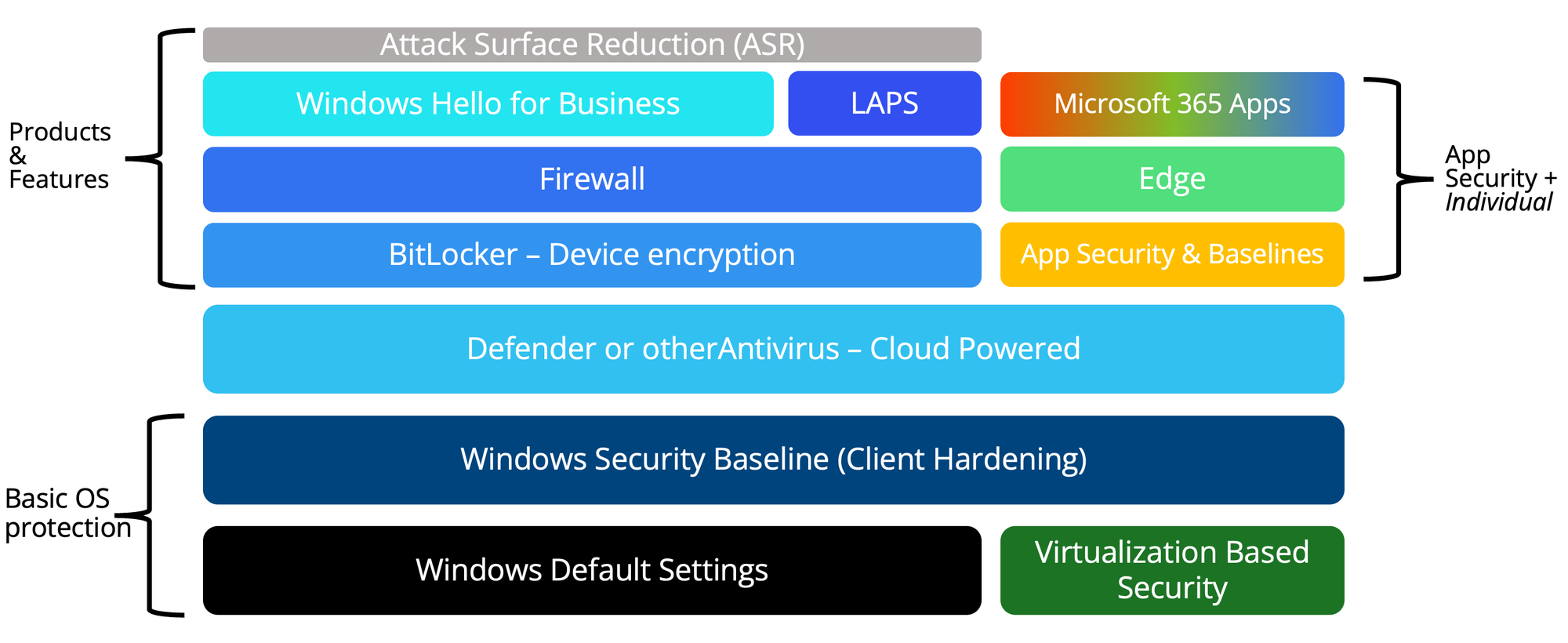
Security baselines provide an orientation around security frameworks, that you can follow along. Deep dive into my dedicated post:
 Niklas Tinner
powered by Oceanleaf
 Niklas Tinner