
How to control AI with GSA
The situation
AI, AI, AI everywhere! But wait, we as IT admins have the job to ensure corporate governance and prevent data leakage of sensitive information, that should not be with unauthorized parties!
Can we control AI?
For the corporate world yes. But it is a mix of organizational guidelines that employees must comply with and technical measures to control it.
Trust is good, control is better 😉
My take; I only think it is possible to detect, govern & control AI usage through visibility in the network layer. For long, in Microsoft worlds network has been put back and identity was the primary security perimeter.
But then Shadow IT & AI appeared. This means that users, outside of the IT department autonomously (and uncontrolled) are starting to use apps in the Internet.
In the end, all that happens on endpoint devices is generating network traffic. So in order to put IT policies on AI, we must address it this at the source.
The users perspective
We are all users by ourselves. And we are not stupid. So there will always be ways to evade technology and (ab)use AI.
But if there are strict organizational policies to obey, for example:
- Which AI models to use (and under which legal jurisdiction the hosting & training falls to)
- What data is allowed to process with AI
- Which platform & identity should be used
An organization with obligations or regulations can take consequences for employees who don't obey the rules.
Adoption & control techniques
In an ideal world, IT & business align on:
- Data classification (information protection and labeling)
- Technical policies <- this post is about network control over AI
- Adoption & usage best practices
Besides network, data classification is one of the other most effective ways to keep track of your data, because it travels with it.
The tech solution at a glance
Microsoft offers a neat product called Global Secure Access (GSA), specifically Internet Access. This is network security product included in E7 license or as standalone Entra Suite license (12$ per user/per month).
We are going to make full use of this technology, by monitoring, inspecting and applying policies to the network of all endpoints which the GSA agent onboarded, which is basically just a piece of software installed on your Windows PC, Mac or Mobile device. (You could also implement GSA at network layer with remote network, but thats a topic for another time)
GSA Internet Access routes the local network traffic (Website connections, or other resources communicating through HTTPS port 443 with your device) to a Microsoft Point of Presence for processing and applying restrictions.
What GSA does with this for AI
Decryption happens at Microsoft's edge, but what gets logged depends on the features you enable. For AI, the relevant ones are:
- Shadow AI discovery: which AI apps are used, by whom
- Content policies with Purview DLP: block sensitive (labeled) data from being uploaded to AI apps
- Prompt injection protection: block malicious prompts to supported AI apps
- Generative AI Insights: logs the full prompt content sent to supported GenAI apps
Here's a full list of policy types and controls by GSA:
| Policy type | What it does for AI | TLS inspection |
|---|---|---|
| Web content filtering | Block the GenAI category or specific AI apps by FQDN. With TLS inspection, block specific URLs, e.g. unsanctioned MCP servers. | Full URLs only |
| MCP policyMCP firewall | Block all MCP traffic until trusted servers are approved, or allow/block tools, resources and prompt templates per server. Filter by MCP protocol version. | Yes |
| Prompt policy | Blocks adversarial prompts and jailbreak attempts before they reach the model. Text only, up to 64,000 characters. | Yes |
| Content policy | Block uploads and downloads by MIME type, or forward matching uploads to Microsoft Purview for DLP inspection. This is where your sensitivity labels pay off. | Yes |
| Custom headers | Enforce corporate AI tenants, e.g. the ChatGPT-Allowed-Workspace-Id header with your workspace ID. Personal accounts are blocked. |
Yes |
| Universal tenant restrictions | Same idea for Microsoft services: GSA enforces a tenant restrictions v2 policy that blocks external accounts and apps. | No |
TLS Inspection
An important technical part is TLS Inspection, this is an additional configuration on GSA for full network insights.
Have a look at this comparison, on what can be seen with & without TLS Inspection:
Without TLS Inspection:
- IP-Address and Ports
- Hostnames (via SNI during ClientHello, e.g.,
oceanleaf.ch) - Server Certificate (TLS 1.2 only)
- Timestamps
- Data amount
With TLS Inspection:
TLS Inspection exposes the entire HTTP layer, meaning every request and response in full, including method, headers and body in both directions.
- Full URL including path and query parameters, e.g.
oceanleaf.ch/contact?ref=newsletter&utm_campaign=autumn - HTTP method, e.g.
GETfor viewing a page,POSTfor submitting a form,DELETEfor removing something via an API - All request headers, e.g. cookies, session tokens,
Authorization: Bearerheaders, API keys in custom headers, User-Agent, language settings, and theReferershowing which page the user came from - Request bodies, e.g. form input on
oceanleaf.ch/contact, search terms, chat messages, uploaded files, JSON sent to APIs, and potentially passwords on login pages - All response headers, e.g.
Set-Cookie(new cookies the server assigns), redirects, caching and security headers - Response bodies, e.g. the full page content, downloaded files, API responses
- WebSocket traffic, e.g. live chat or real-time updates that run over a persistent connection
Architecture
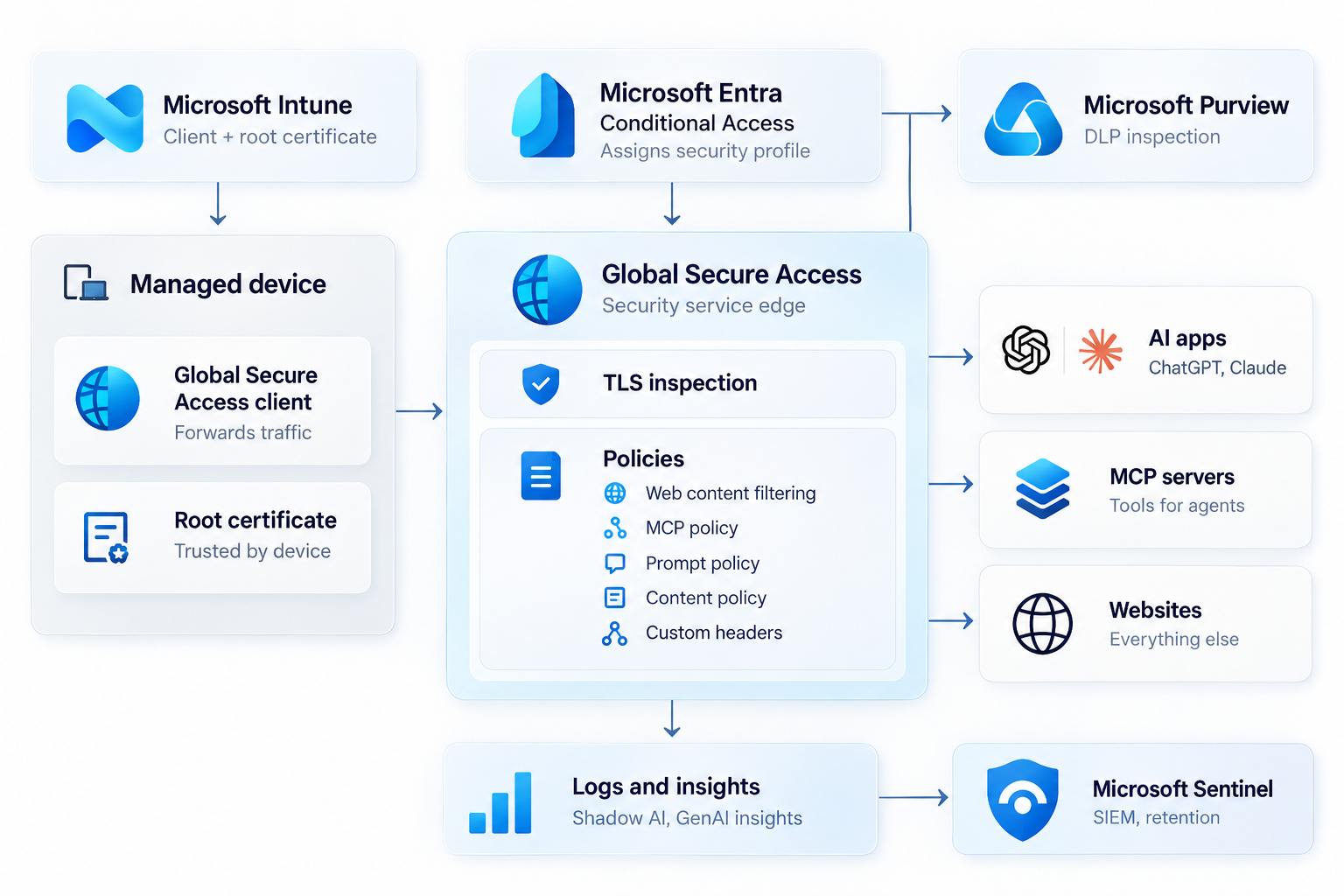
- Prepare: Intune deploys the GSA client and the trusted root certificate to managed devices
- Forward: The GSA client tunnels the device's internet traffic to the Global Secure Access edge
- Inspect and enforce: TLS inspection decrypts the traffic, then the policies apply. The baseline profile covers everyone; Conditional Access assigns additional profiles per group. Uploads can be handed to Purview for DLP inspection
- Deliver: Only allowed traffic reaches AI apps, MCP servers and websites
- Observe: All activity lands in logs and insights (Shadow AI, GenAI prompts) and can be streamed to Sentinel
Caveats
- Block QUIC: GSA doesn't support QUIC, so disable it in Edge and Chrome via Intune or traffic slips past your policies
- Microsoft traffic isn't inspected: Govern Microsoft 365 Copilot with Purview, because it bypasses the Internet Access tunnel
- Local MCP servers are invisible: GSA only sees remote MCP servers, so control local ones on the endpoint
- Expect breakage: Developer tools, Certificate Pinning and ECH destinations need their own CA bundle or a bypass rule
How TLS Inspection works
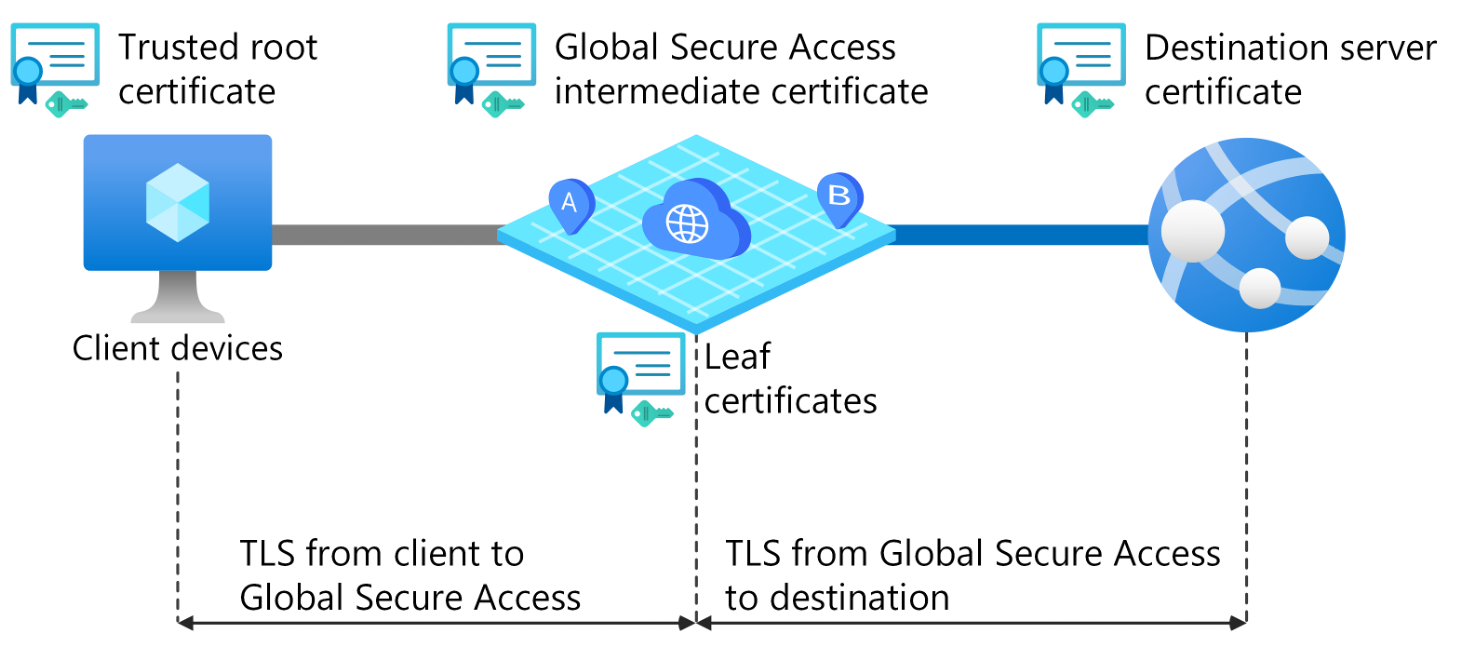
GSA acts as a legitimate man-in-the-middle. When a client device connects to a website, TLS inspection splits that one encrypted connection into two.
For this to work, client devices must trust your root certificate. GSA uses an intermediate certificate, chained to that root, to sign leaf certificates for each destination on the fly.
- The client connects to a website. GSA answers with a leaf certificate for that site, which the client accepts because it trusts the root.
- GSA decrypts the traffic, analyzes it and enforces your policies.
- GSA opens a separate TLS connection to the destination server, validates its real certificate and forwards the request. Responses take the same path back.
Technical configuration
For the complete intro & setup to GSA, have a look at my last blog post:
 Niklas Tinner
In an overview:
| # | Step | Path |
|---|---|---|
| 1 | Activate GSA | GSA > Get started |
| 2 | Enable Internet access profile, assign users | GSA > Connect > Traffic forwarding |
| 3 | TLS inspection (certificate + policy) | GSA > Secure > TLS inspection policies |
| 4 | Create policies | GSA > Secure > Web content filtering / Prompt / MCP policies |
| 5 | Link policies to baseline or custom profile | GSA > Secure > Security profiles |
| 6 | Assign custom profiles (optional) | Entra ID > Conditional Access |
| 7 | Deploy GSA client + root certificate | Intune |
| 8 | Verify | GSA > Monitor > Traffic logs |
#2 TLS Inspection
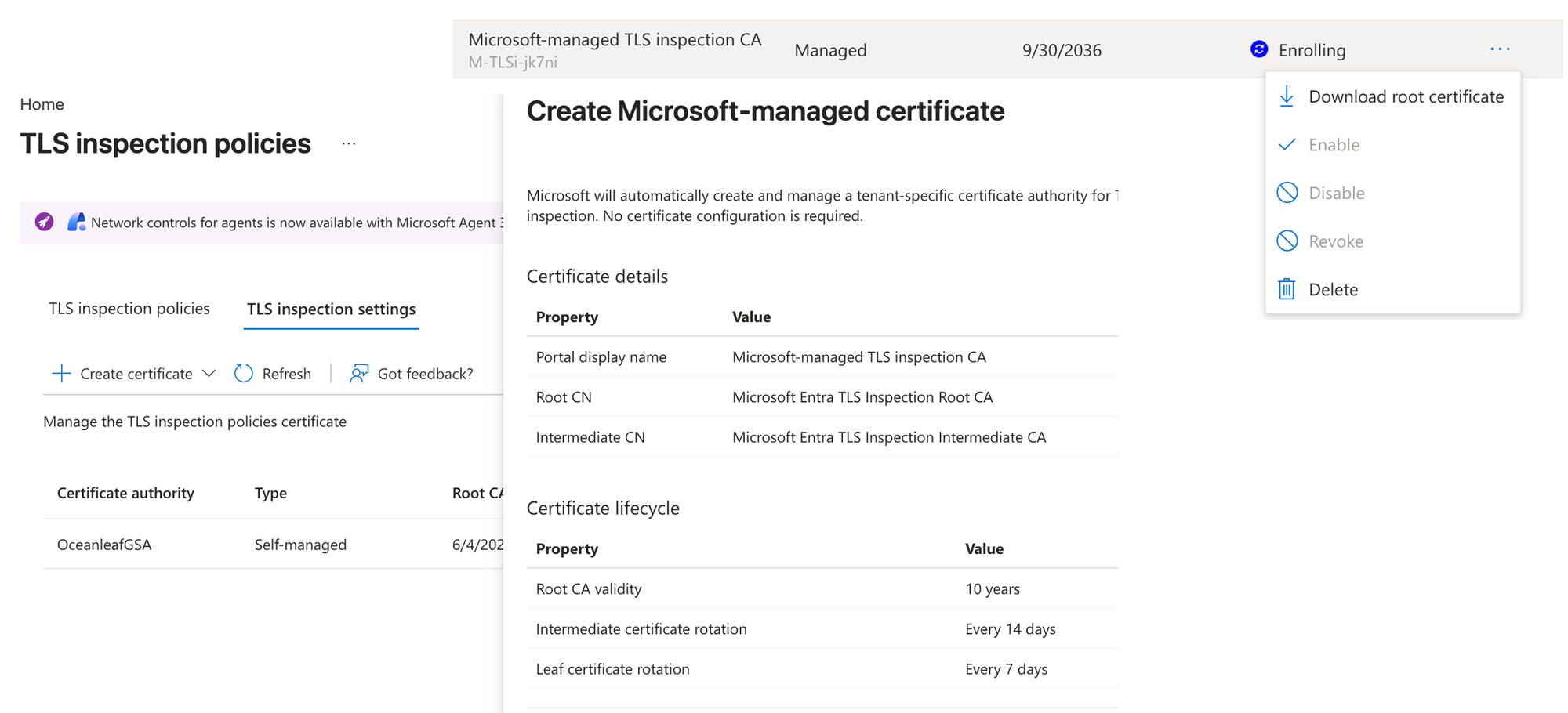
Microsoft now offers a Microsoft-managed certificate authority for TLS inspection. Instead of signing a CSR with your own PKI, Microsoft creates and rotates a tenant-specific root and intermediate CA for you. GSA still generates the leaf certificates per destination on the fly.
To set it up:
- Go to TLS inspection settings, create a Microsoft-managed certificate and enable it
- Download the root certificate and deploy it to your managed devices with an Intune trusted certificate profile
- Create a TLS inspection policy with action Inspect and link it to a security profile (baseline or Conditional Access)
#3 Logs
Built-in dashboards and traffic logs are the primary source for insights. However, I recommend sending the logs to an Azure Log Analytics workspace in order to:
- Run custom KQL queries across all traffic
- Use workbooks for reporting
- Create alerts and correlate with Microsoft Sentinel
- Retain data beyond the built-in retention period
Stream the logs to a Log Analytics workspace via Entra ID > Diagnostic settings. Two categories matter for AI:
| NetworkAccessTrafficLogs | NetworkAccessGenerativeAIInsights | |
|---|---|---|
| Answers | Who connected where, and what did GSA do? | What was sent to the AI? |
| Scope | All forwarded traffic | GenAI prompts and MCP activity only |
| Content | Metadata: user, device, destination, action, policy, TLS status | Full prompt or MCP payload |
| Requires TLS inspection | No | Yes |
| Volume | High | Low |
Dashboard
Want all of this in one central place? I built it for you: the Oceanleaf AI Command Center, an Azure Workbook for Global Secure Access.
powered by Oceanleaf
 Niklas Tinner